Version: 1.5.0

Translation

The Translation feature in MChat allows agents to translate messages within the Live Chat interface, facilitating communication with patients who speak different languages.

Translation Feature

How to use Translation in Hospital side

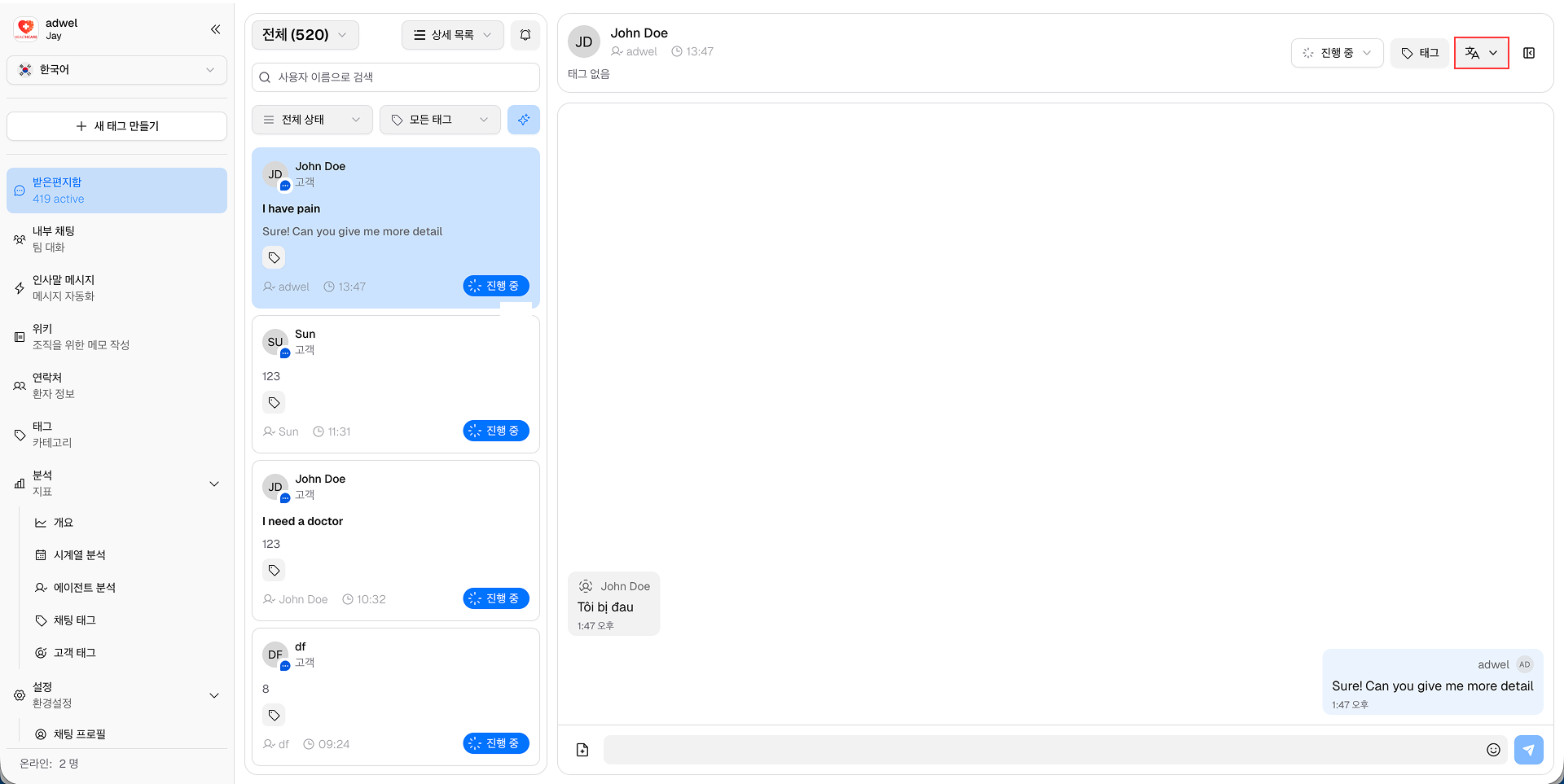
Step 1: In Chat Header of any chat room you want to translate the message, click on the Translate button represented by a translate icon.

Translate Button

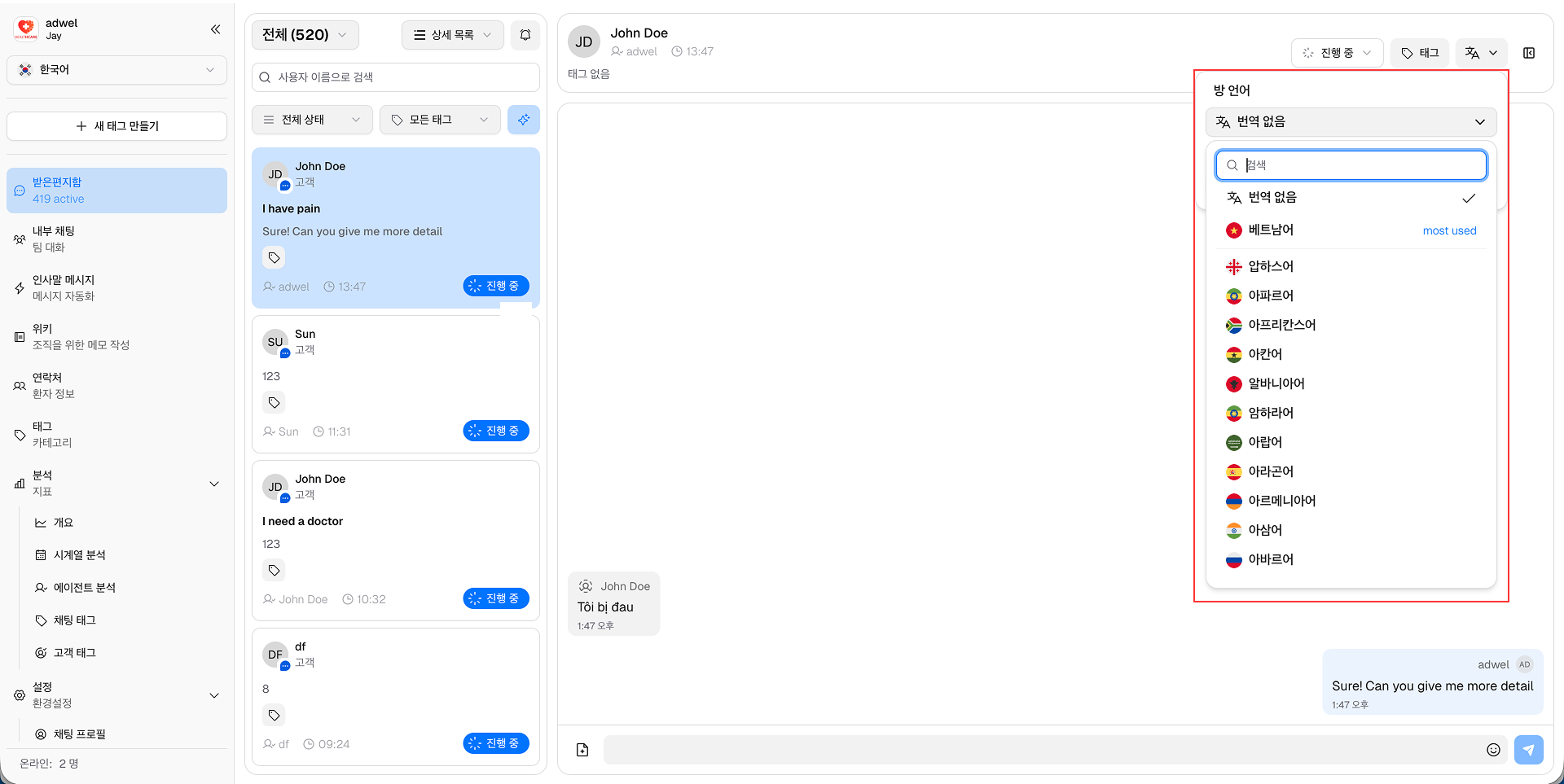
Step 2: A Room's Language pop-up window will appear, allowing you to select the target language for translation.

Translation Pop-up

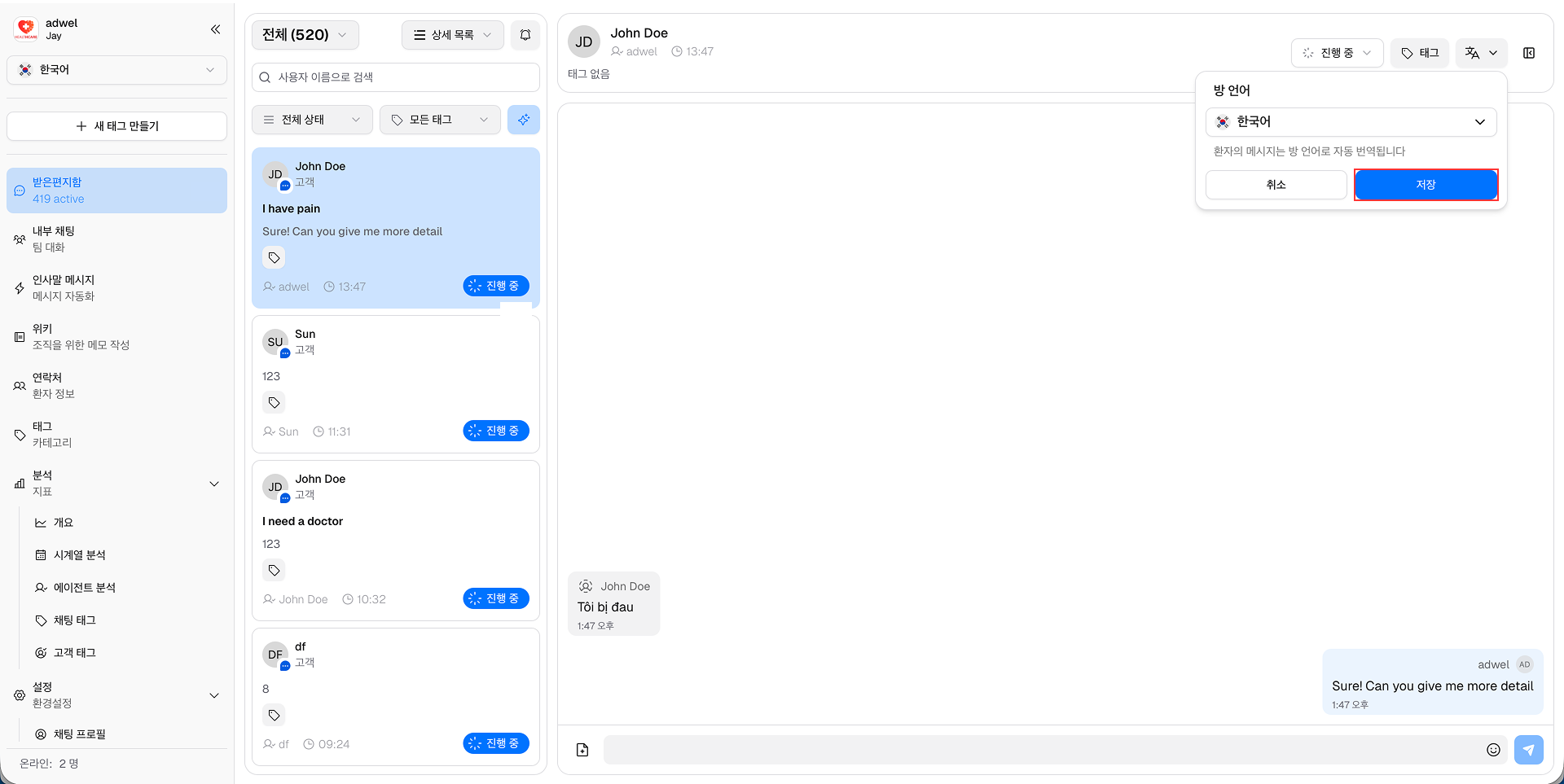
Step 3: Choose the desired language from the dropdown menu and click the Save button to apply the translation settings.

Select Language

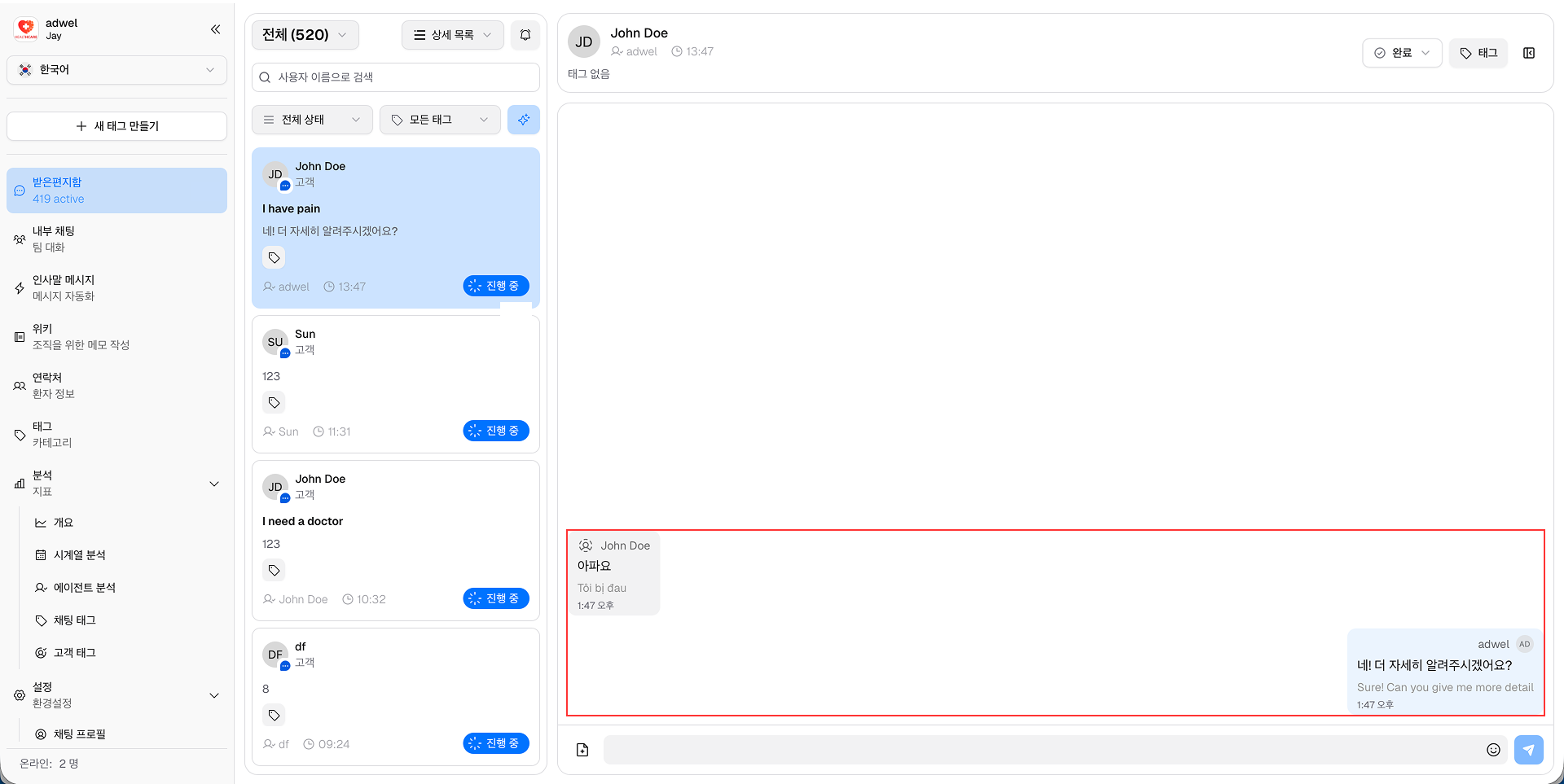
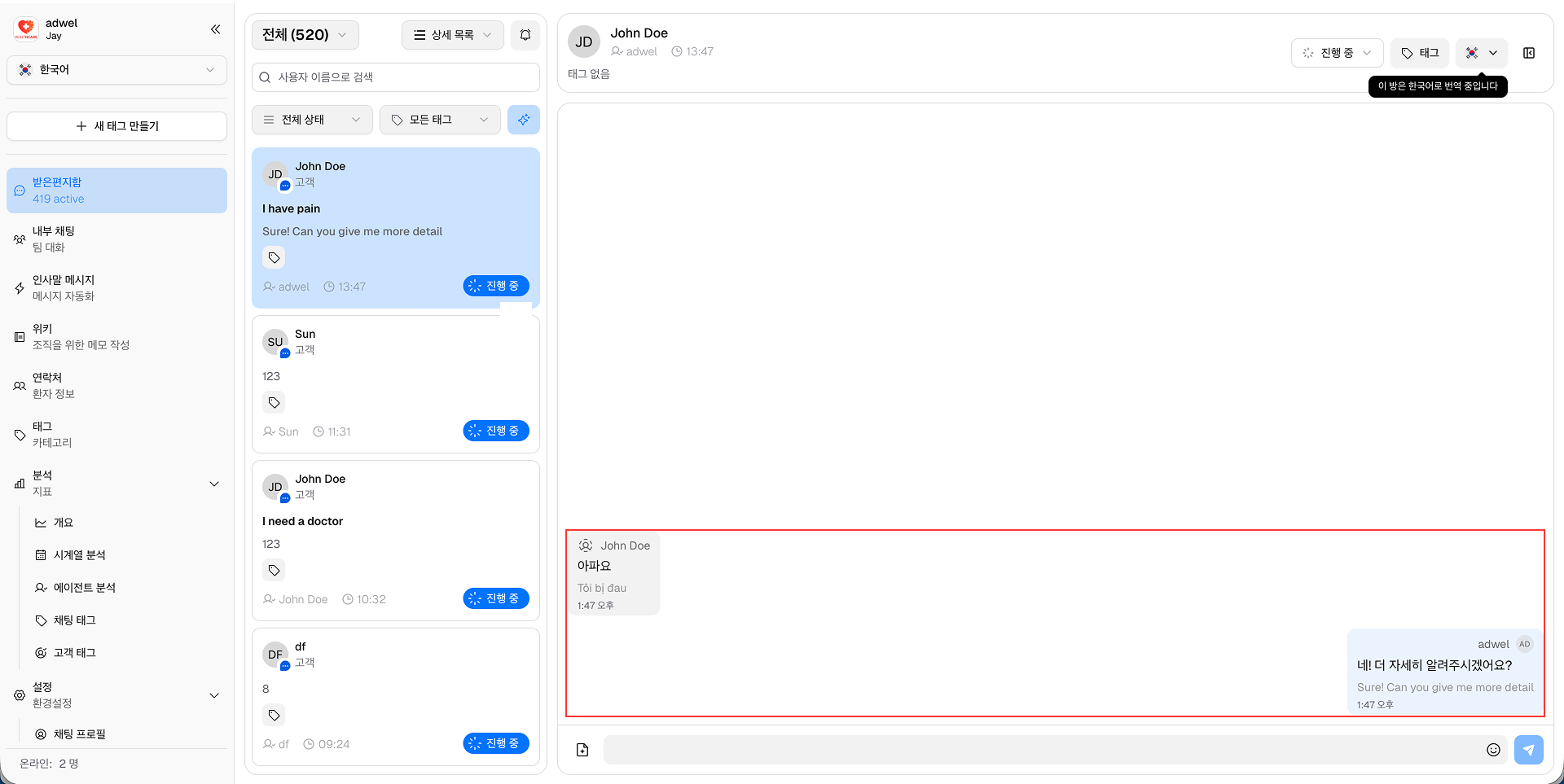
Once completed, all messages in the chat will be translated to the selected language automatically, with the original message displayed below the translated text with a smaller font size and lighter color.

Translated Messages

How to use Translation in Patient side

Patients can also use the Translation feature in their chat interface as long as the hospital has enabled the Gemini API Key in the settings.

Step 1: Click on the Start Chat button on the Chat Profile of MChat widget on the hospital's website.

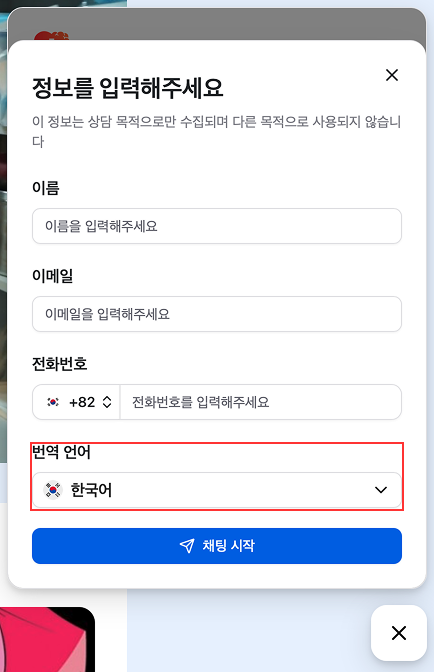
Step 2: In the fill information drawer, select the desired language from the Translate Language dropdown.

Patient Translate Language

Step 3: Click the Start Chat button to initiate the chat session.

Now the patient can send and receive messages in their selected language, with translations handled automatically by the system.

Gemini API Error Handling

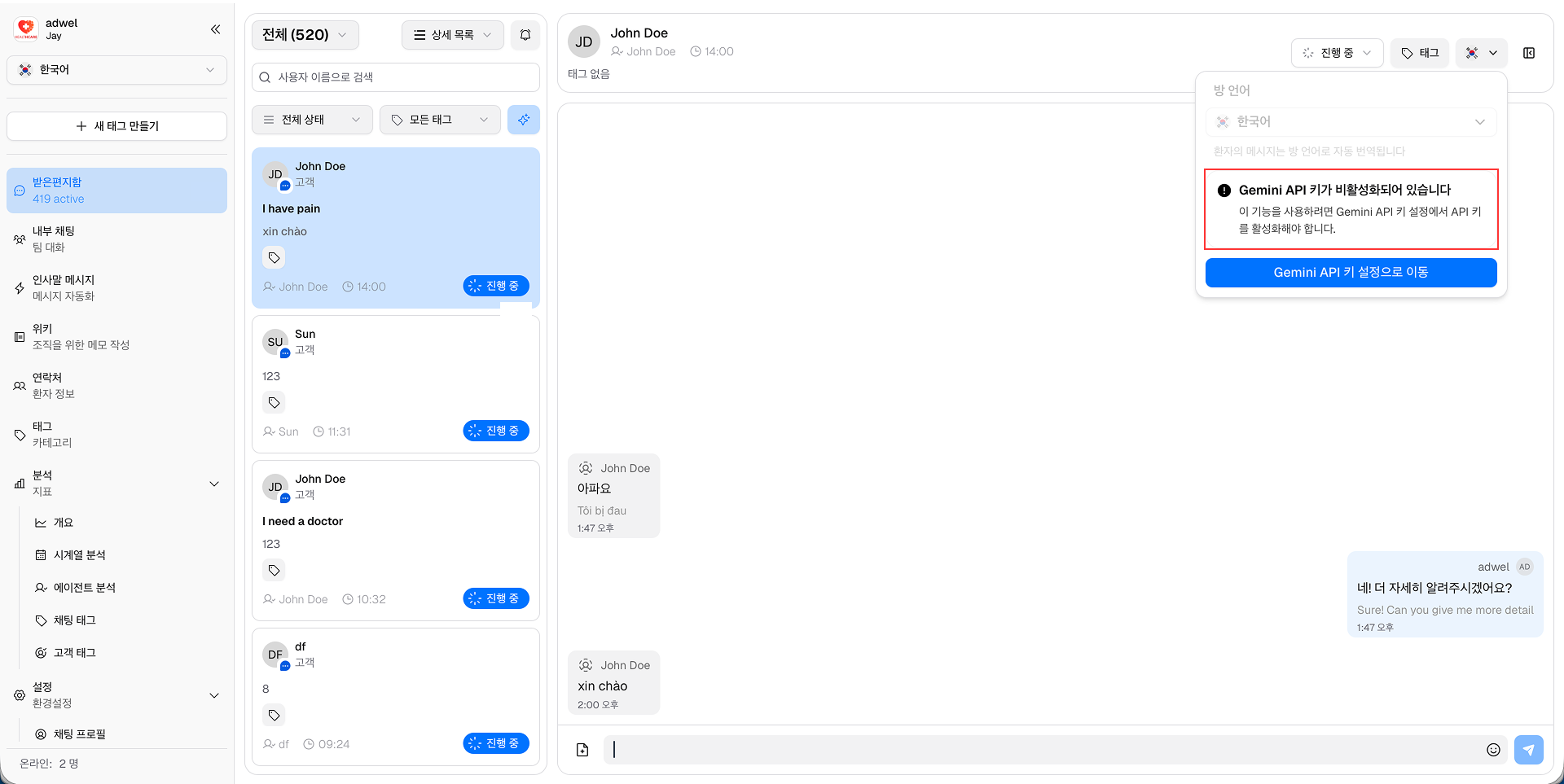
If there is an issue with the Gemini API, an error warning icon will be displayed in the Room's Language button and in messages will have a warning error message below the original text (this applies to both agent and patient sides).

Translation Error

You can click Go to Gemini API Key settings in Room's language pop-up window to navigate to the settings page and check for the details.

Once the Gemini API issue is resolved, the error warning icon and messages will be auto translated again with the selected language without any further action needed.