Integrate LINE
To integrate LINE with MChat, follow these steps:
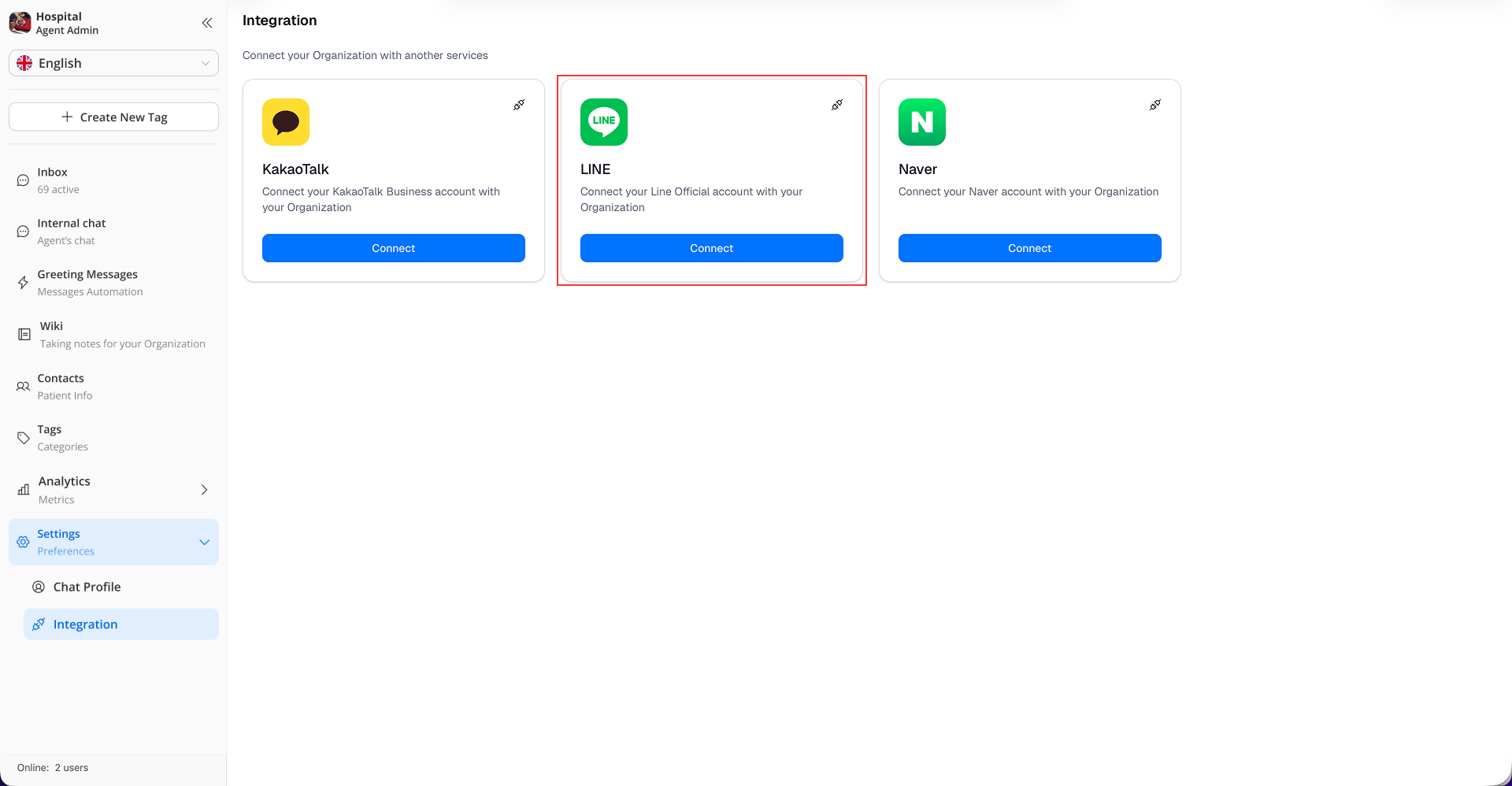
Step 1: In Settings → Integration, click Connect button in LINE from the list of supported messaging services.
Step 2: An integration page will open.
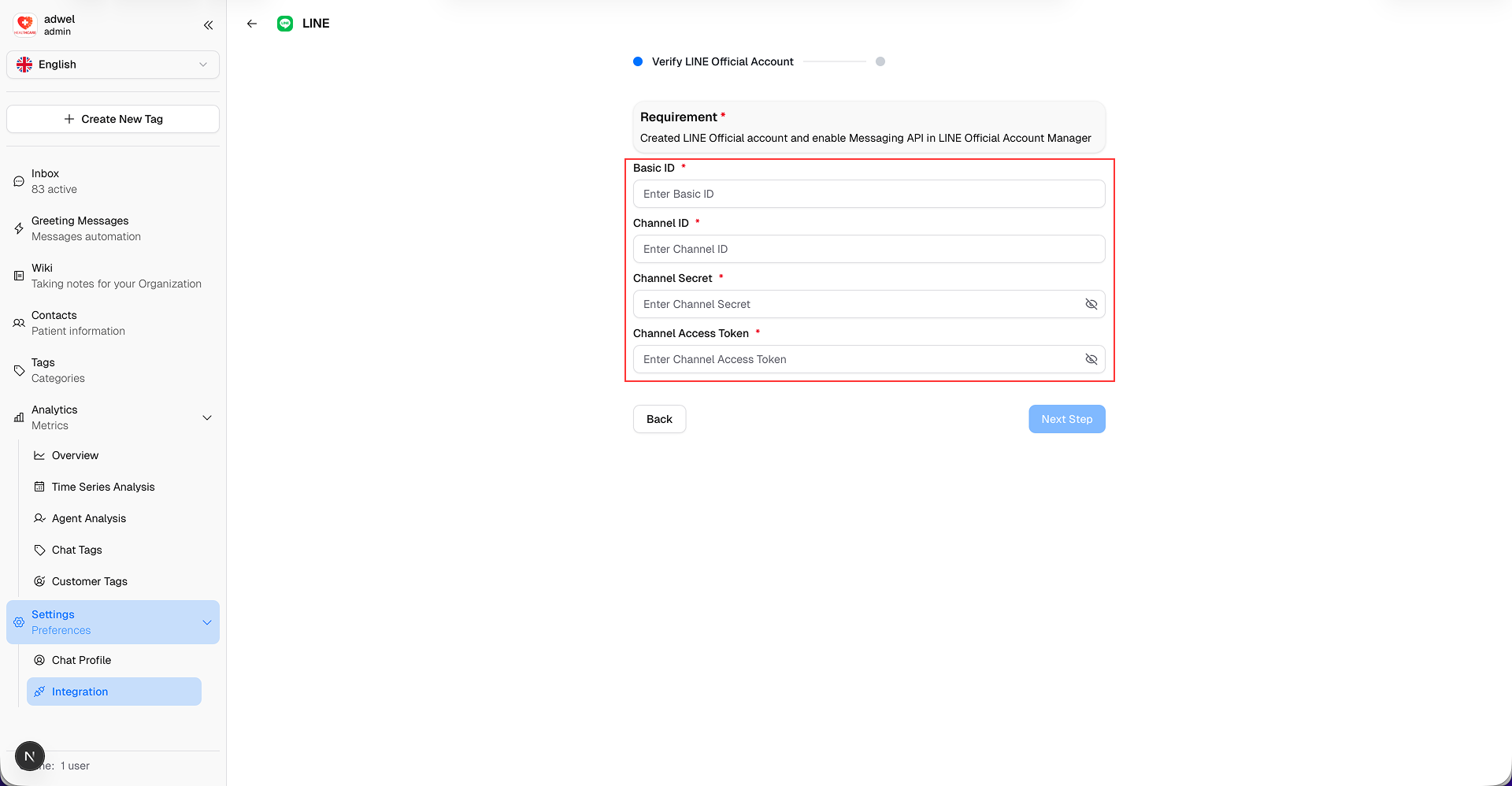
Fill in the required information (Requirement: Created LINE Official Account):
- Basic ID
- Channel ID
- Channel Secret
- Channel Access Token: How to get Channel Access Token?
You can find the Channel ID and Channel Secret in your LINE Official Account settings at https://manager.line.biz/ → Settings → Messaging API.
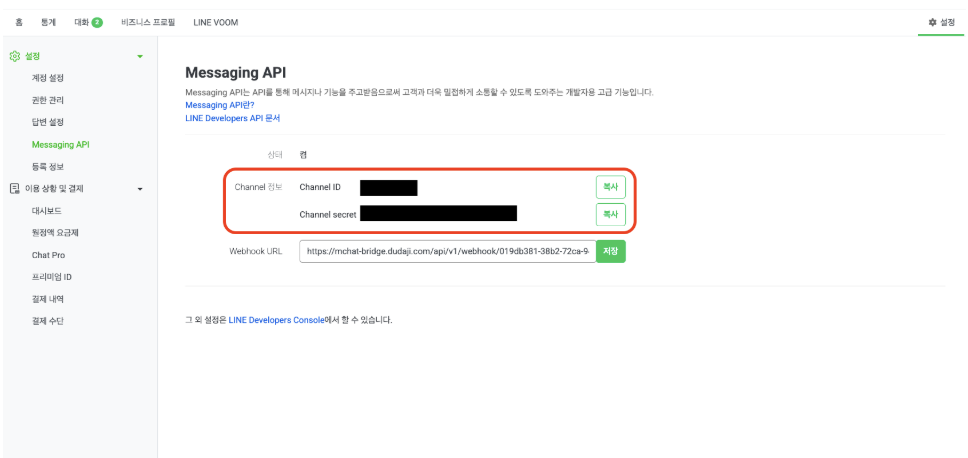
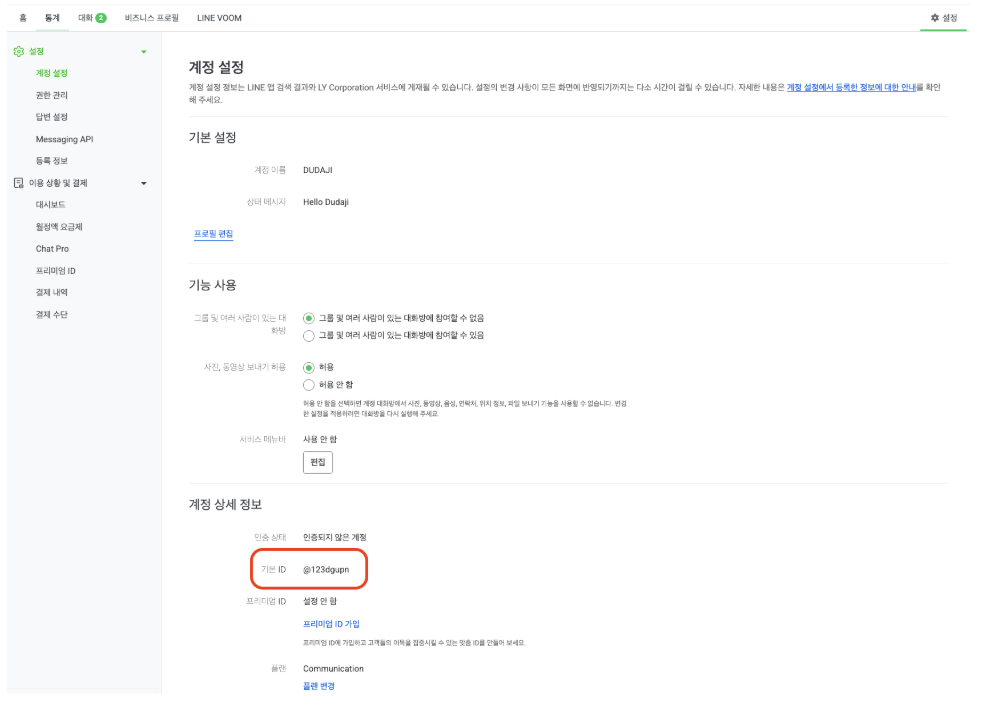
You can find the Basic ID in Settings → 계정 설정 (Account Settings) → 계정 상세 정보 (Account Details) → 기본 ID (Basic ID).
Step 3: After filling in the required information, click the Next Step button to go to the next step.
Step 4: Copy the provided Webhook URL
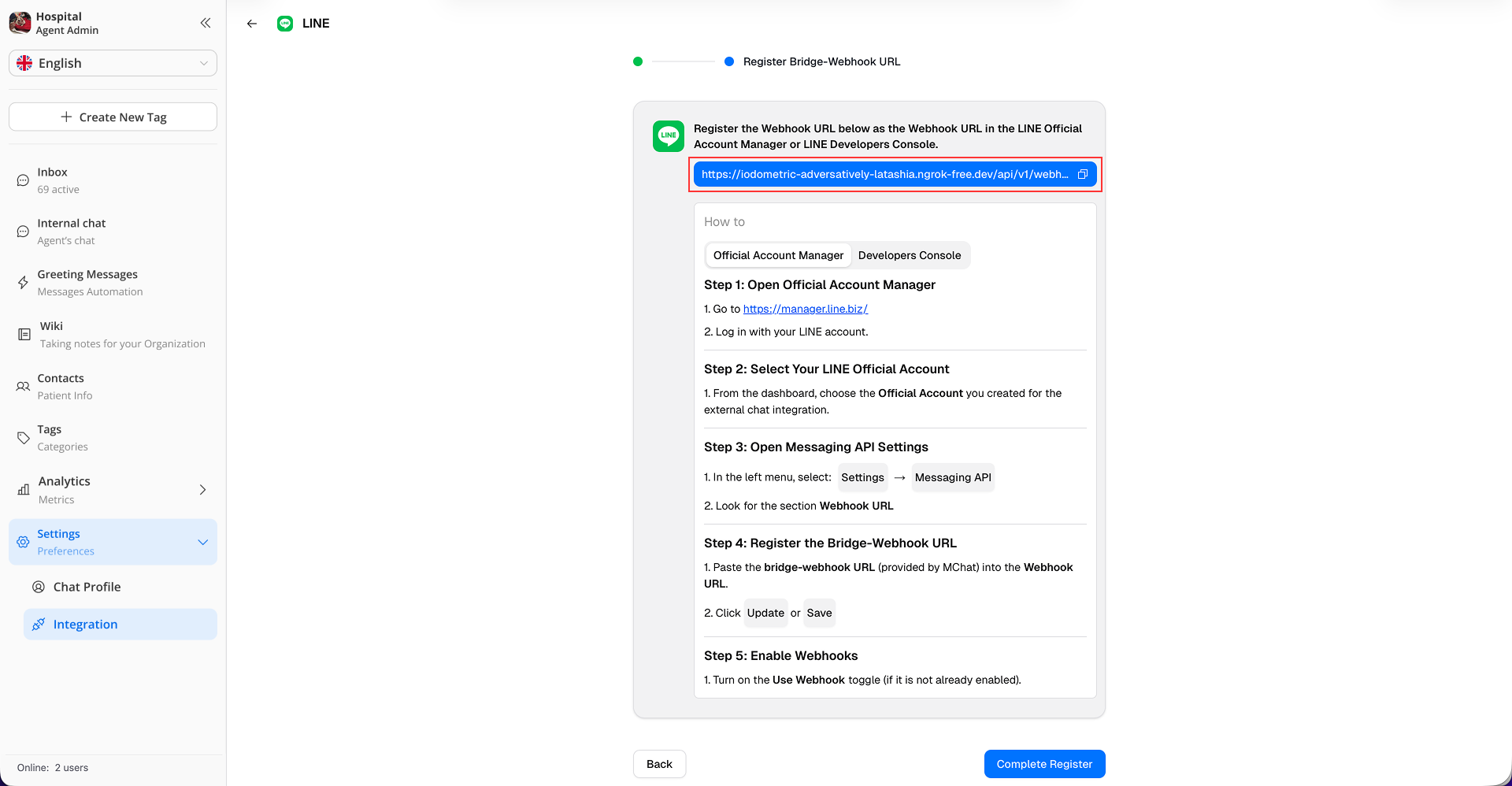
Step 5: Go to https://manager.line.biz/ and log in with your LINE Official Account credentials.
Step 6: Select your LINE Official Account you created for MChat integration.
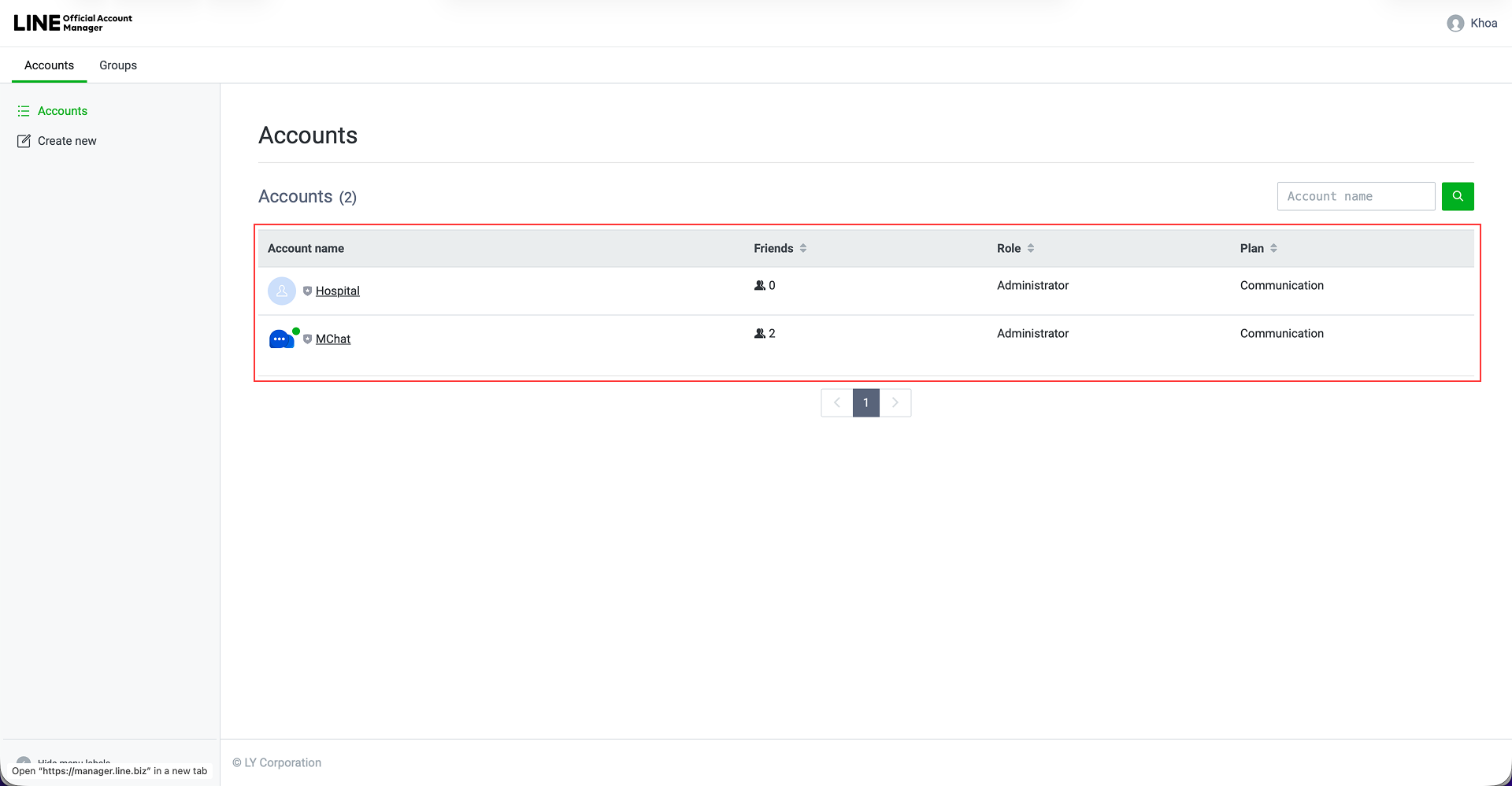
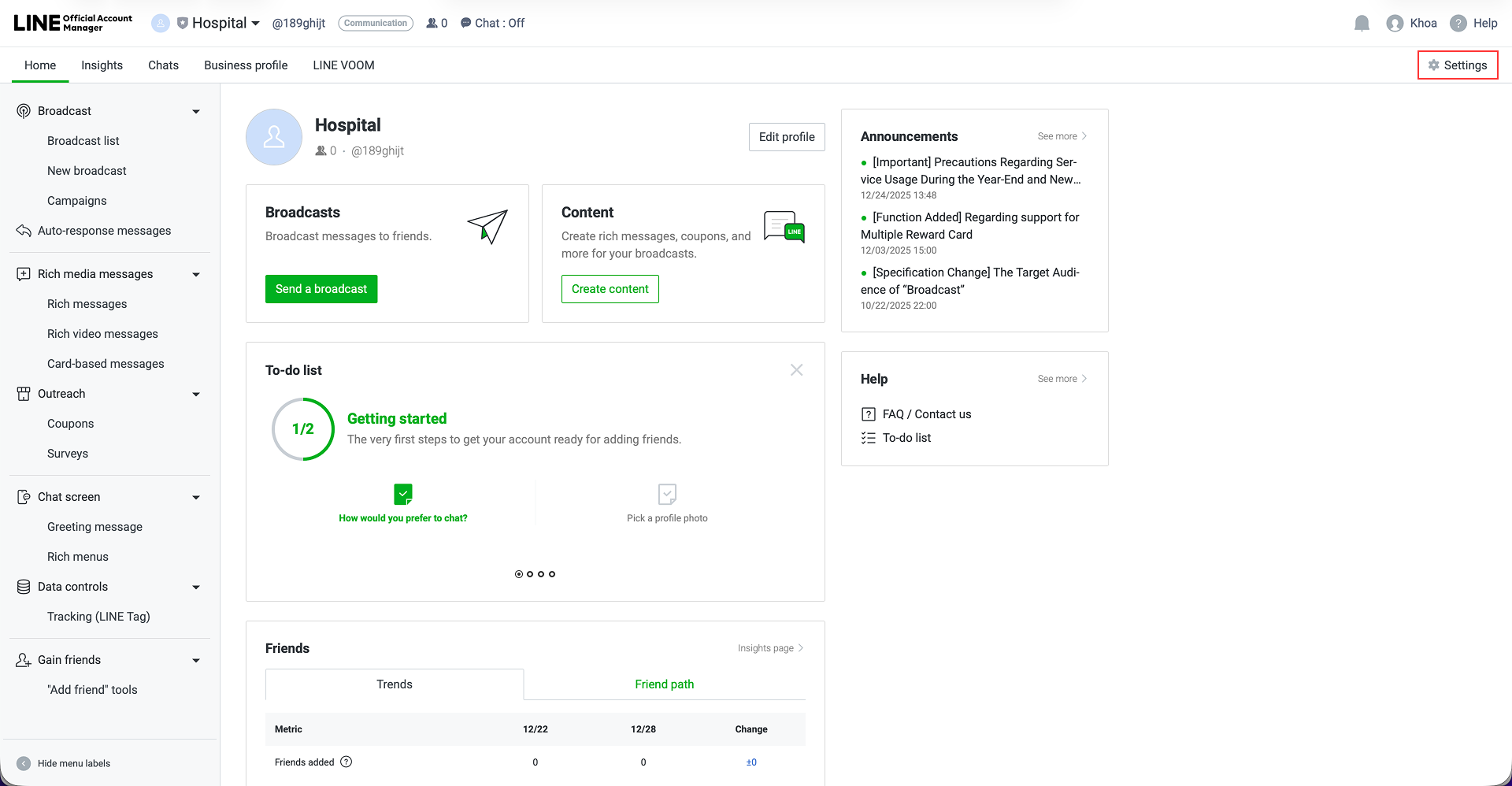
Step 7: In the top right corner, click on Settings.
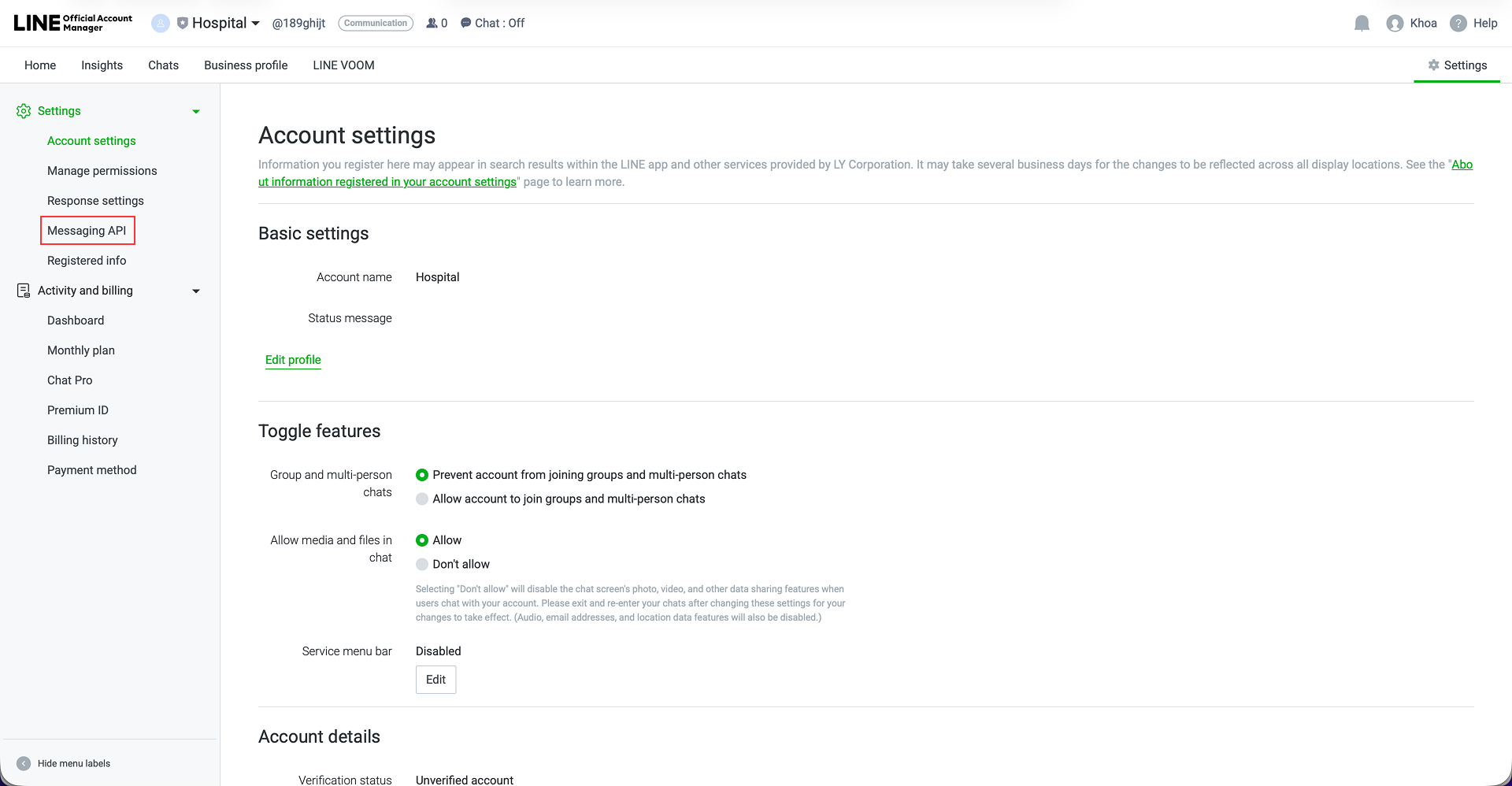
Step 8: From the left sidebar, select Messaging API.
Step 9: In Messaging API page, click Enable Messaging API button if it is not enabled yet. (If you have already enabled it, skip to Step 13.)
Step 9.1: If you haven't already registered a LINE developer account, a pop-up will appear asking you to register. Enter your name and email address and click Agree.
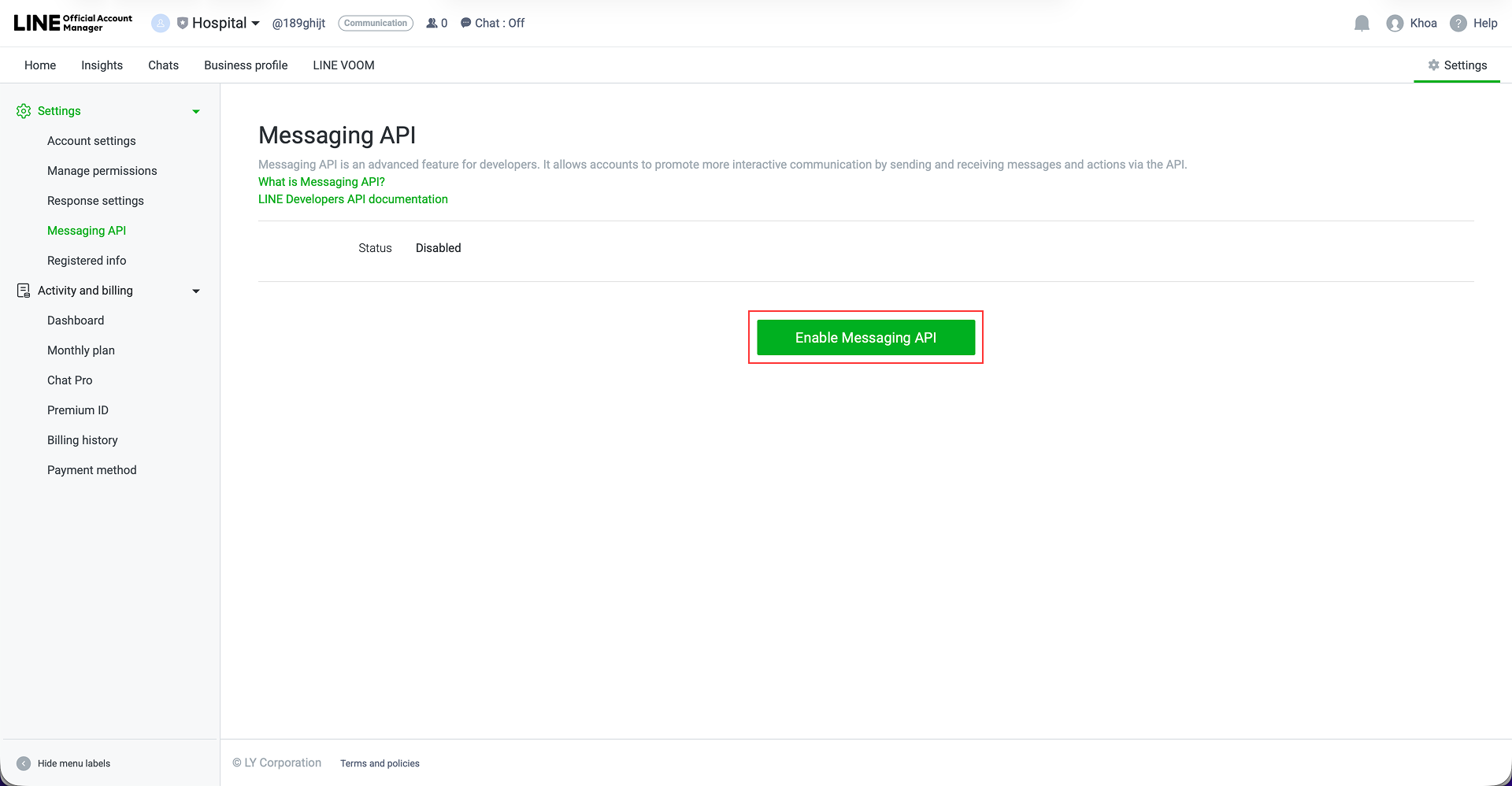
Step 10: A Select Provider popup will appear. Choose New Provider and enter desired provider name, then click Agree.
Ex: MChat Provider
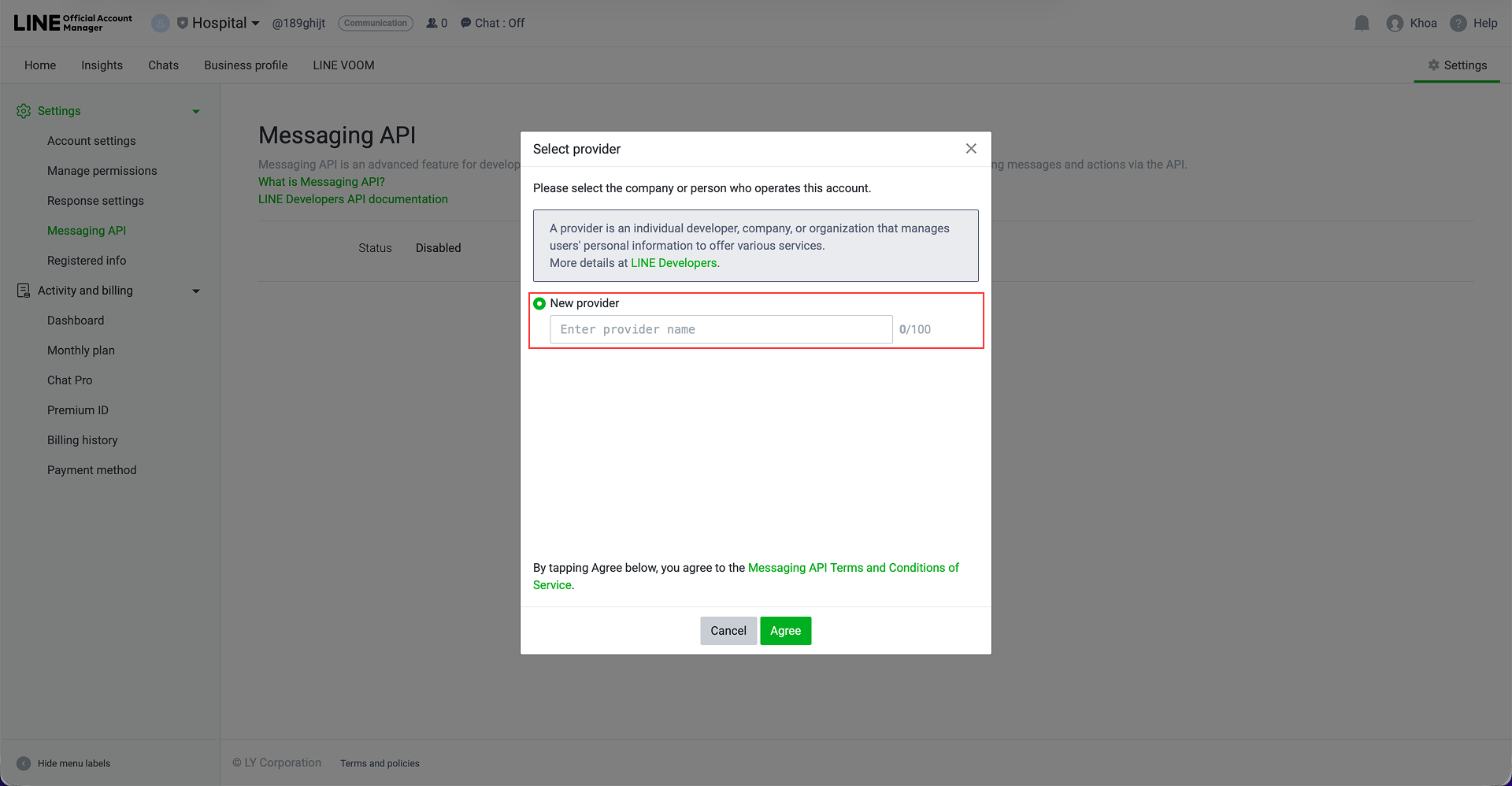
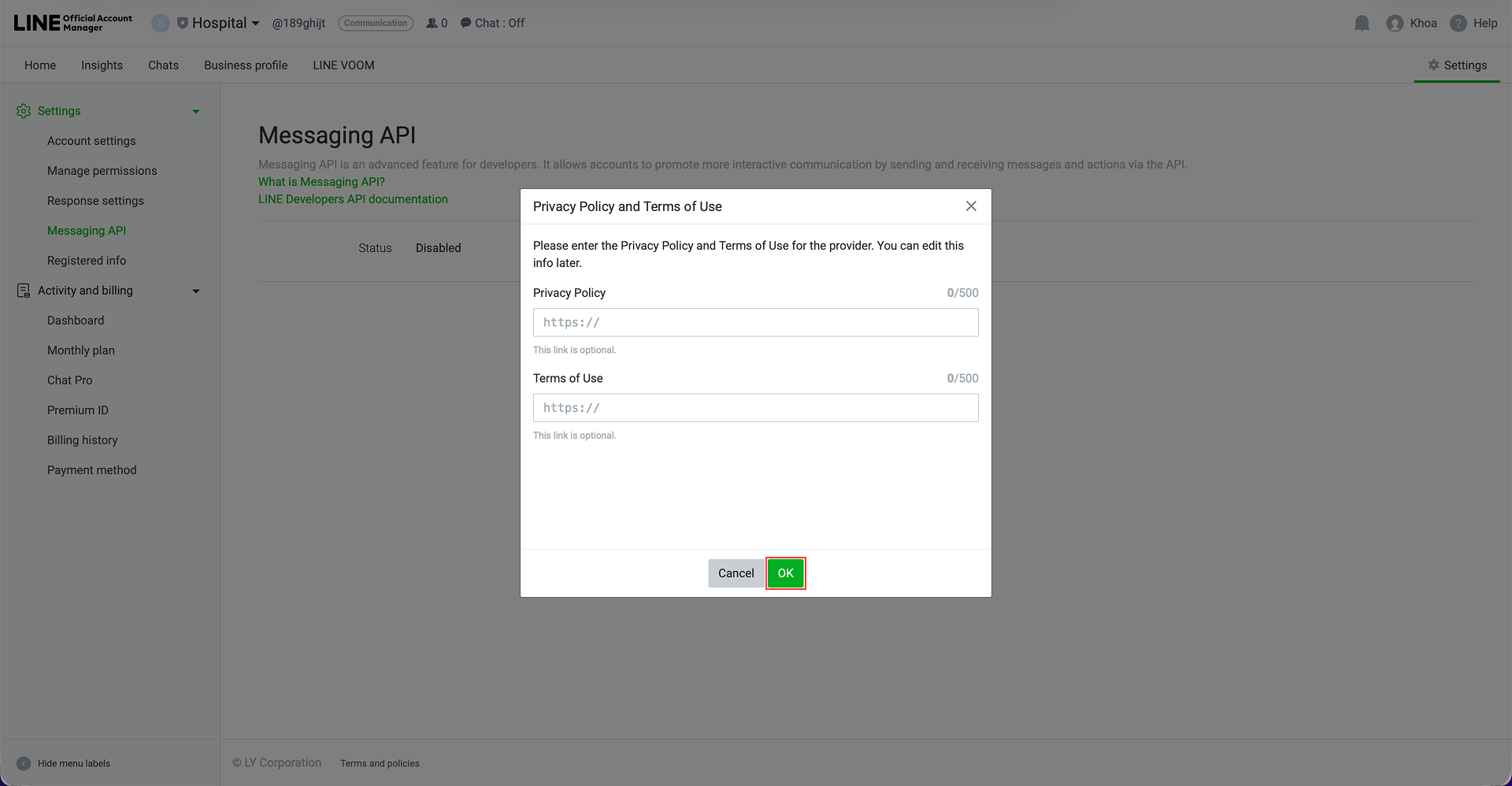
Step 11: In Privacy Policy and Terms of Use popup, just click OK without fill in anything.
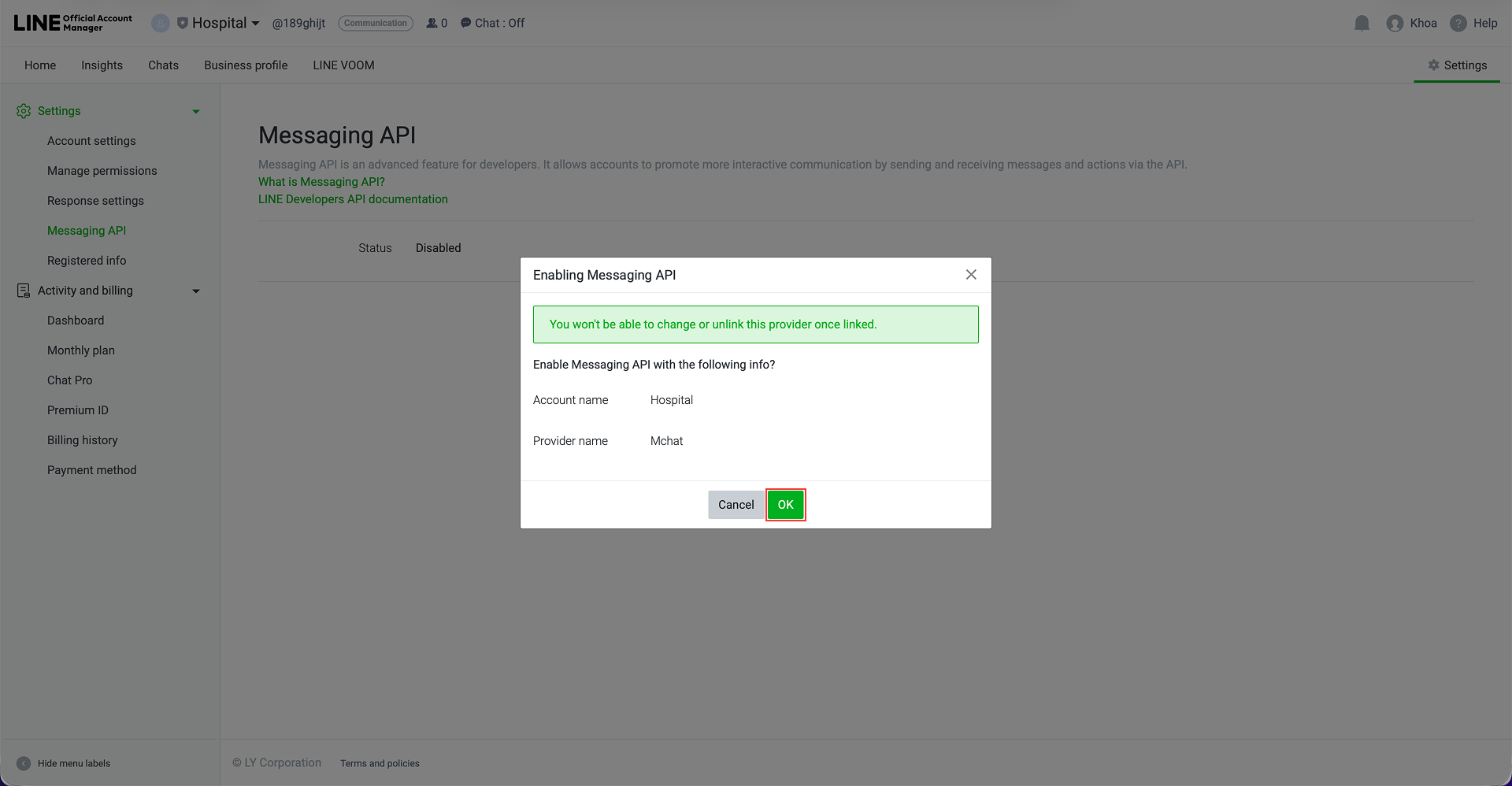
Step 12: In Enabling Messaging API popup, click OK to enable Messaging API.
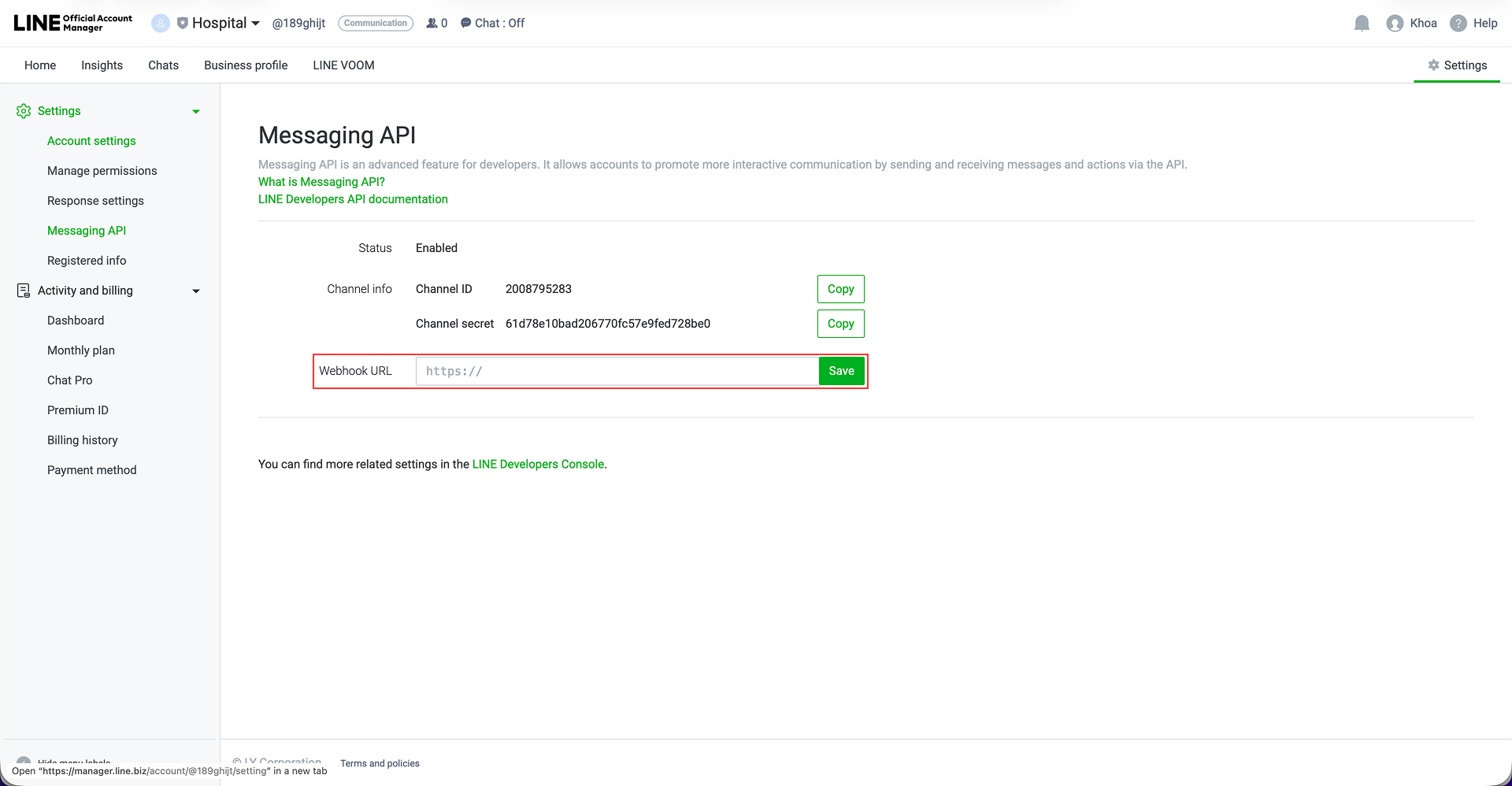
Step 13: You will be redirected back to the Messaging API page. Paste the copied Webhook URL from Step 4 into the Webhook URL field. Then click Save
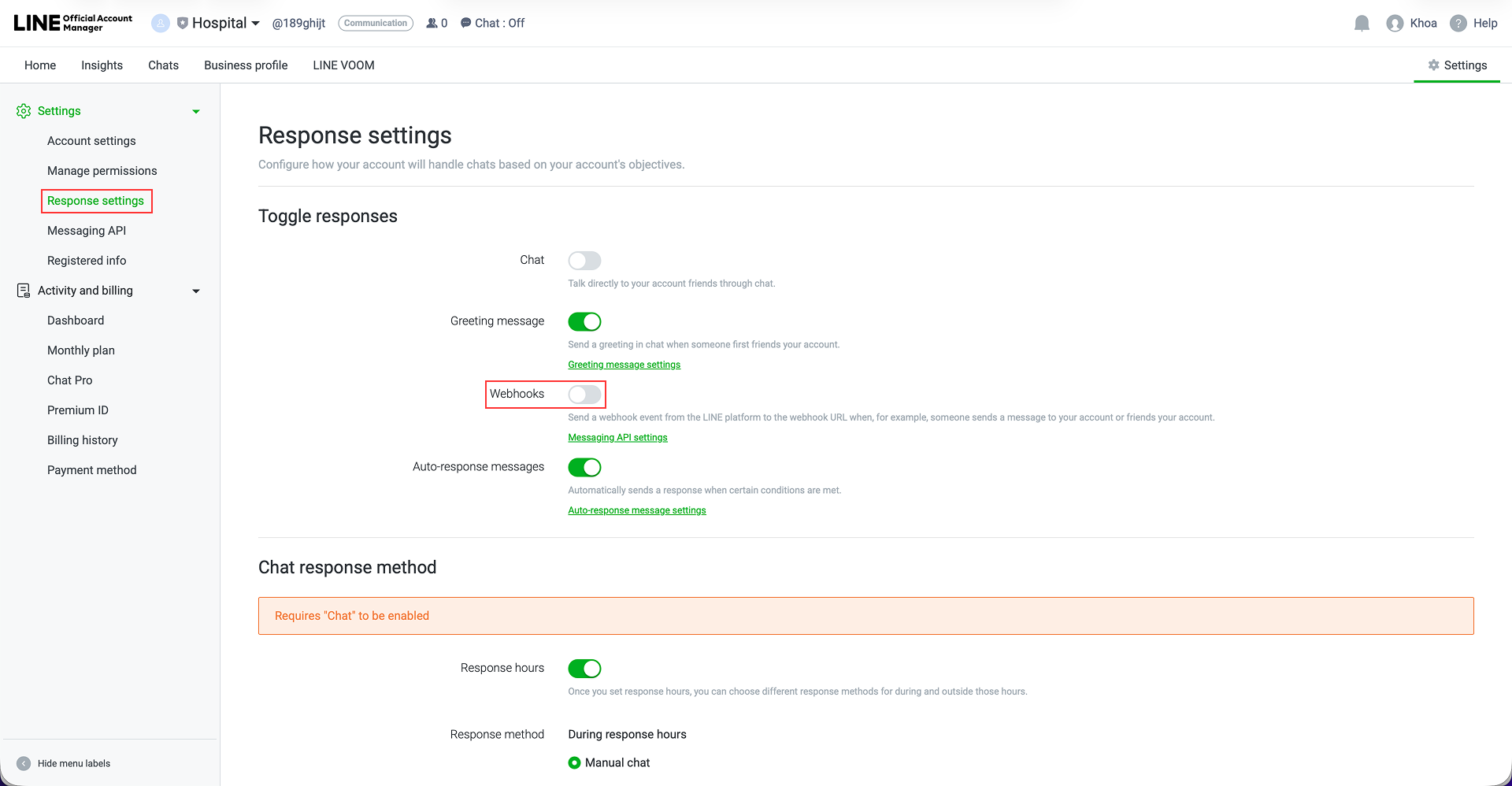
Step 14: After saved, go to Response settings in the left panel, and enable the Webhooks toggle.
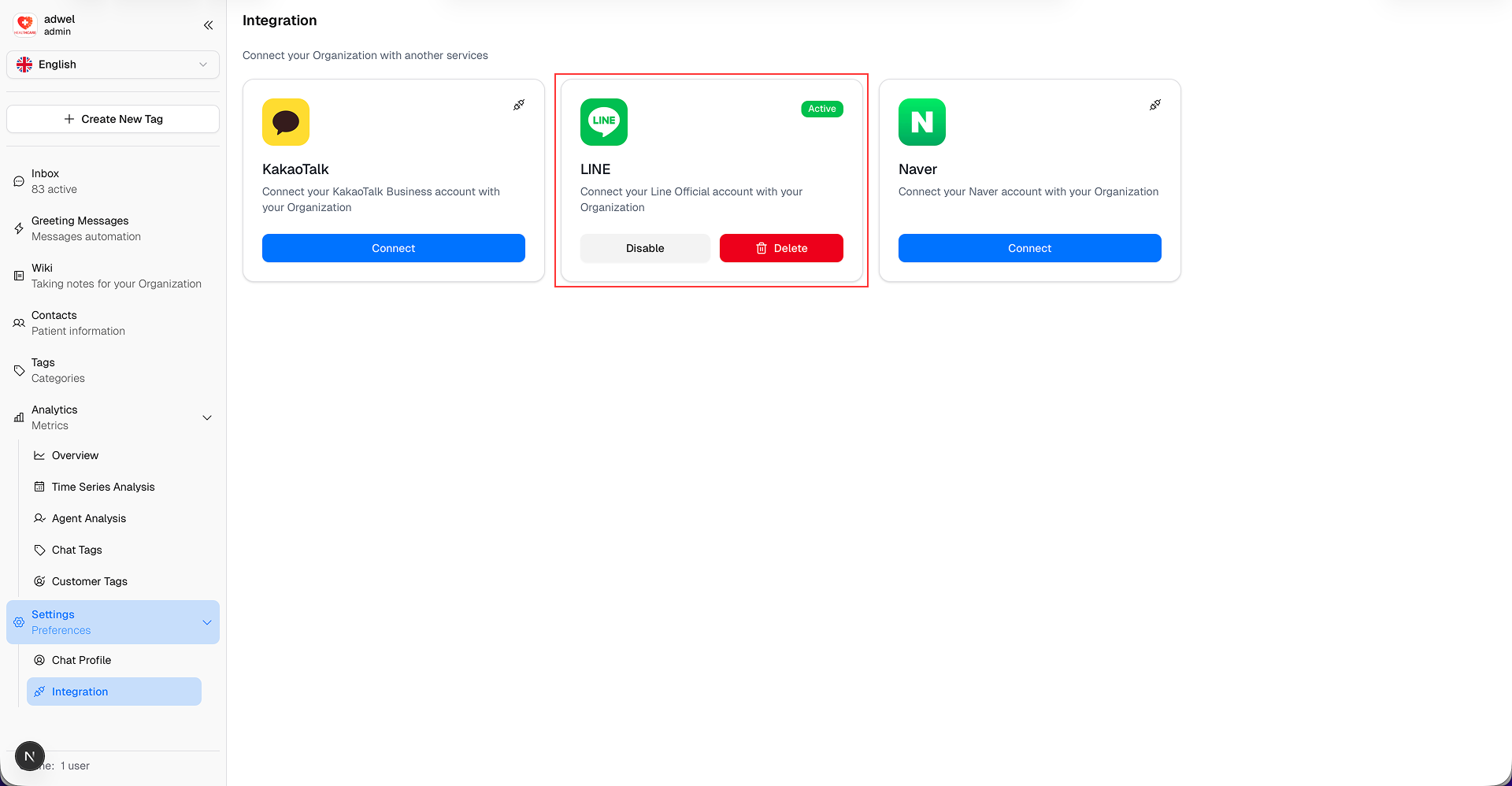
Step 15: After successfully added Webhook URL and enabled Webhooks, return to the MChat LINE integration page and click the Complete Register button at the bottom of the page.
Step 16: Once the registration is complete, the LINE integration status will change to Active in the MChat Integration settings. You have successfully integrated LINE with MChat.
How to get Channel Access Token?
To get the Channel Access Token, in Step 9 of Integrate LINE, click the link to LINE Developers Console.
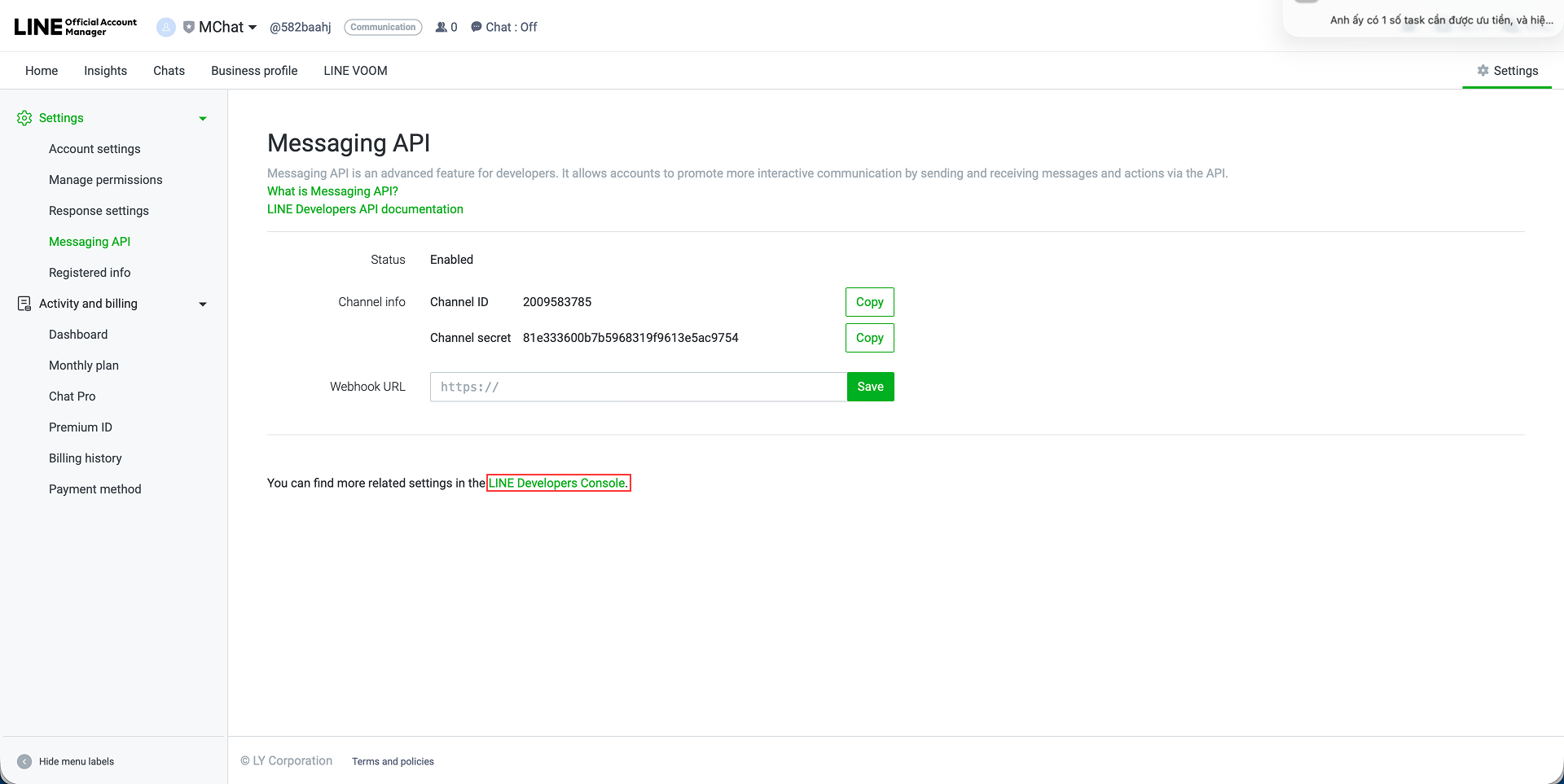
Select your provider you created for MChat integration in Step 10 of Integrate LINE.
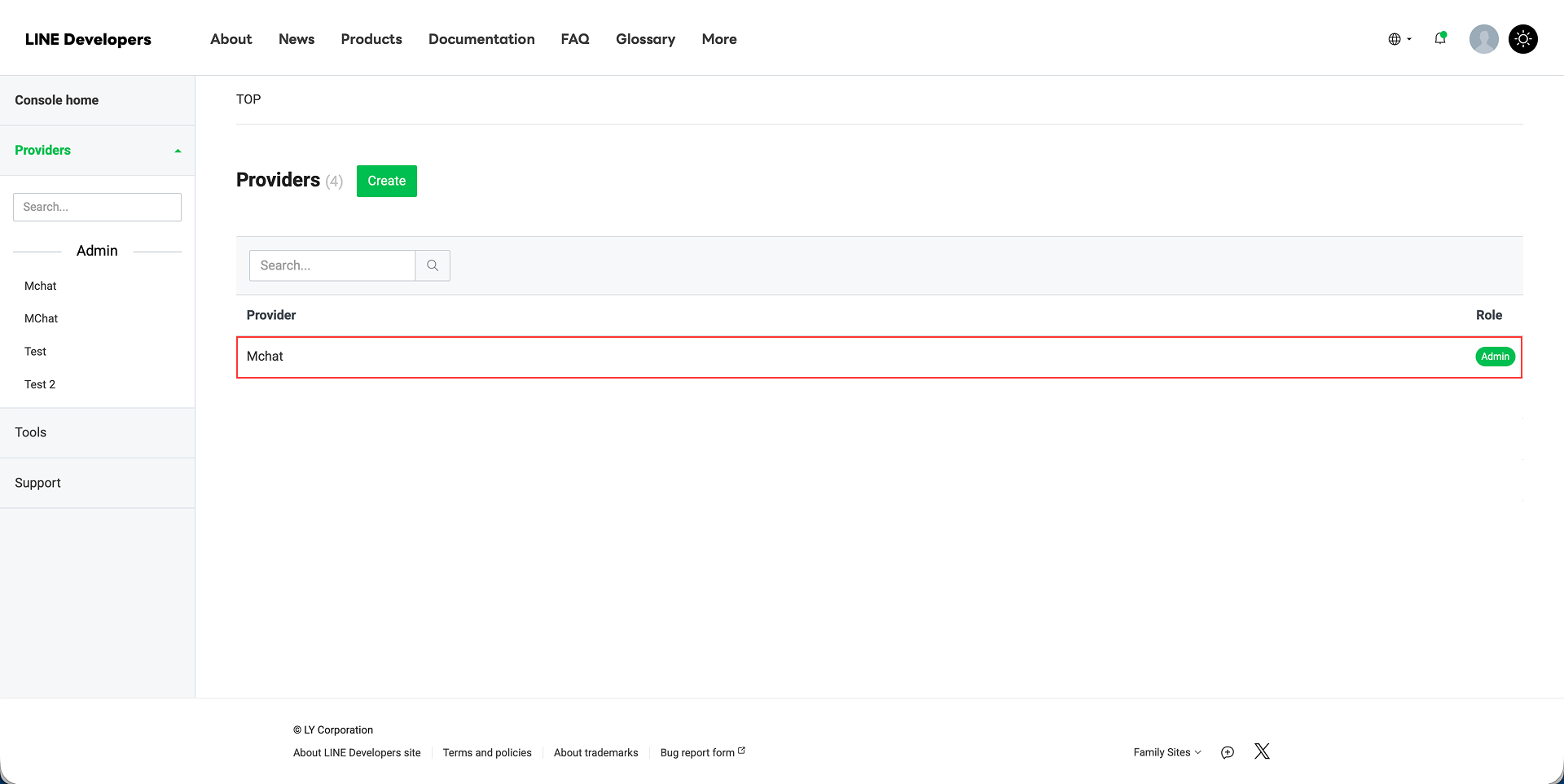
Then select the account you created for MChat integration. (Which have the Messaging API text below the account name.)
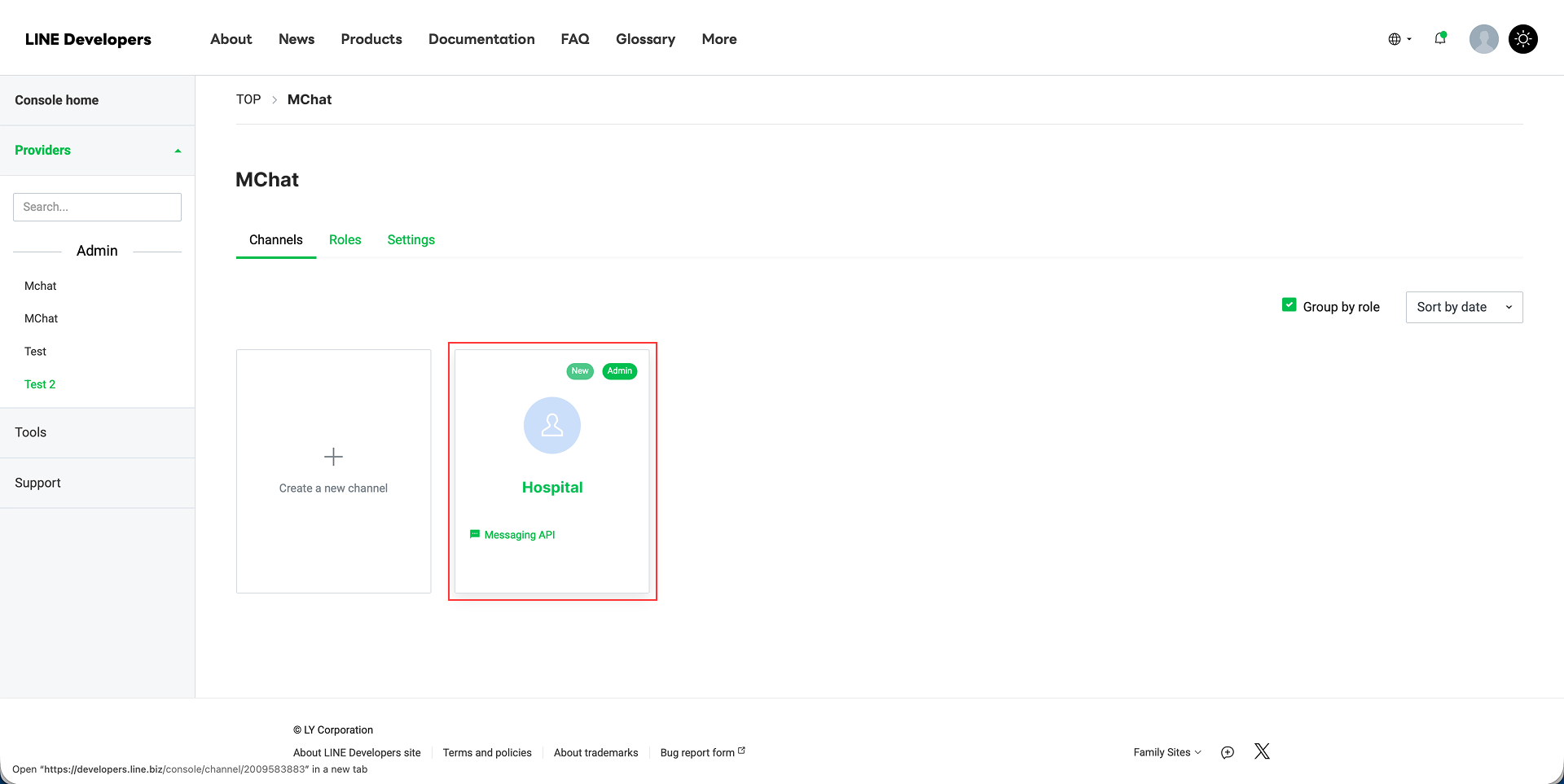
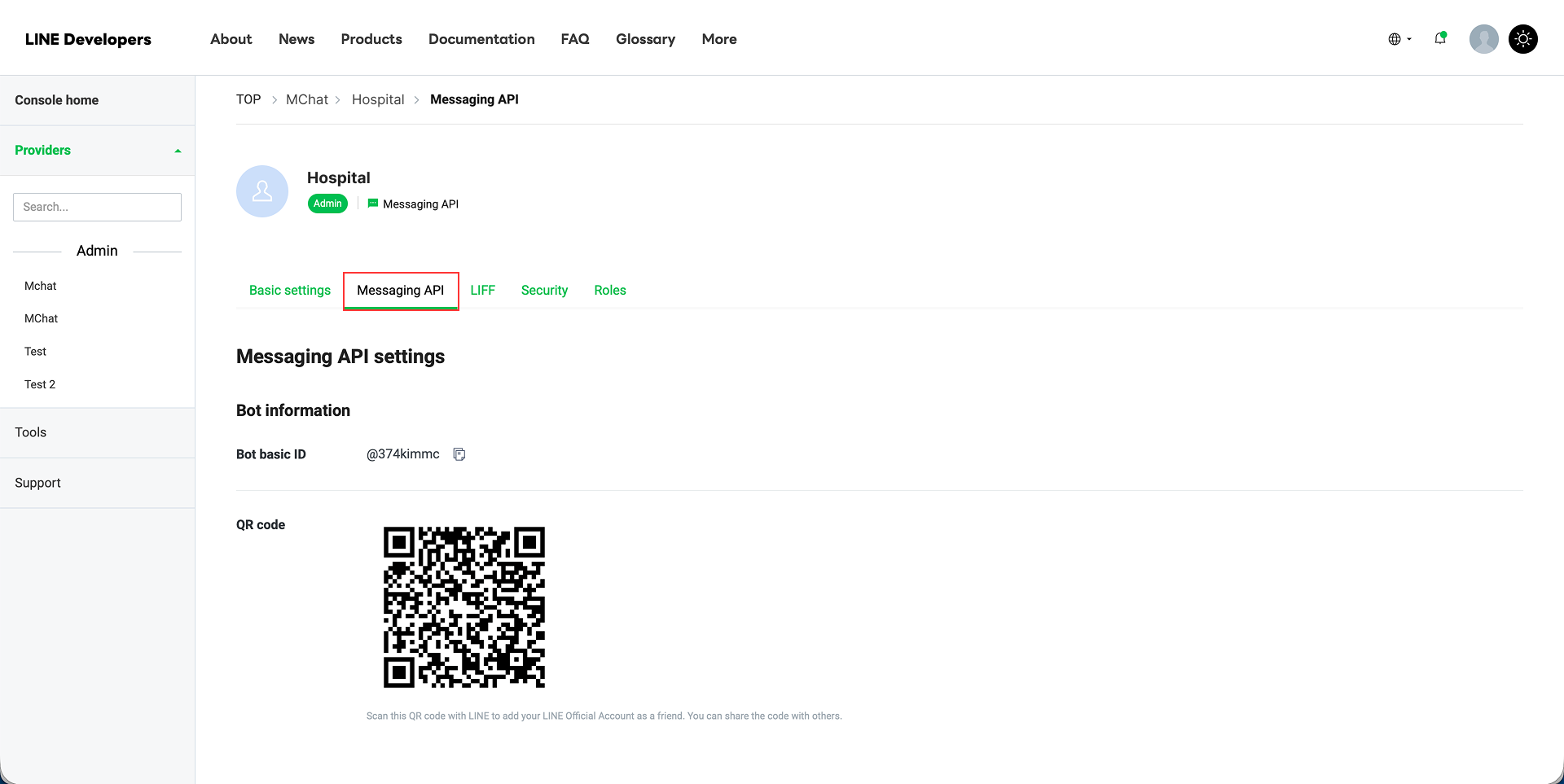
Go to tab Messaging API
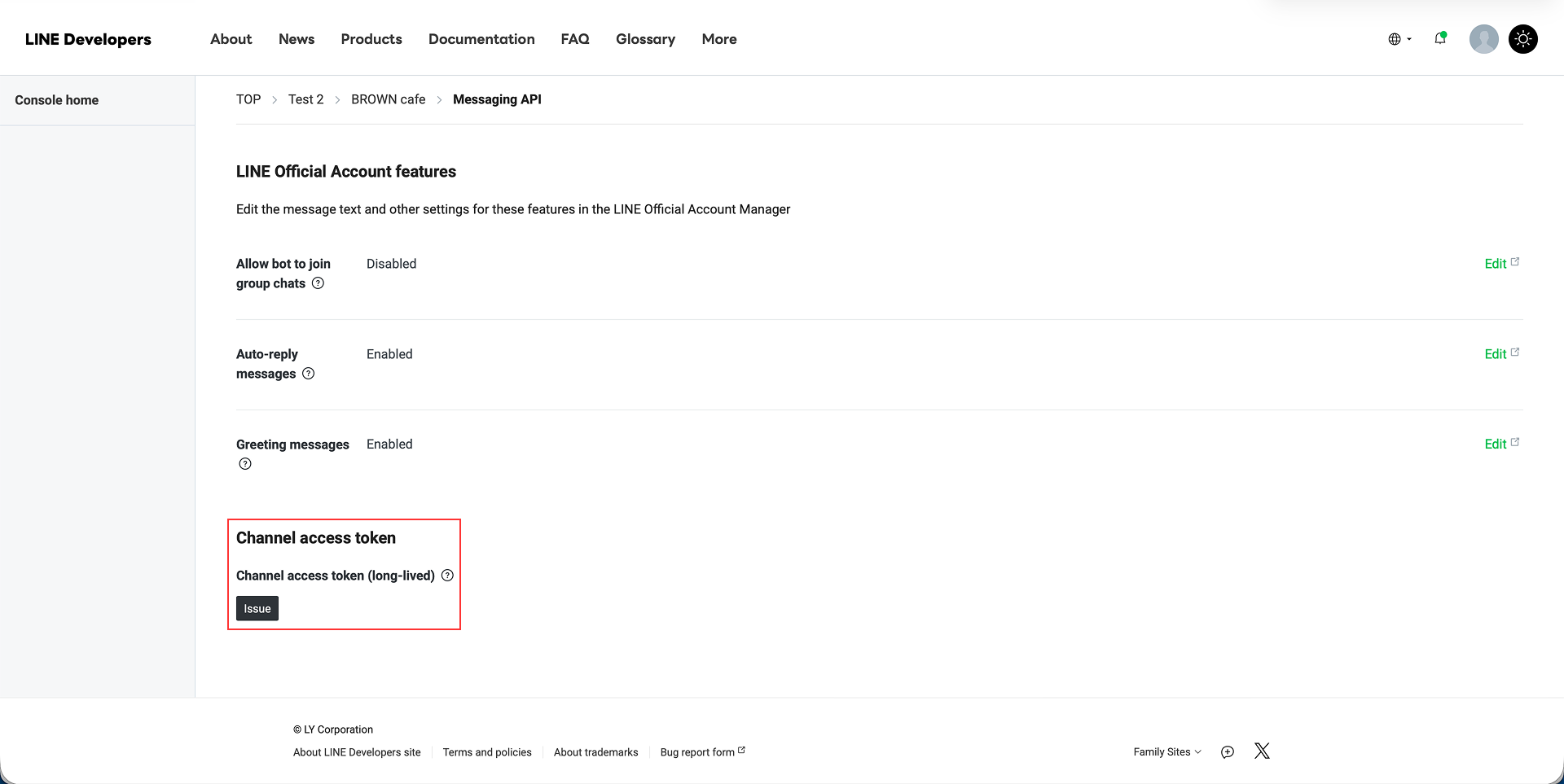
Scroll down to Channel Access Token section, click Issue button to generate a new Channel Access Token. Then copy the generated token and paste it into the Channel Access Token field in MChat LINE integration page.
Completed, now you can continue to Step 3 of Integrate LINE to complete the integration process.