LINE 통합
LINE을 MChat과 통합하려면 다음 단계를 따르세요.
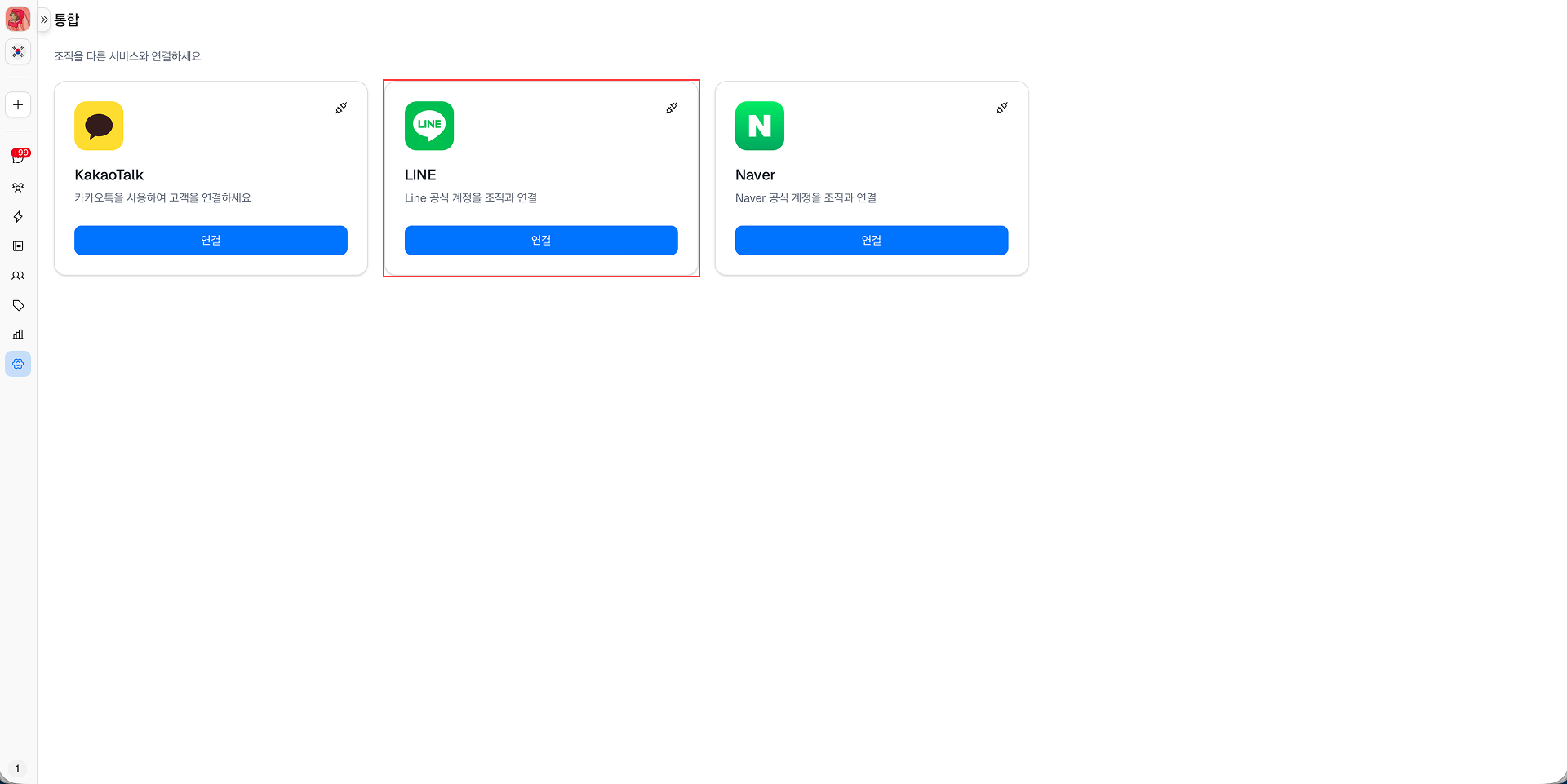
1단계: 설정 → 통합에서 지원되는 메시징 서비스 목록 중 LINE에서 연결 버튼을 클릭합니다.
2단계: 통합 페이지가 열립니다.
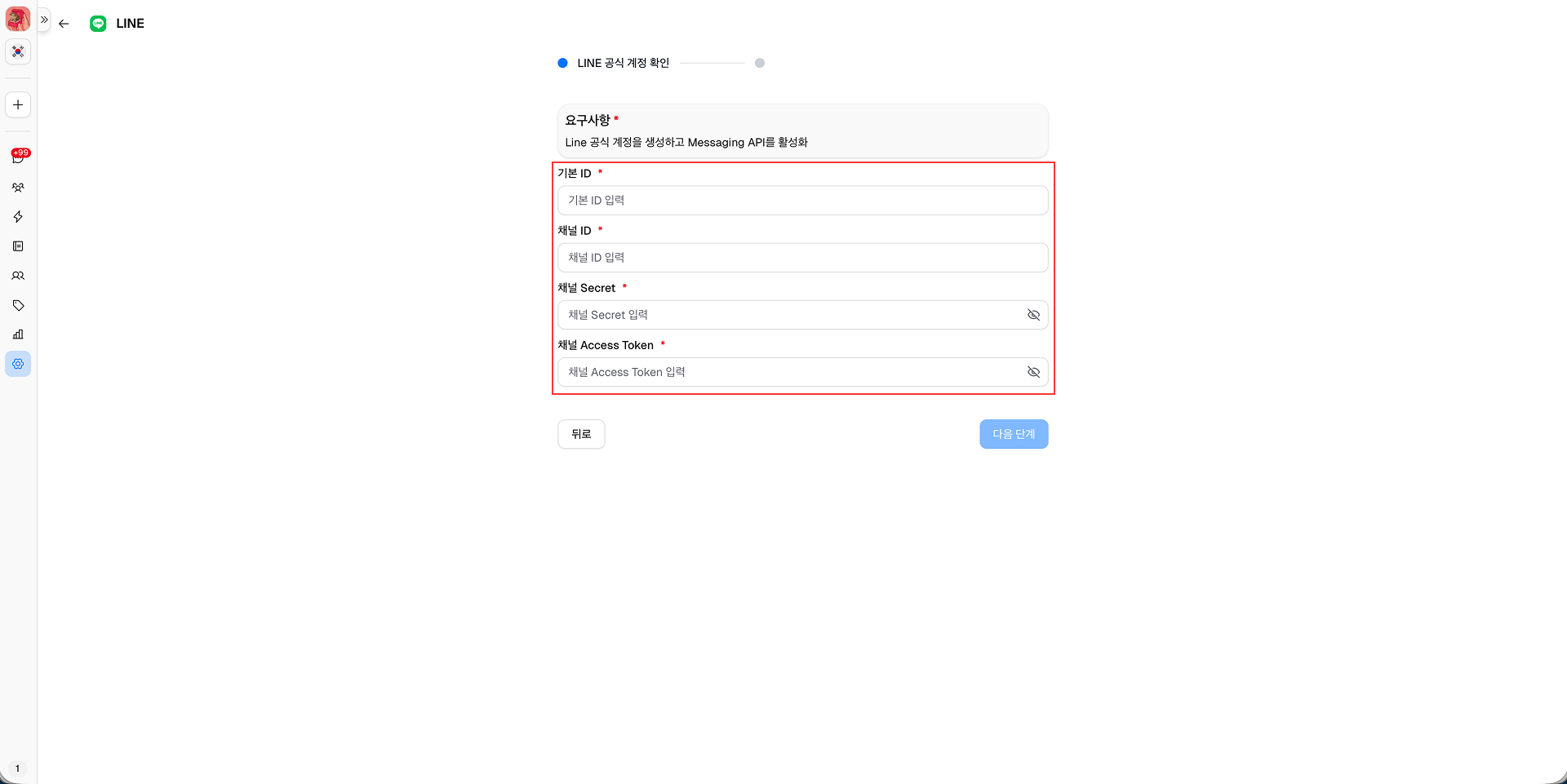
필수 정보를 입력하세요(요구사항: LINE 공식 계정 생성):
- 기본 아이디
- 채널 ID
- 채널 비밀
- 채널 액세스 토큰: 채널 액세스 토큰을 얻는 방법
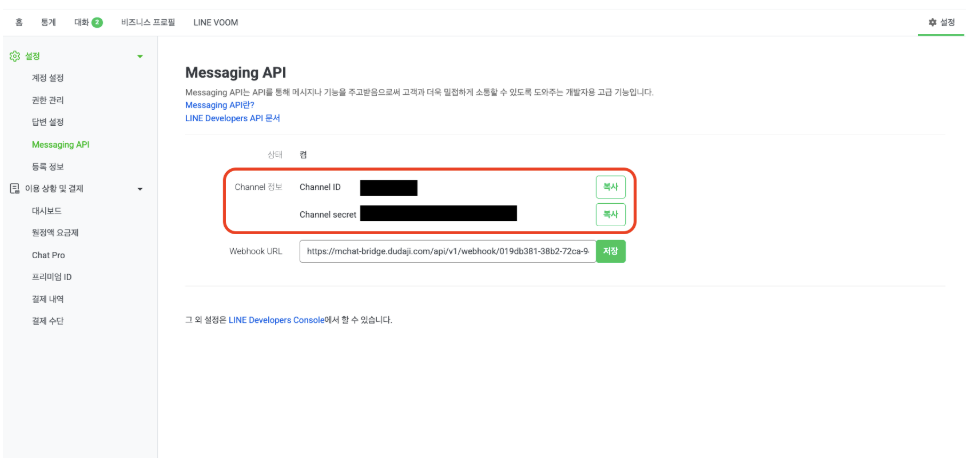
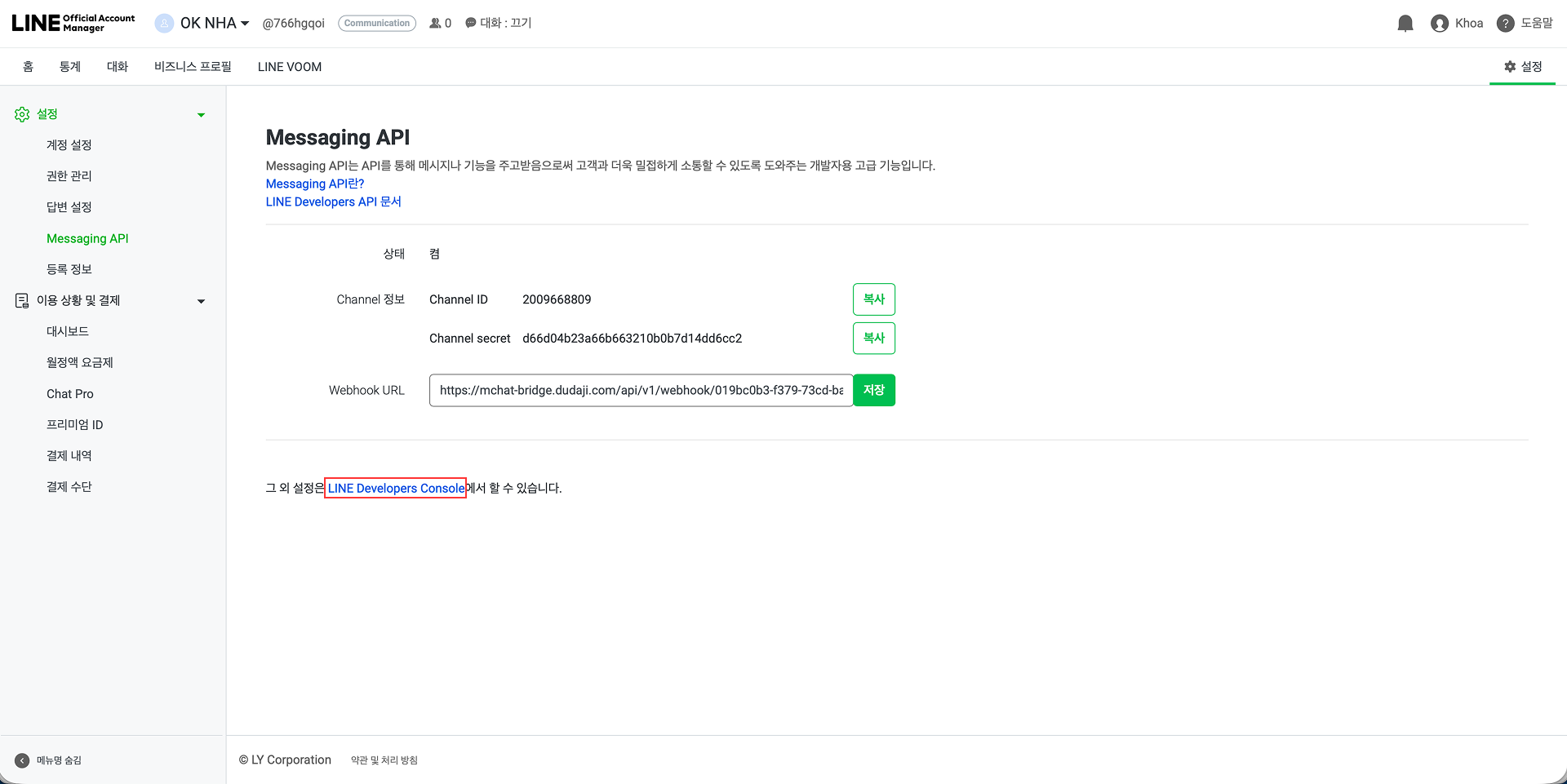
채널 ID와 채널 비밀은 LINE 공식 계정 설정에서 확인할 수 있습니다: https://manager.line.biz/ → 설정 → Messaging API.
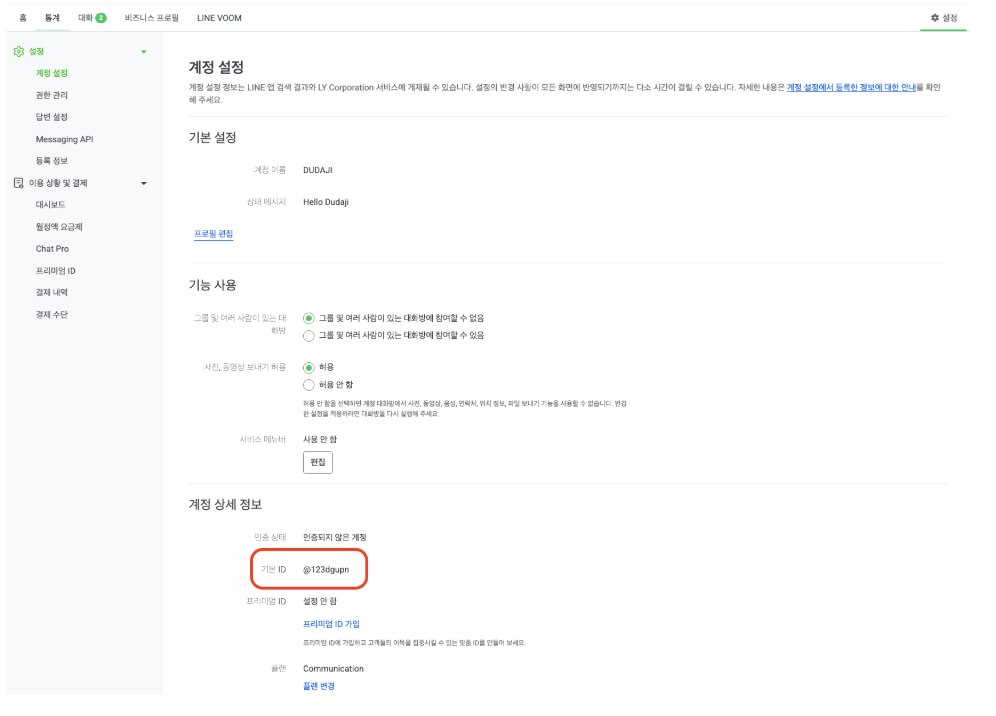
기본 아이디는 설정 → 계정 설정 → 계정 상세 정보 → 기본 ID에서 확인할 수 있습니다.
3단계: 필수 정보를 입력한 후 다음 단계 버튼을 클릭하여 다음 단계로 이동합니다.
4단계: 제공된 웹훅 URL을 복사합니다.
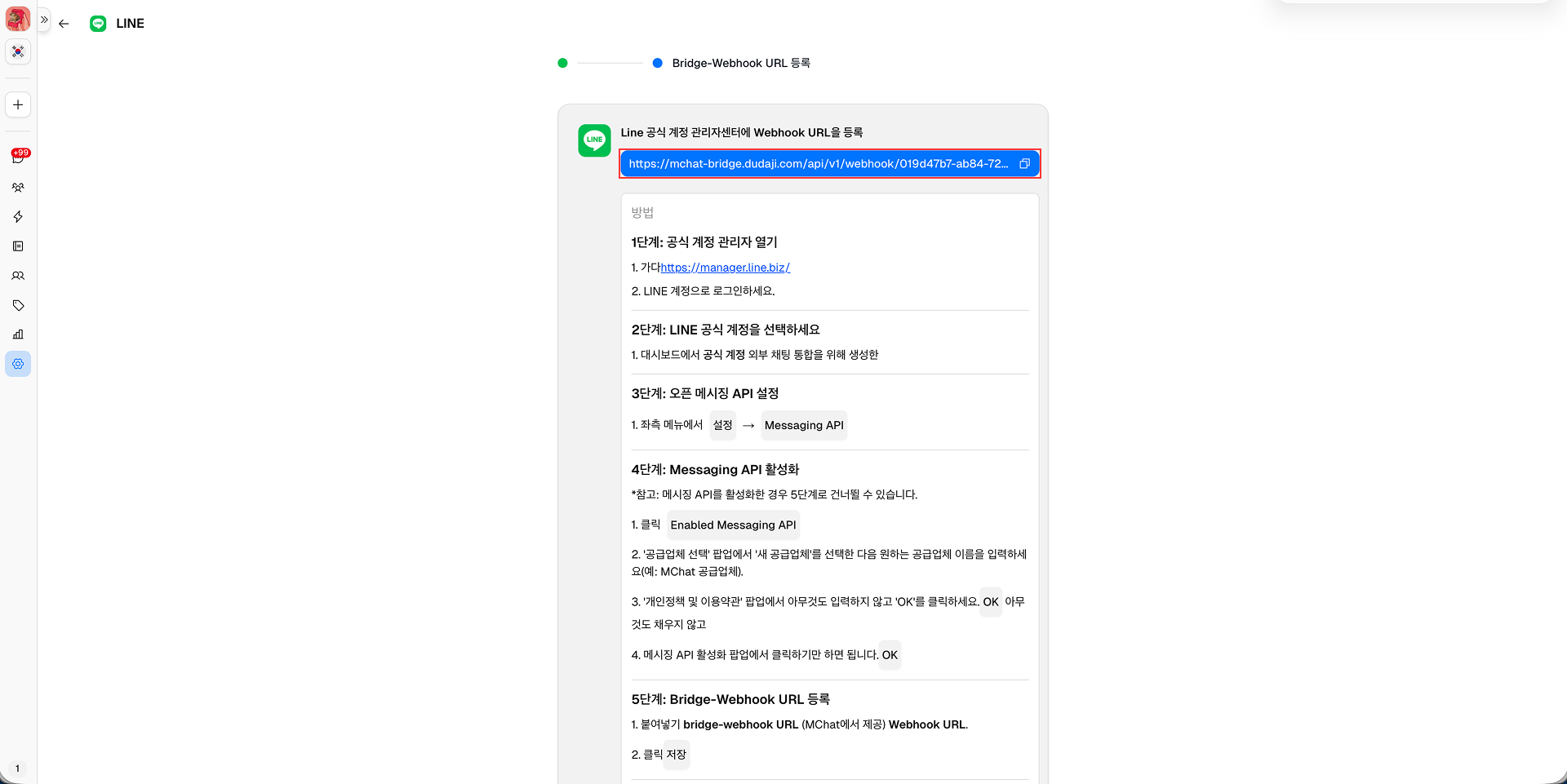
5단계: https://manager.line.biz/ 에 접속하여 LINE 공식 계정으로 로그인하세요.
6단계: MChat 통합을 위해 생성한 LINE 공식 계정을 선택합니다.
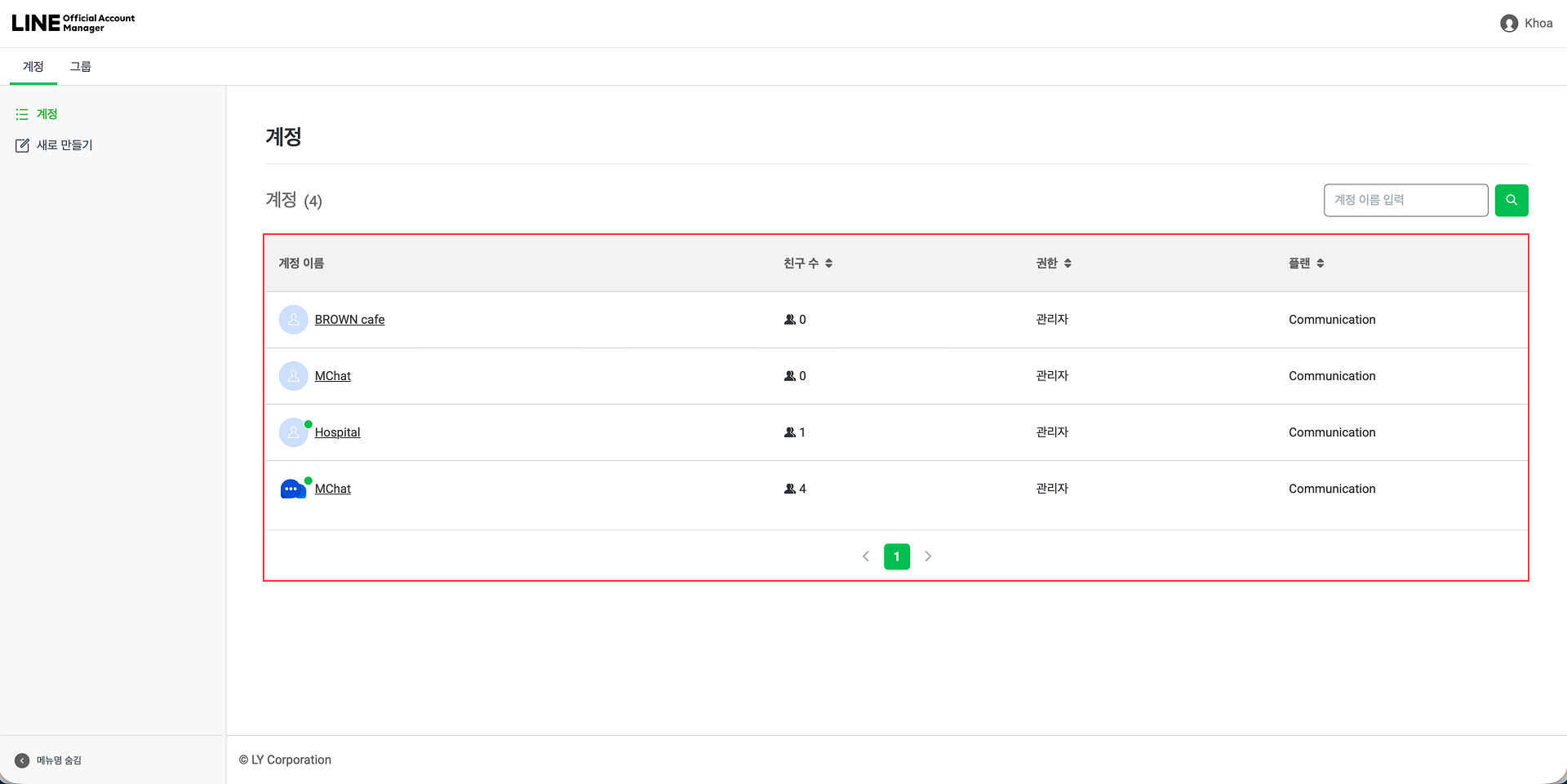
7단계: 오른쪽 상단에서 설정을 클릭합니다.
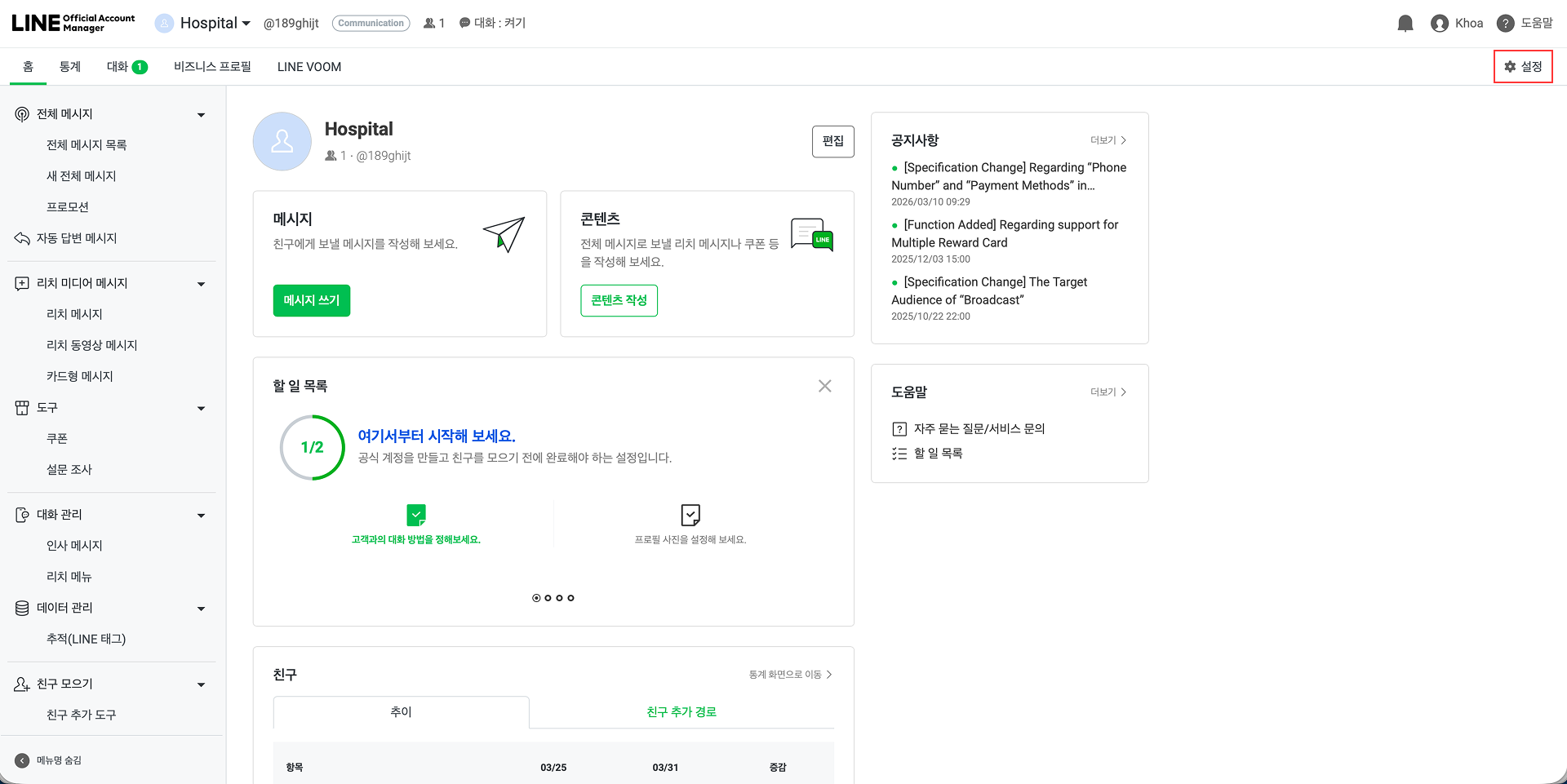
8단계: 왼쪽 사이드바에서 Messaging API를 선택합니다.
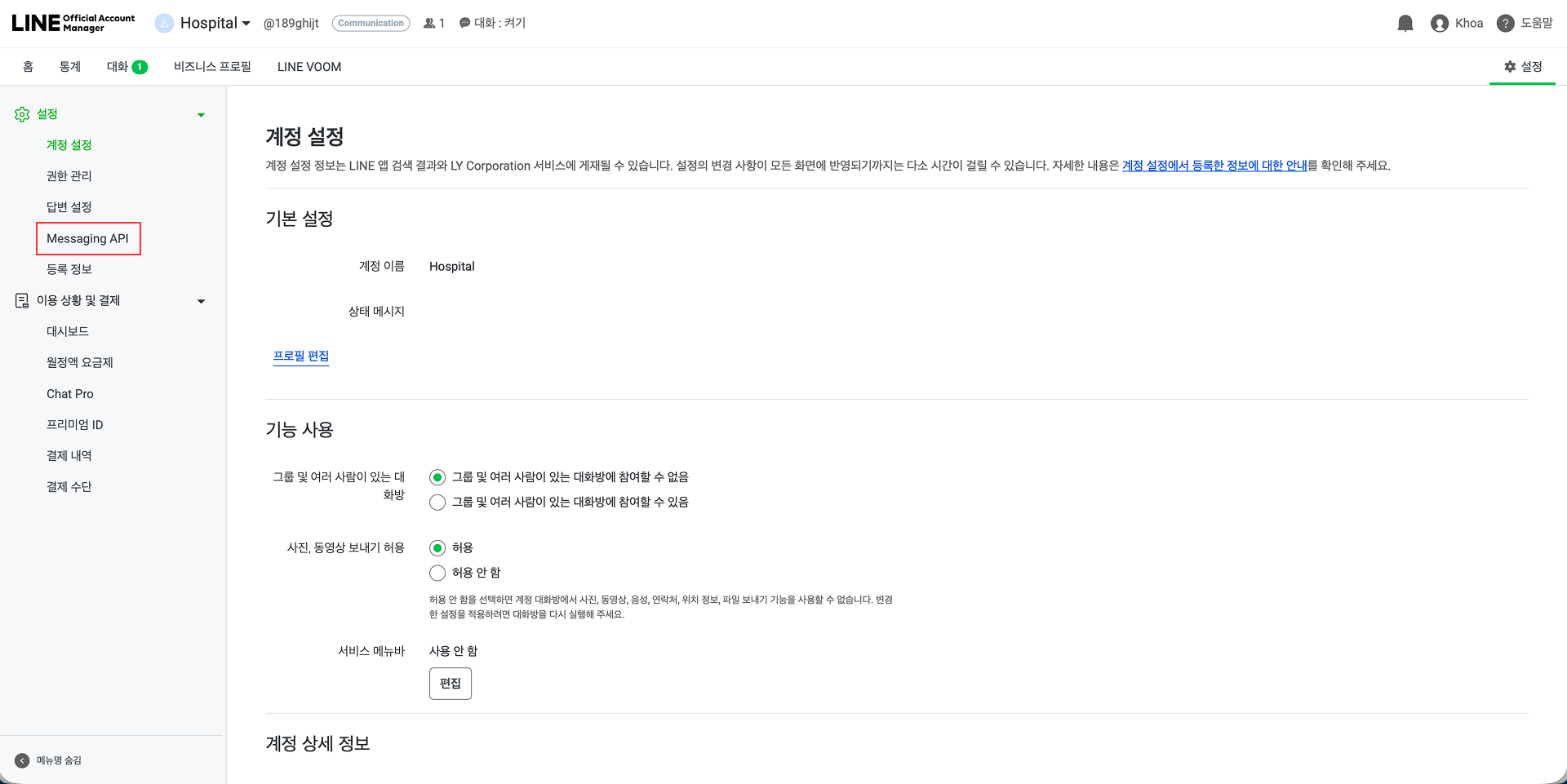
9단계: Messaging API 페이지에서 아직 활성화되지 않은 경우 Enable Messaging API 버튼을 클릭합니다. (이미 활성화한 경우 13단계로 건너뛰세요.) 9.1단계: 아직 LINE 개발자 계정을 등록하지 않았다면 등록하라는 팝업창이 나타납니다. 이름과 이메일 주소를 입력하고 '동의'를 클릭하세요.
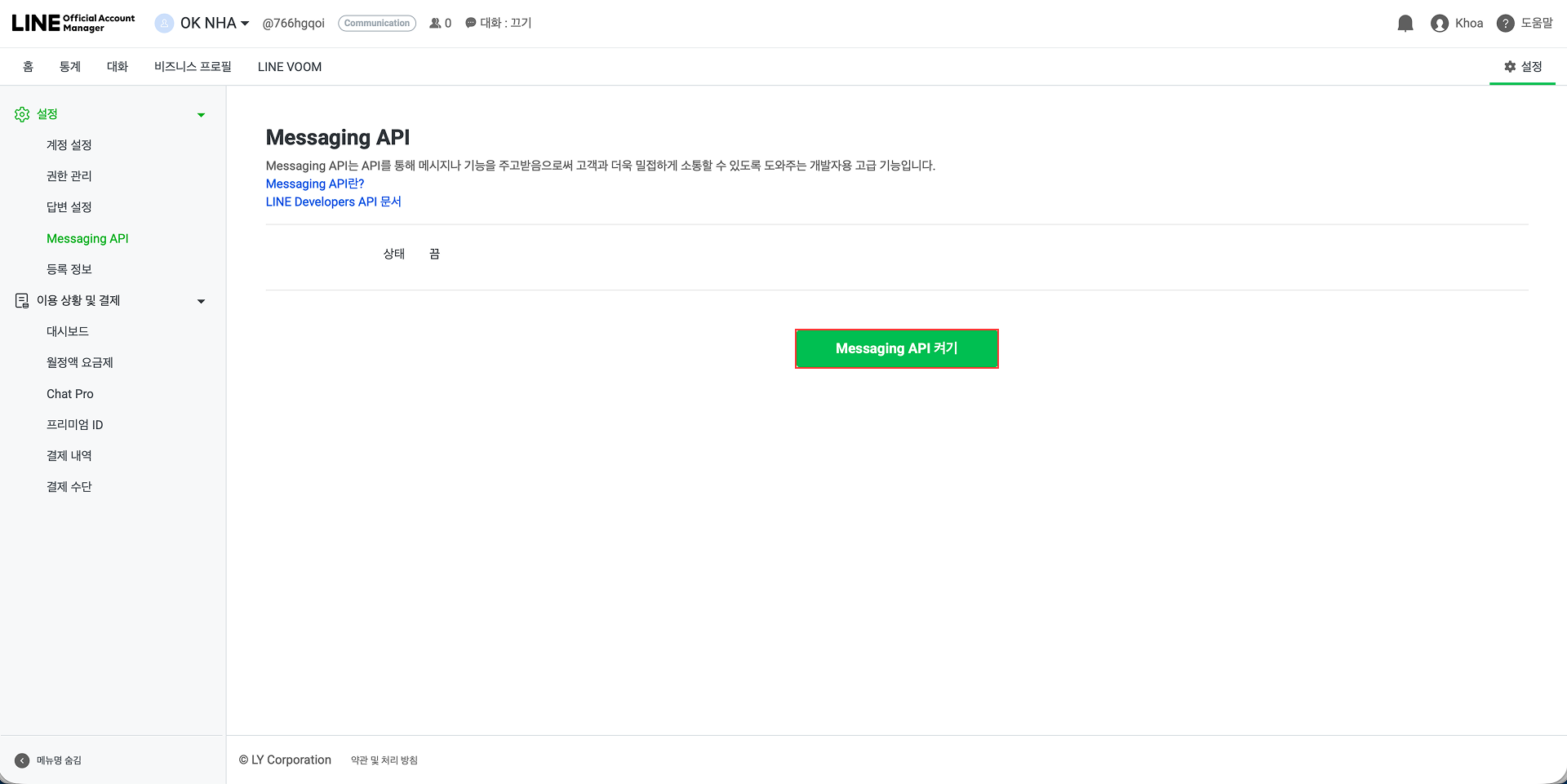
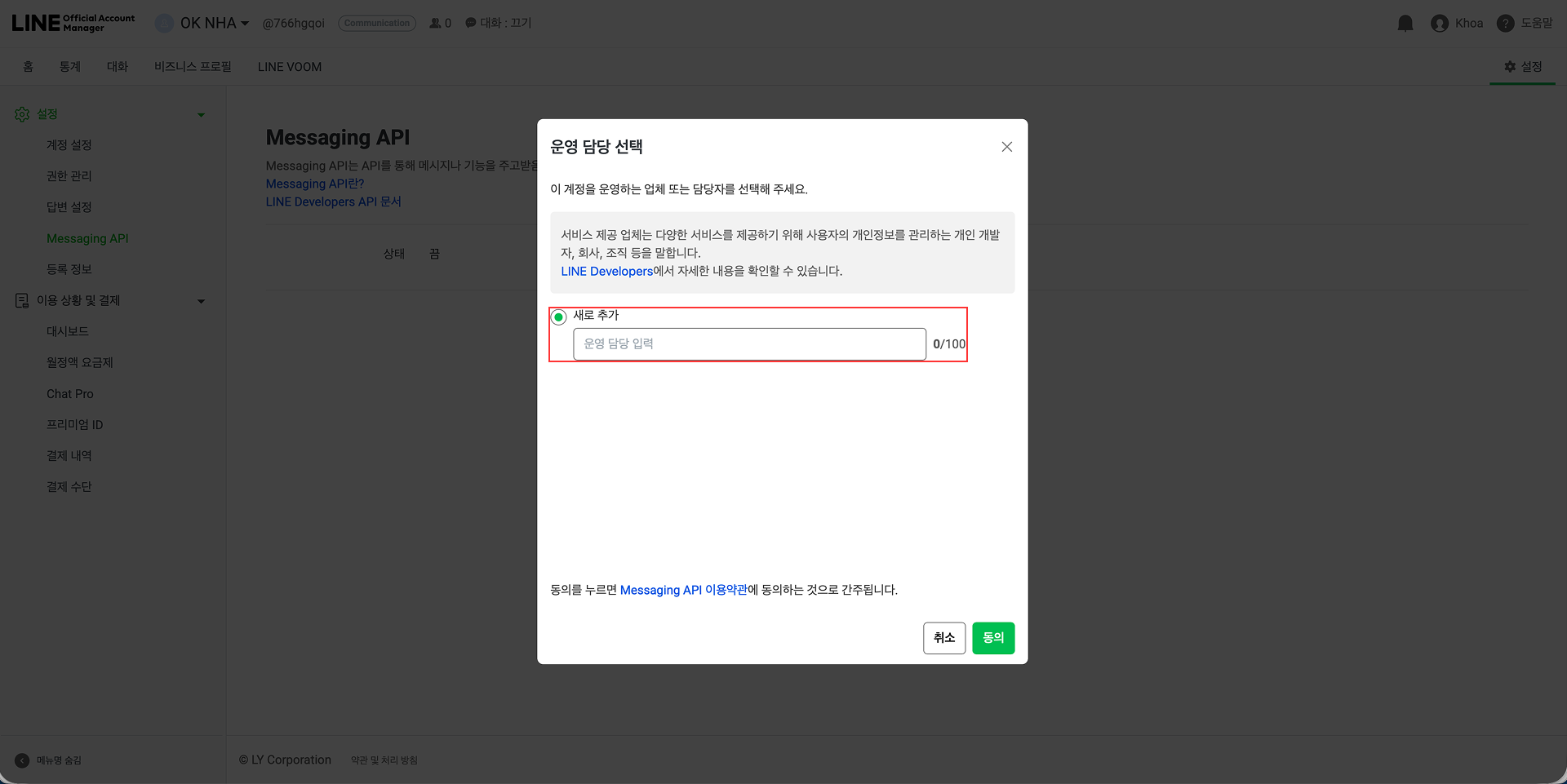
10단계: 공급자 선택 팝업이 나타납니다. 새 제공업체를 선택하고 원하는 제공업체 이름을 입력한 후 동의를 클릭하세요.
예: MChat 제공업체
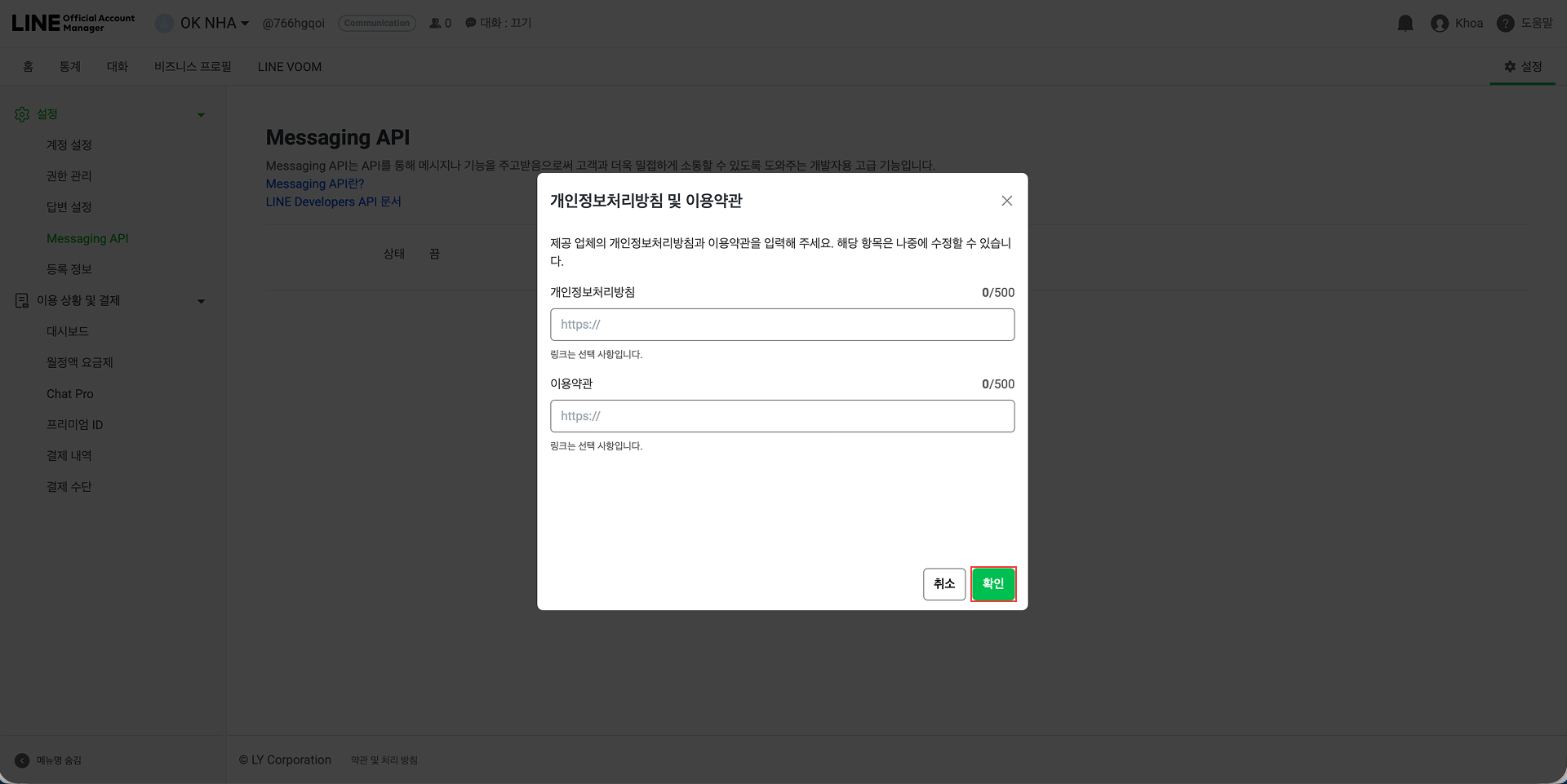
11단계: 개인정보 보호정책 및 이용약관 팝업에서 아무 것도 입력하지 않고 확인을 클릭하세요.
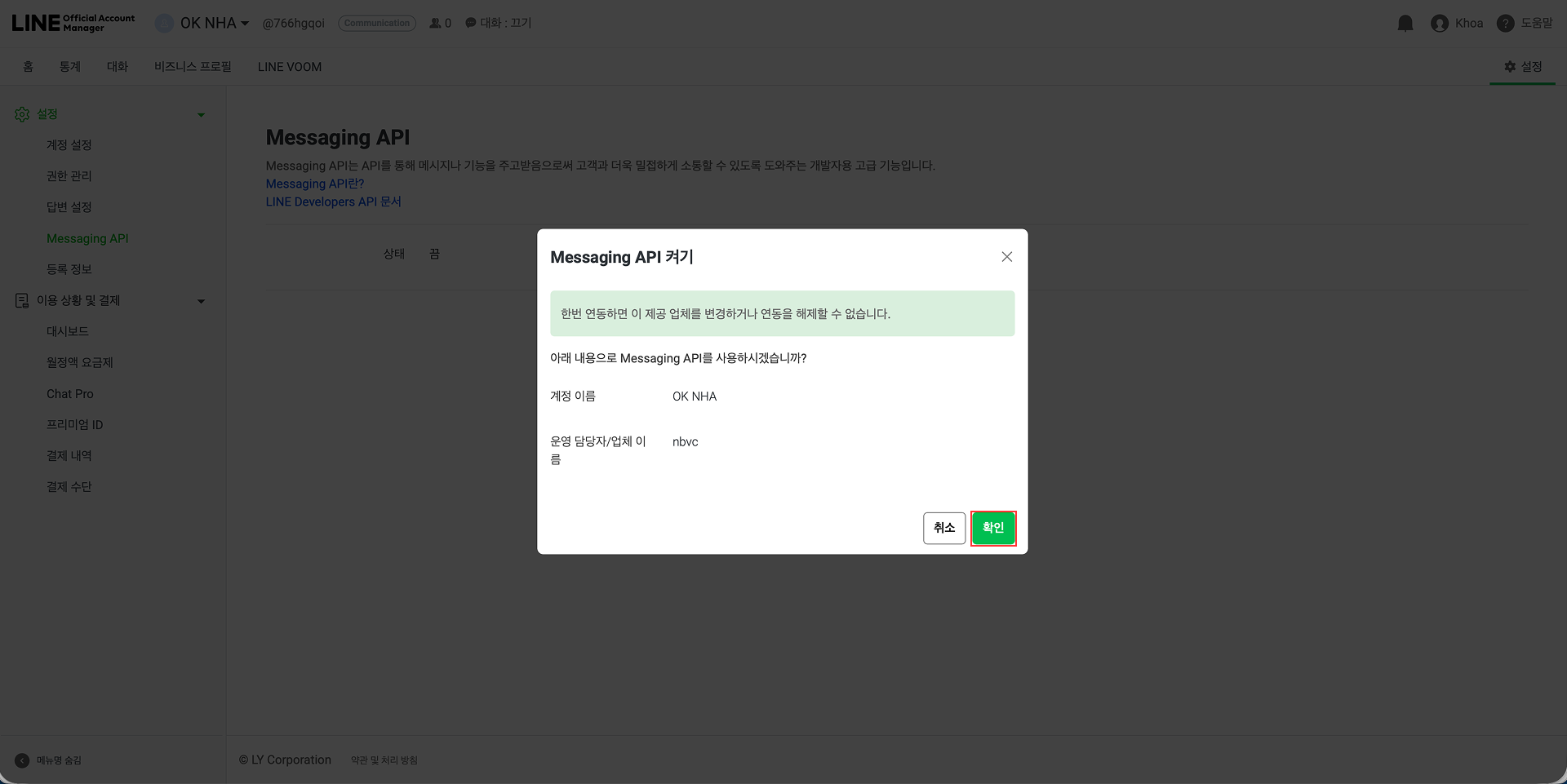
12단계: Enabling Messaging API 팝업에서 OK를 클릭하여 Messaging API를 활성화합니다.
13단계: Messaging API 페이지로 다시 리디렉션됩니다. 4단계에서 복사한 웹훅 URL을 웹훅 URL 필드에 붙여넣습니다. 그런 다음 저장을 클릭하세요.
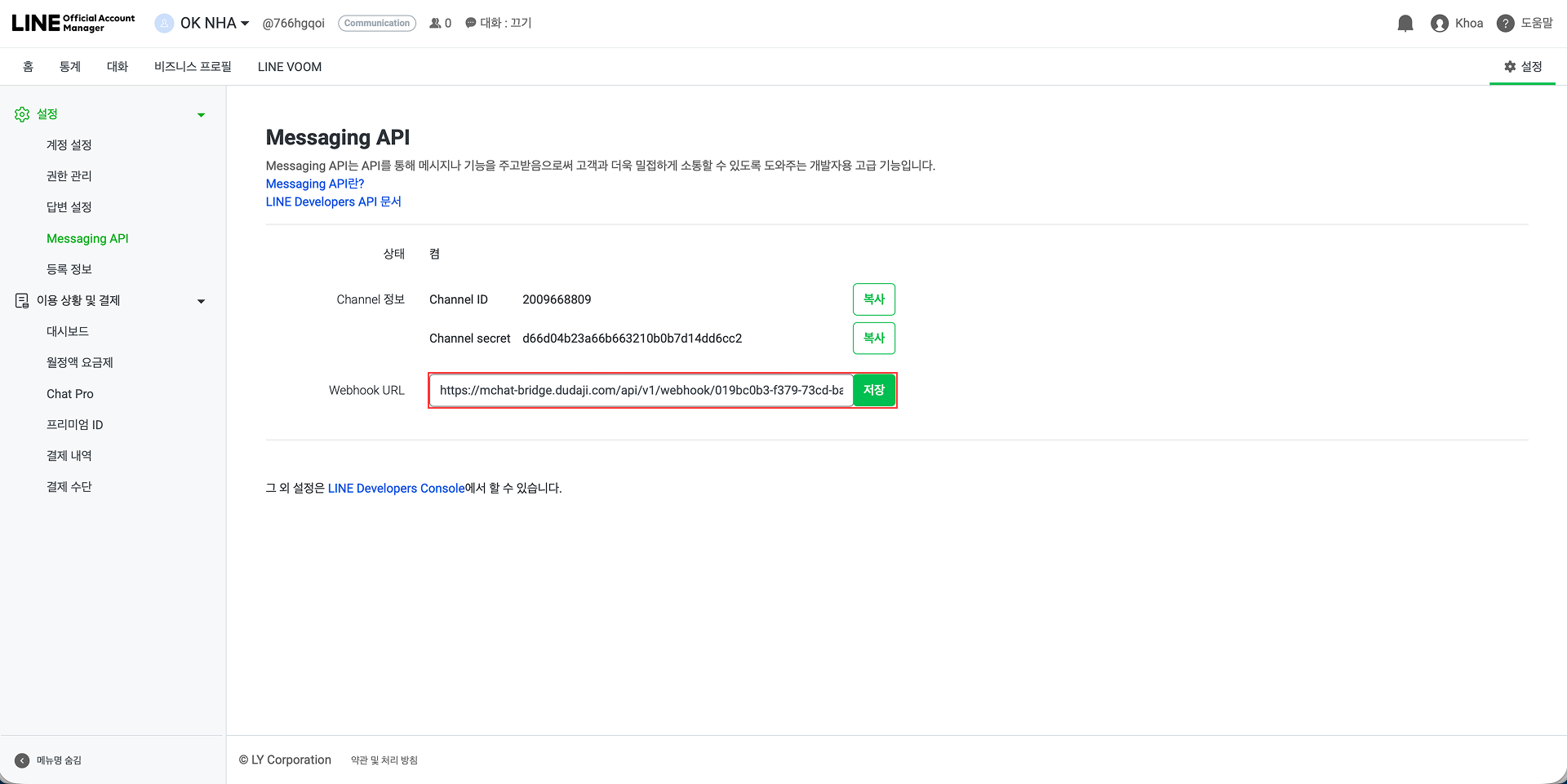
14단계: 저장한 후 왼쪽 패널의 응답 설정으로 이동하여 웹후크 토글을 활성화합니다.
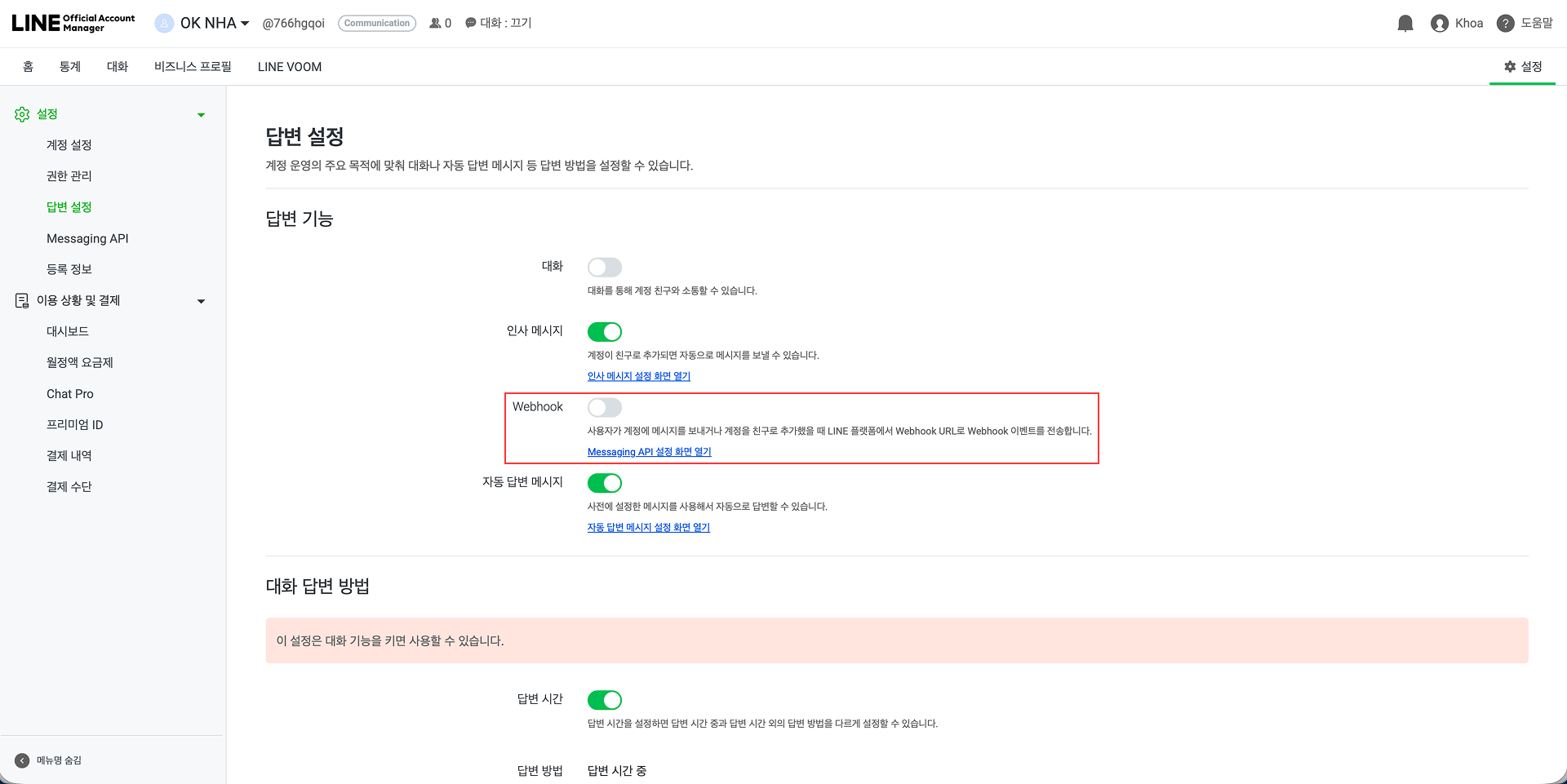
15단계: 성공적으로 웹훅 URL을 추가하고 웹훅을 활성화한 후 MChat LINE 통합 페이지로 돌아가서 페이지 하단에 있는 등록 완료 버튼을 클릭하세요.
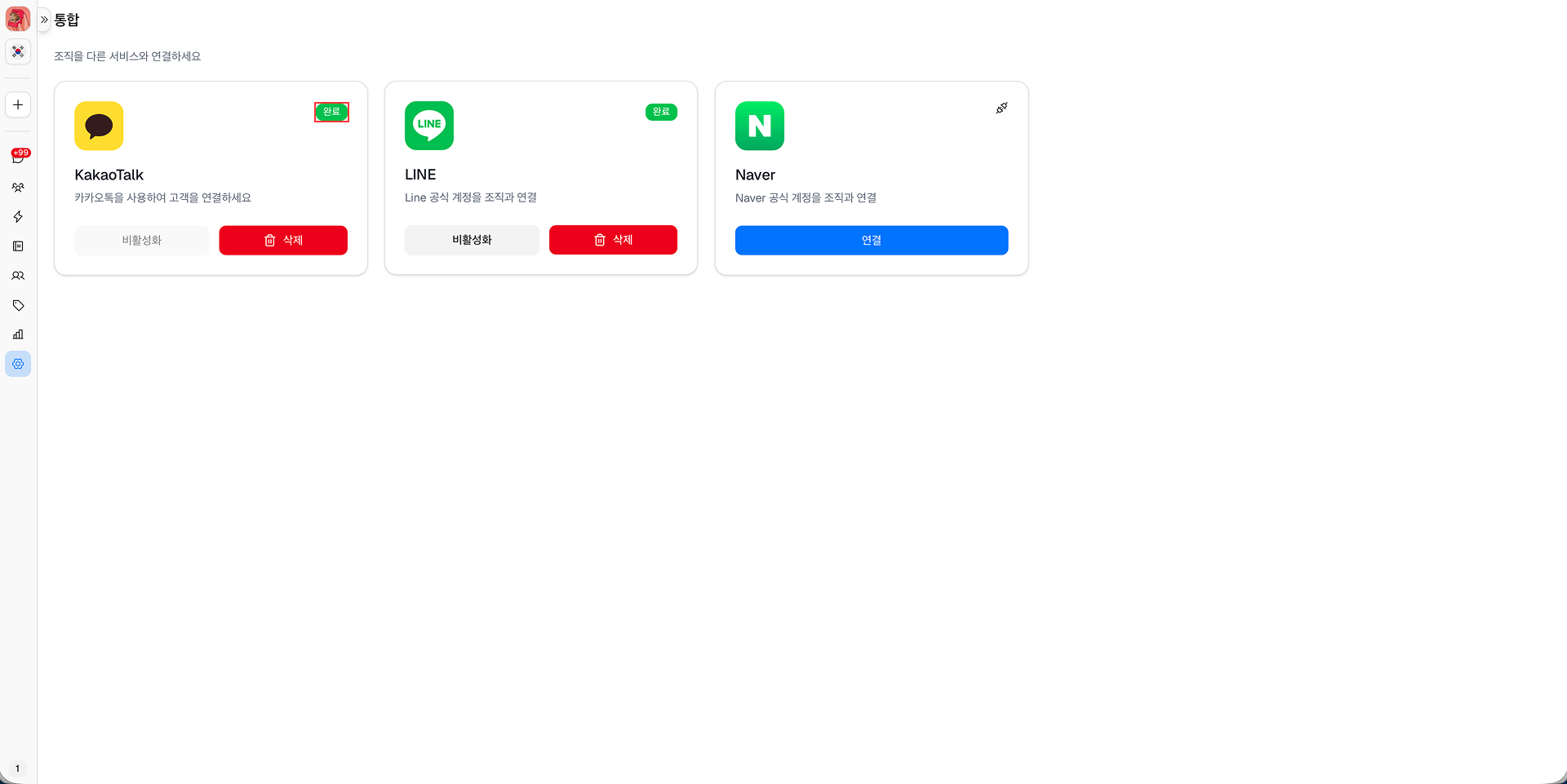
16단계: 등록이 완료되면 MChat 통합 설정에서 LINE 통합 상태가 활성으로 변경됩니다. LINE과 MChat을 성공적으로 통합했습니다.
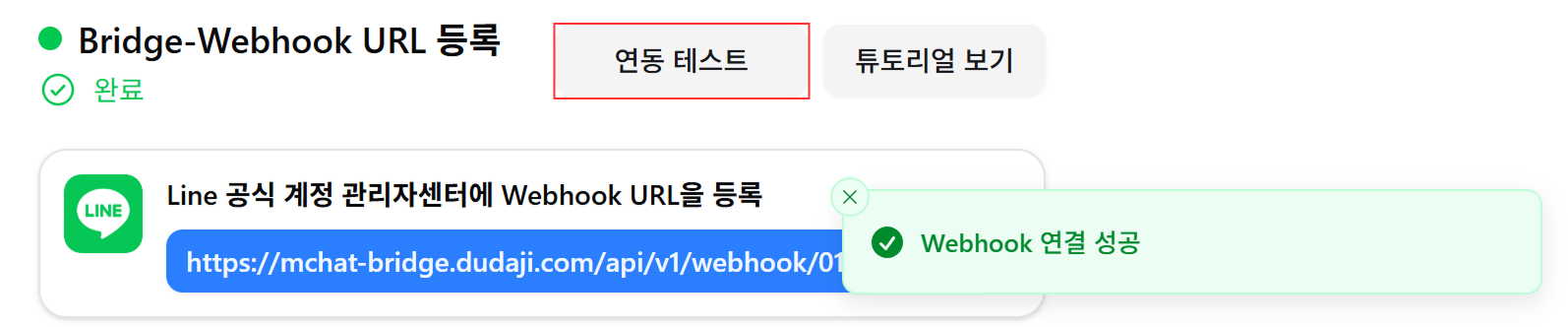
웹훅 URL 연결 테스트: MChat LINE 통합 페이지의 테스트 연결 버튼을 클릭하여 웹훅 URL 연결을 테스트할 수 있습니다. 연결에 성공하면 성공 메시지가 표시됩니다. 연결에 문제가 있는 경우 오류 메시지가 표시되어 문제를 해결하고 LINE 통합이 올바르게 설정되었는지 확인할 수 있습니다.
채널 액세스 토큰을 얻는 방법
채널 액세스 토큰을 얻으려면 LINE 통합의 9단계에서 LINE Developers Console 링크를 클릭하세요.
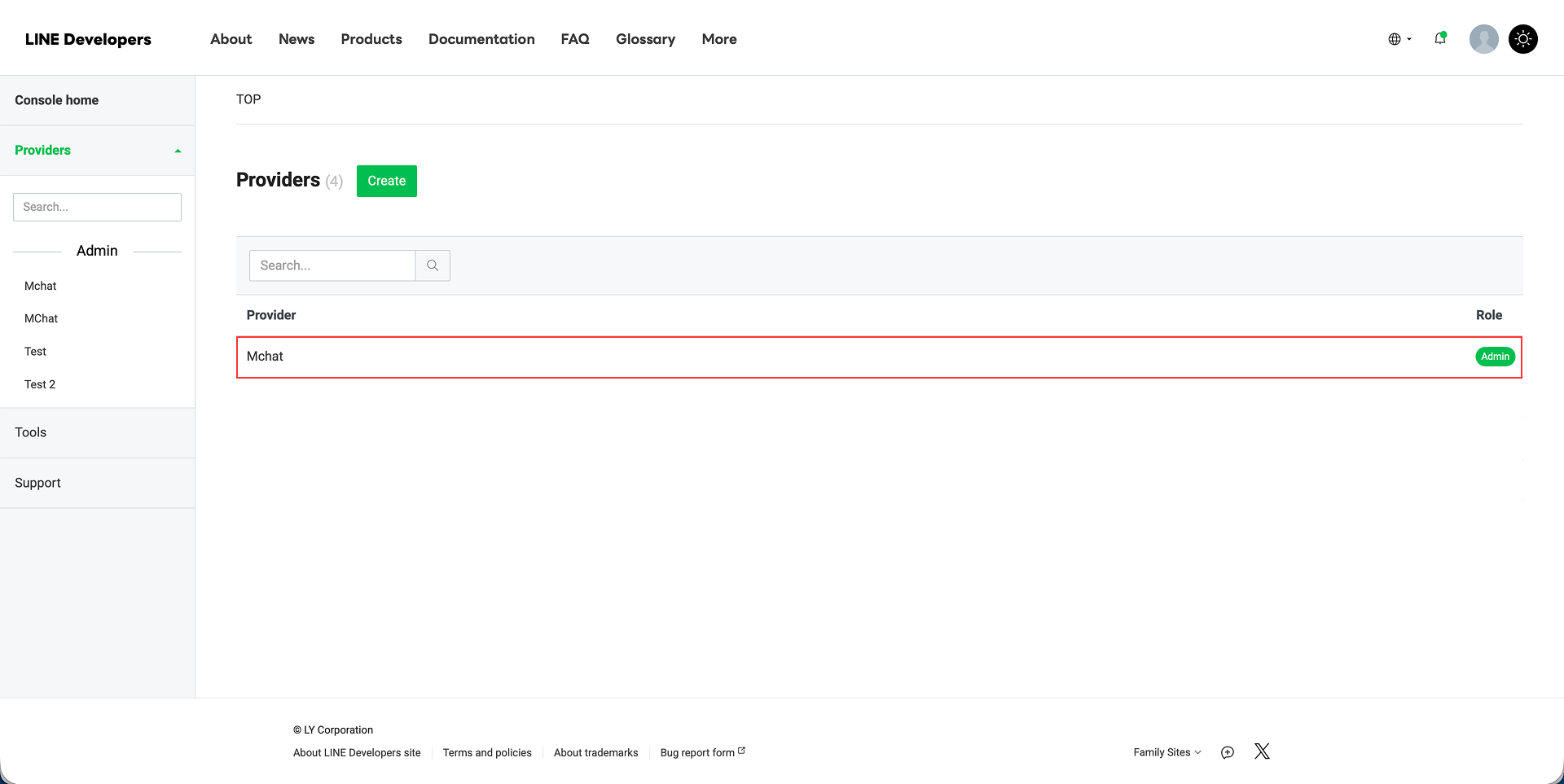
LINE 통합의 10단계에서 MChat 통합을 위해 생성한 공급자를 선택하세요.
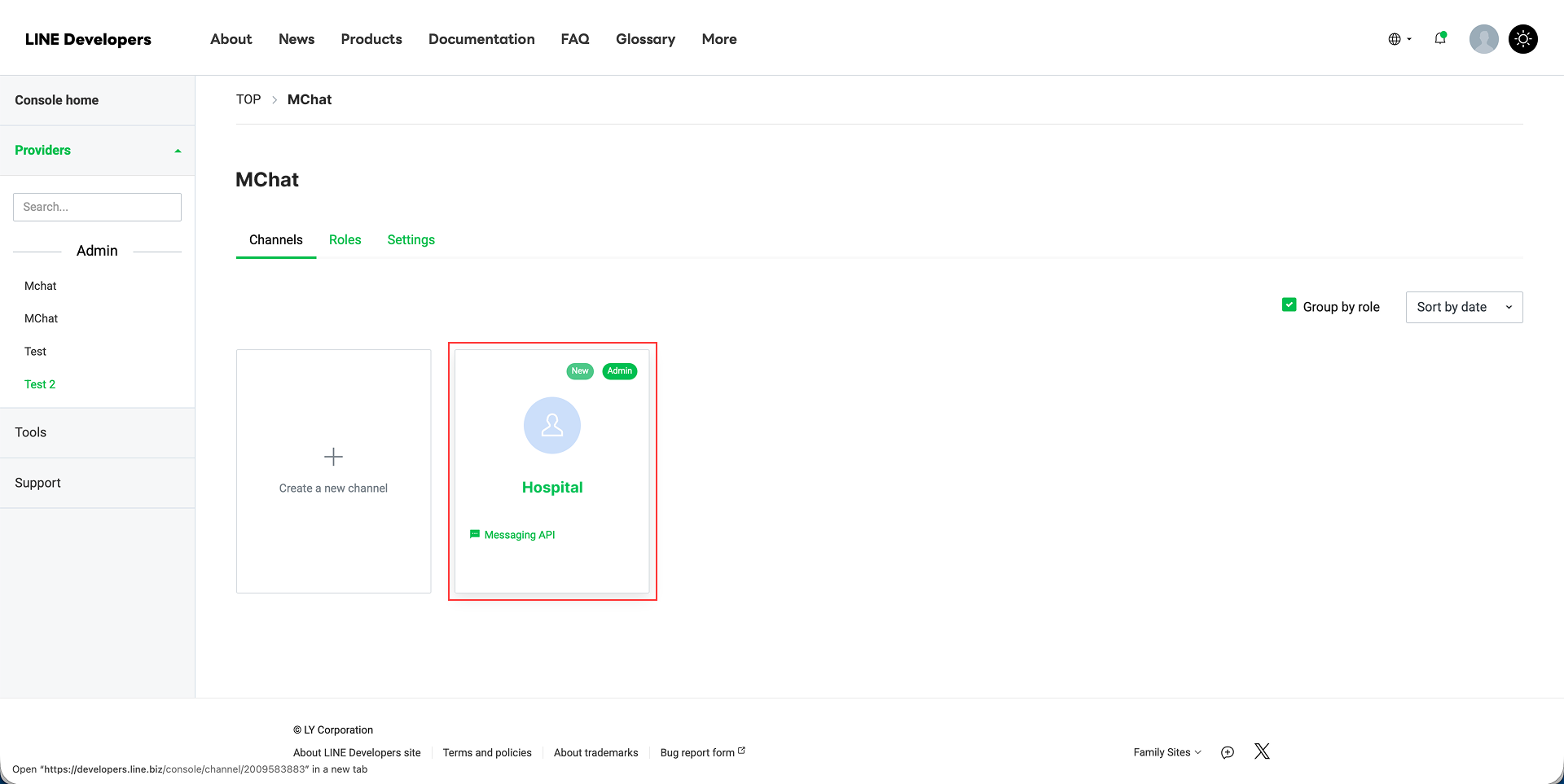
그런 다음 MChat 통합을 위해 생성한 계정을 선택합니다. (계정 이름 아래에 Messaging API 텍스트가 있는 계정입니다.)
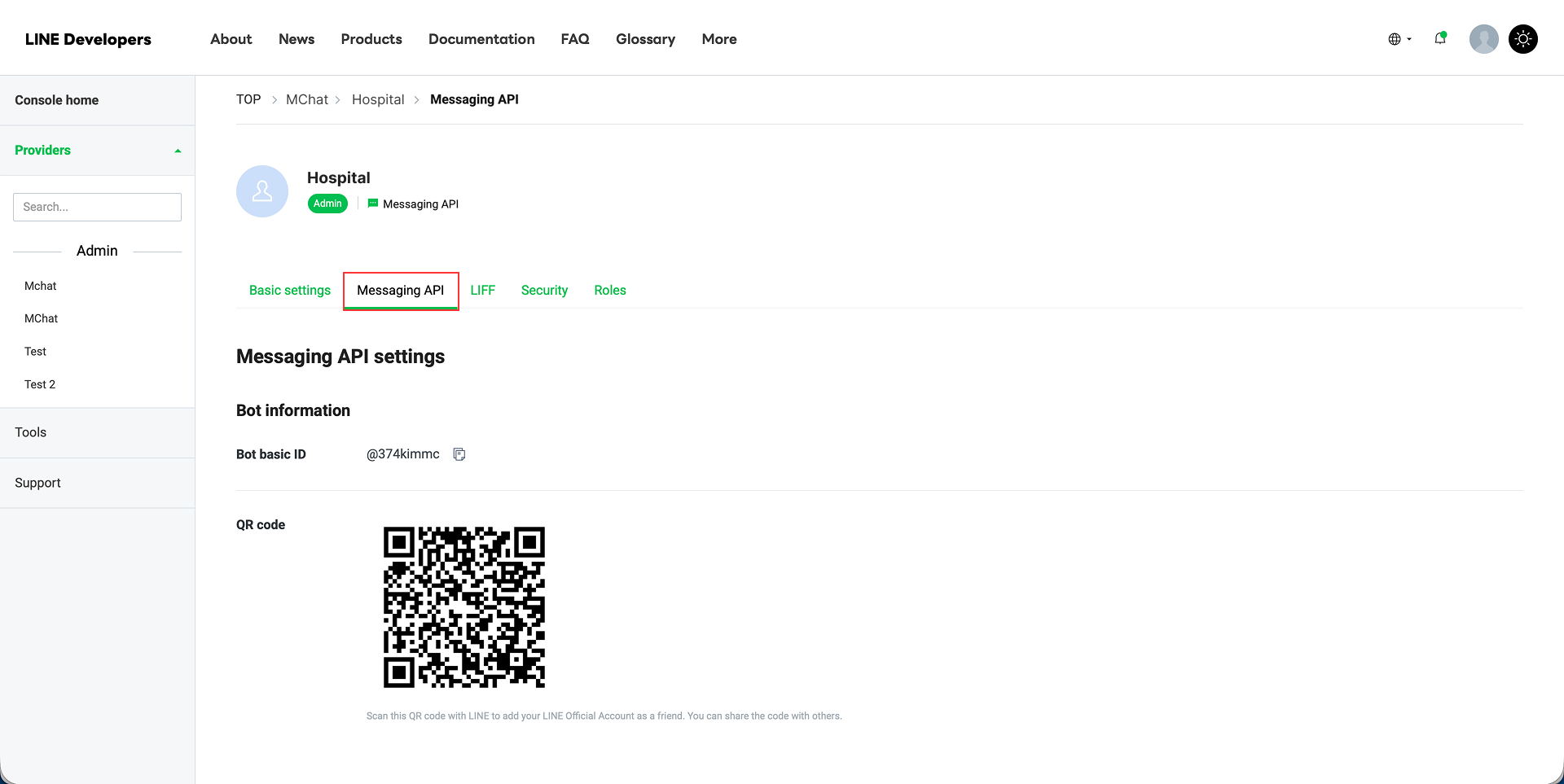
Messaging API 탭으로 이동합니다.
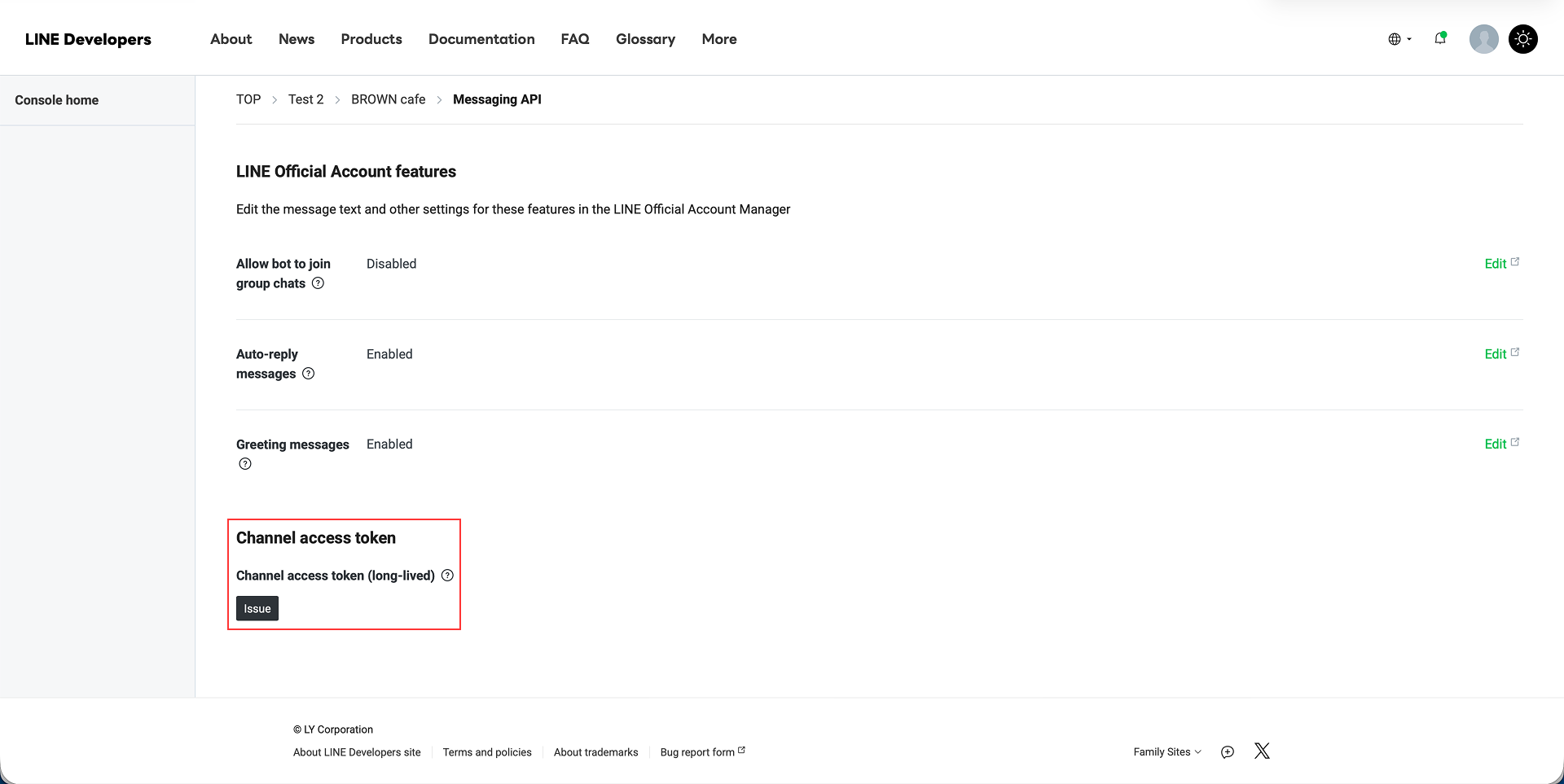
채널 액세스 토큰 섹션으로 스크롤을 내리고 발행 버튼을 클릭하여 새 채널 액세스 토큰을 생성합니다. 그런 다음 생성된 토큰을 복사하여 MChat LINE 통합 페이지의 채널 액세스 토큰 필드에 붙여넣습니다.
완료되었습니다. 이제 LINE 통합의 3단계로 계속 진행하여 통합 프로세스를 완료할 수 있습니다.