시작하세요
위키 소개
Wiki는 팀이 중요한 정보를 저장하는 데 도움이 되는 내부 메모 기능입니다.
Wiki 관리 인터페이스 개요
Wiki 관리 인터페이스는 사용자 친화적이고 직관적으로 설계되어 상담원이 내부 메모를 효율적으로 관리할 수 있습니다.
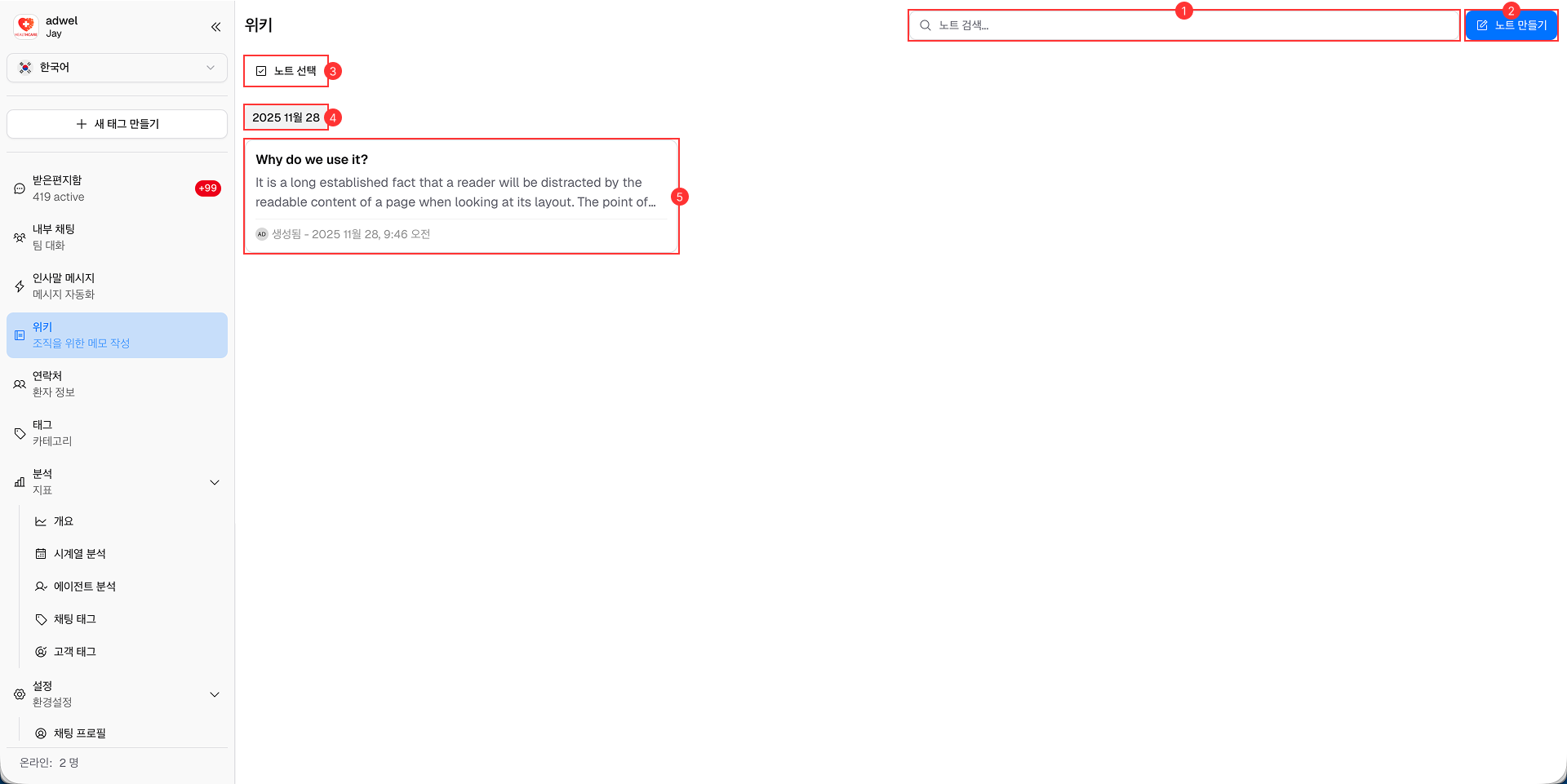
이는 다음과 같은 주요 구성 요소로 구성됩니다.
-
검색 창: 상담원이 특정 메모를 이름으로 빠르게 찾을 수 있는 검색 기능입니다.
-
메모 작성 버튼: 상담원이 새 메모를 작성할 수 있는 버튼입니다.
-
선택 버튼: 상담원이 메모를 선택할 수 있는 버튼입니다.
-
날짜 구분선: 상담원이 메모 날짜를 볼 수 있는 구분선입니다.
-
메모 항목: 상담원이 메모를 빠르게 미리 볼 수 있는 메모 항목입니다.
참고 항목 인터페이스 개요
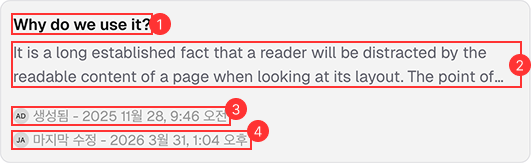
이는 다음과 같은 주요 구성 요소로 구성됩니다.
-
노트 이름: 노트의 이름입니다.
-
노트 내용 미리보기: 노트 내용을 미리 볼 수 있습니다.
-
소유자 정보: 해당 채권의 소유자 정보입니다.
- 소유자 정보: 아바타(마우스를 올리면 소유자 이름 표시)
- 생성시간: 노트가 생성된 시간입니다.
-
마지막 업데이트 정보: 노트가 생성된 후 마지막으로 업데이트된 시간에 대한 정보입니다. 메모가 생성된 후 업데이트되지 않은 경우 이 정보는 표시되지 않습니다.
- 업데이트된 인물 정보: 아바타(마우스를 올리면 업데이트된 인물 이름이 표시됩니다)
- 업데이트 시간: 노트가 마지막으로 업데이트된 시간입니다.
-
작업 열기 버튼: 메모에 대한 작업 메뉴를 열려면 클릭하세요. (메모 항목 위에 마우스를 올려놓을 때만 표시됩니다.)
- 수정: 메모를 수정하려면 클릭하세요.
- 삭제: 메모를 삭제하려면 클릭하세요. (노트의 소유자인 경우에만 활성화)
노트 편집기 인터페이스 개요
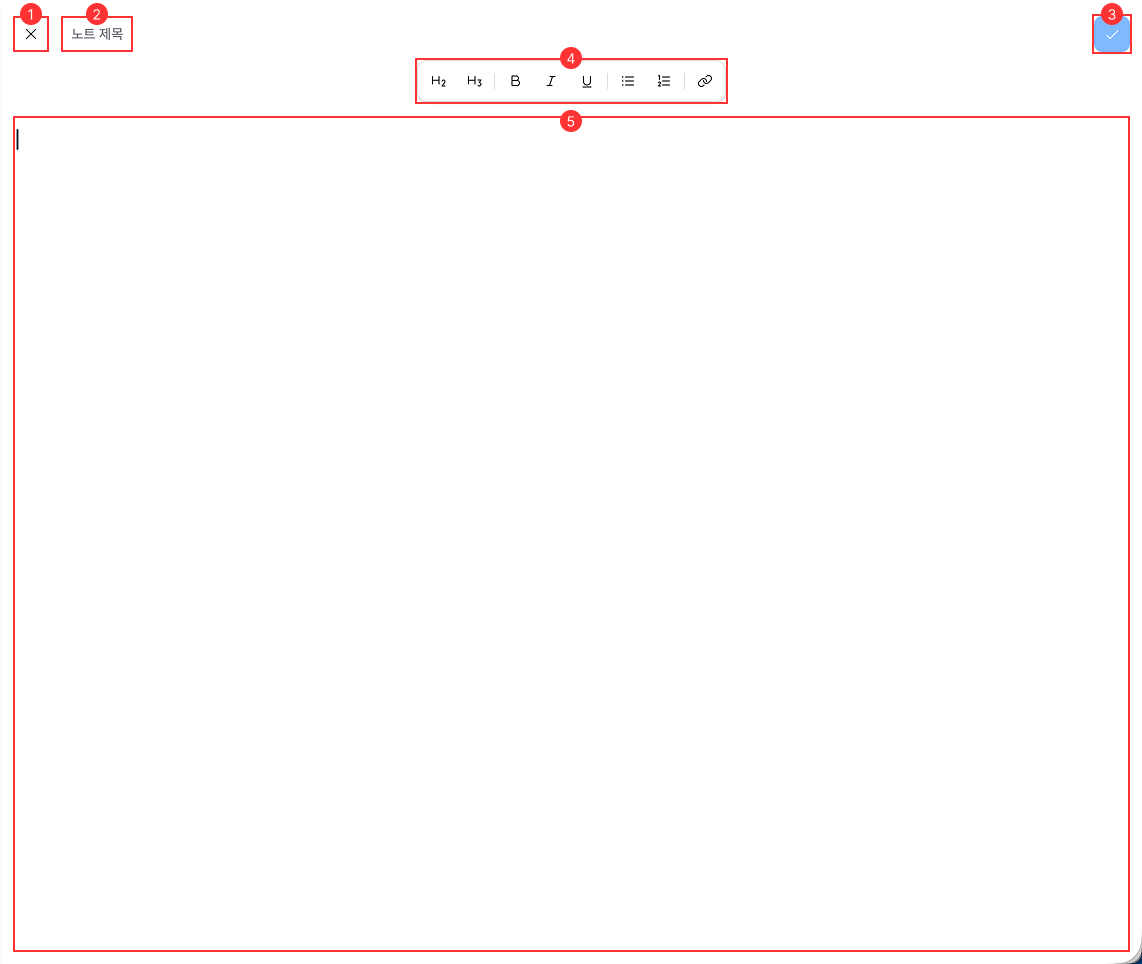
이는 다음과 같은 주요 구성 요소로 구성됩니다.
-
닫기 버튼: 노트 편집기를 닫으려면 클릭하세요.
-
노트 이름 입력 필드: 상담원이 쉽게 식별할 수 있도록 메모 이름을 입력할 수 있는 텍스트 입력 필드입니다.
-
저장 버튼: 메모를 저장하려면 클릭하세요.
-
서식 있는 텍스트 편집기: 상담원이 메모 내용을 작성하고 사용자 지정할 수 있는 서식 있는 텍스트 편집기입니다. 이 편집기에는 메모를 향상시키는 도구가 포함되어 있습니다.
-
콘텐츠 영역: 상담원이 메모 콘텐츠를 작성하고 맞춤화할 수 있는 중앙 영역입니다.
리치 텍스트 편집기 개요

이는 다음과 같은 주요 구성 요소로 구성됩니다.
-
H2: H2 제목을 삽입하려면 클릭하세요.
-
H3: H3 제목을 삽입하려면 클릭하세요.
-
굵게: 선택한 텍스트를 굵게 표시하려면 클릭하세요.
-
기울임꼴: 선택한 텍스트를 기울임꼴로 만들려면 클릭하세요.
-
밑줄: 선택한 텍스트에 밑줄을 표시하려면 클릭하세요.
-
글머리 기호 목록: 글머리 기호 목록을 삽입하려면 클릭하세요.
-
번호 목록: 클릭하면 번호 목록이 삽입됩니다.
-
링크: 클릭하면 선택한 텍스트에 링크가 삽입됩니다.