Edit Contact
The Edit Contact feature in Internal Chat allows agents to modify and update the information of patients who have reached out for support or inquiries through the MChat widget on the website or application.
To edit a contact's information, follow these steps:
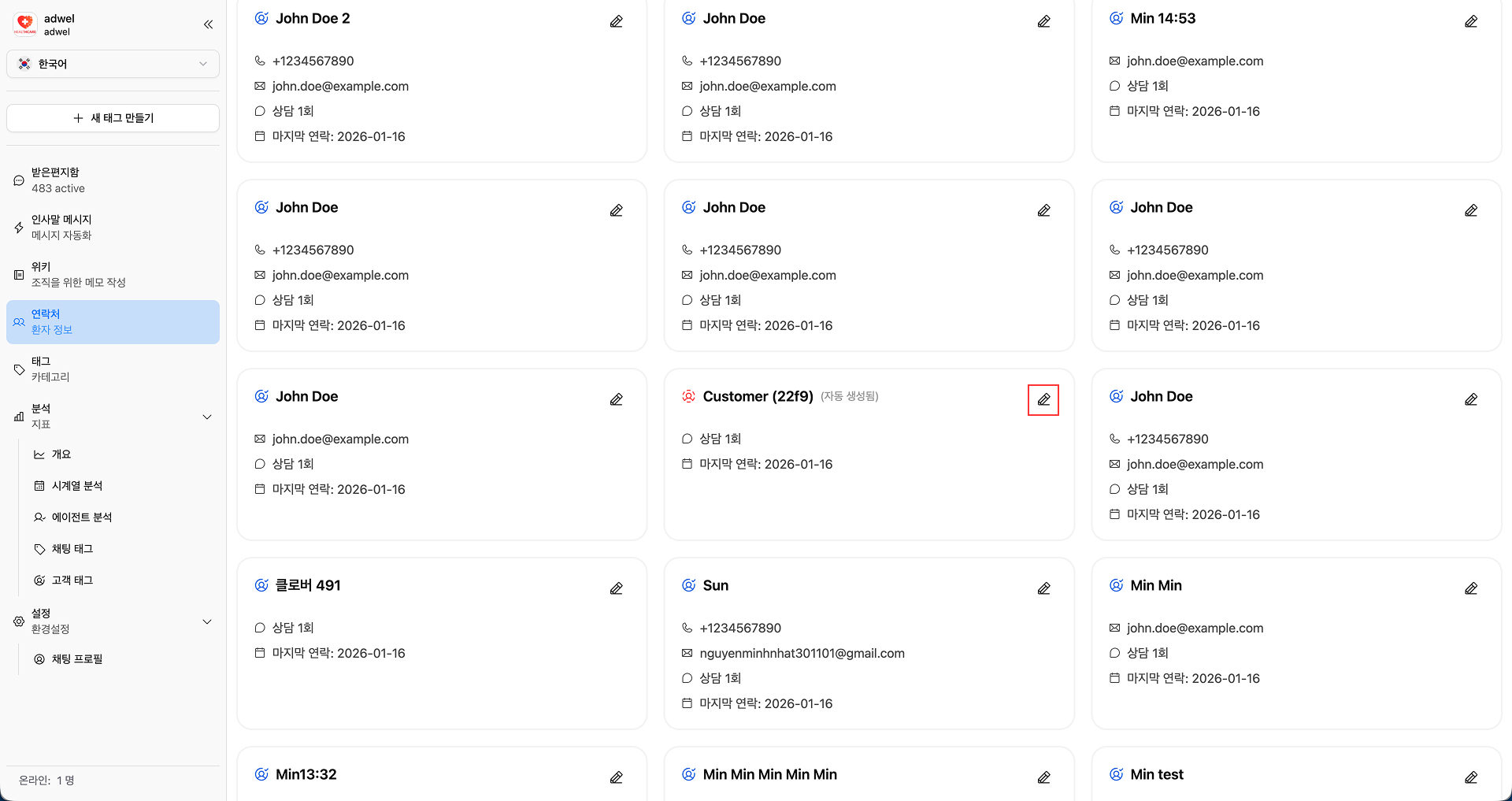
Step 1: In the Contact Management Interface, click on the Edit Button located next to the patient's name in the Contact Item Interface.

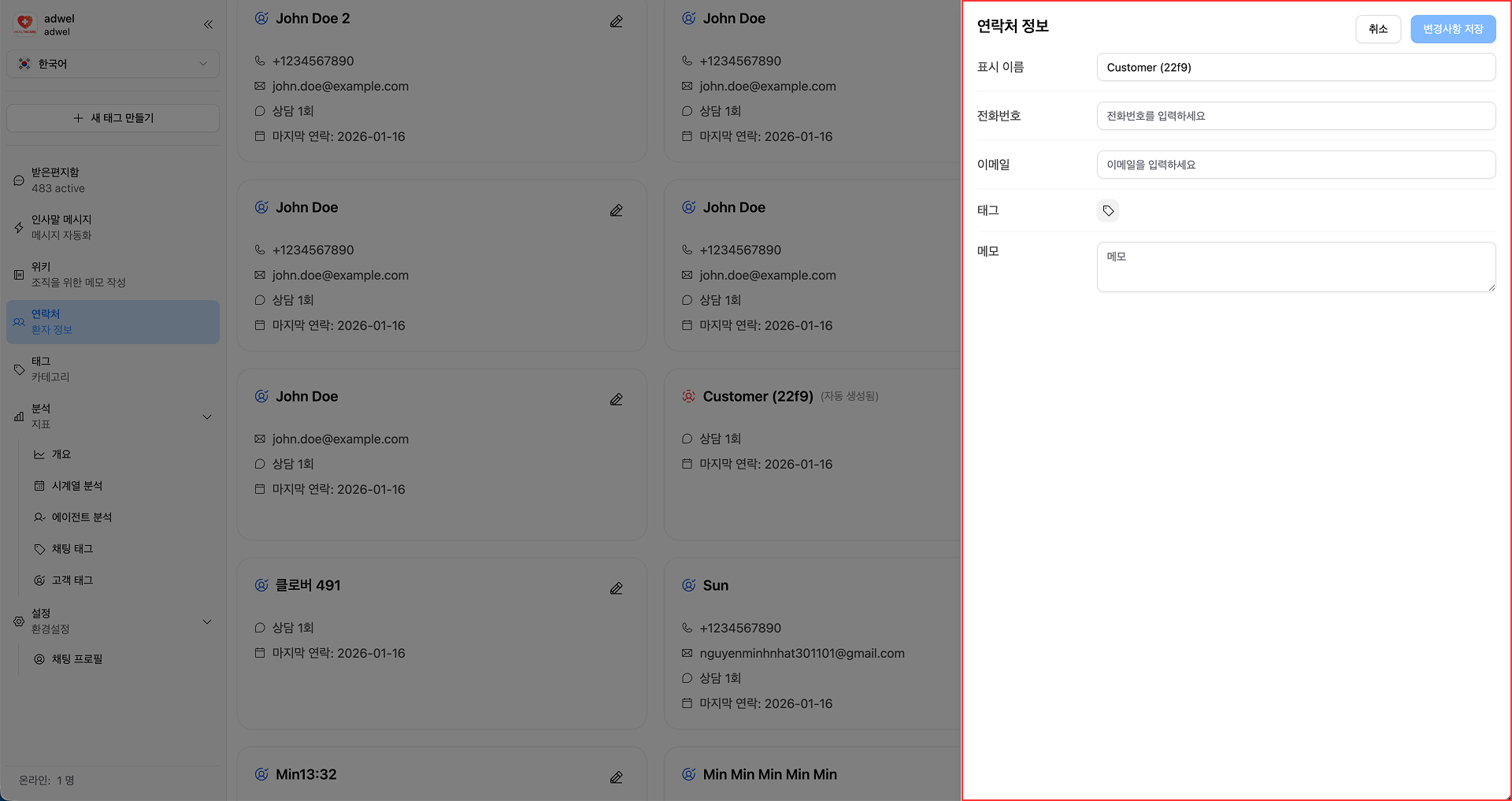
Step 2: The Contact Information Slide-in will appear on the right side of the interface. Here, you can modify the following fields:

-
Display Name (Visitor type only): Change the name of the patient to better identify them.
-
Phone Number (Visitor type only): Update the patient's phone number.
-
Email (Visitor type only): Update the patient's email address.
-
Tags: Add or remove Customer Tag associated with the patient for better organization and categorization.
-
Memo: Add or update any notes or comments about the patient for future reference.
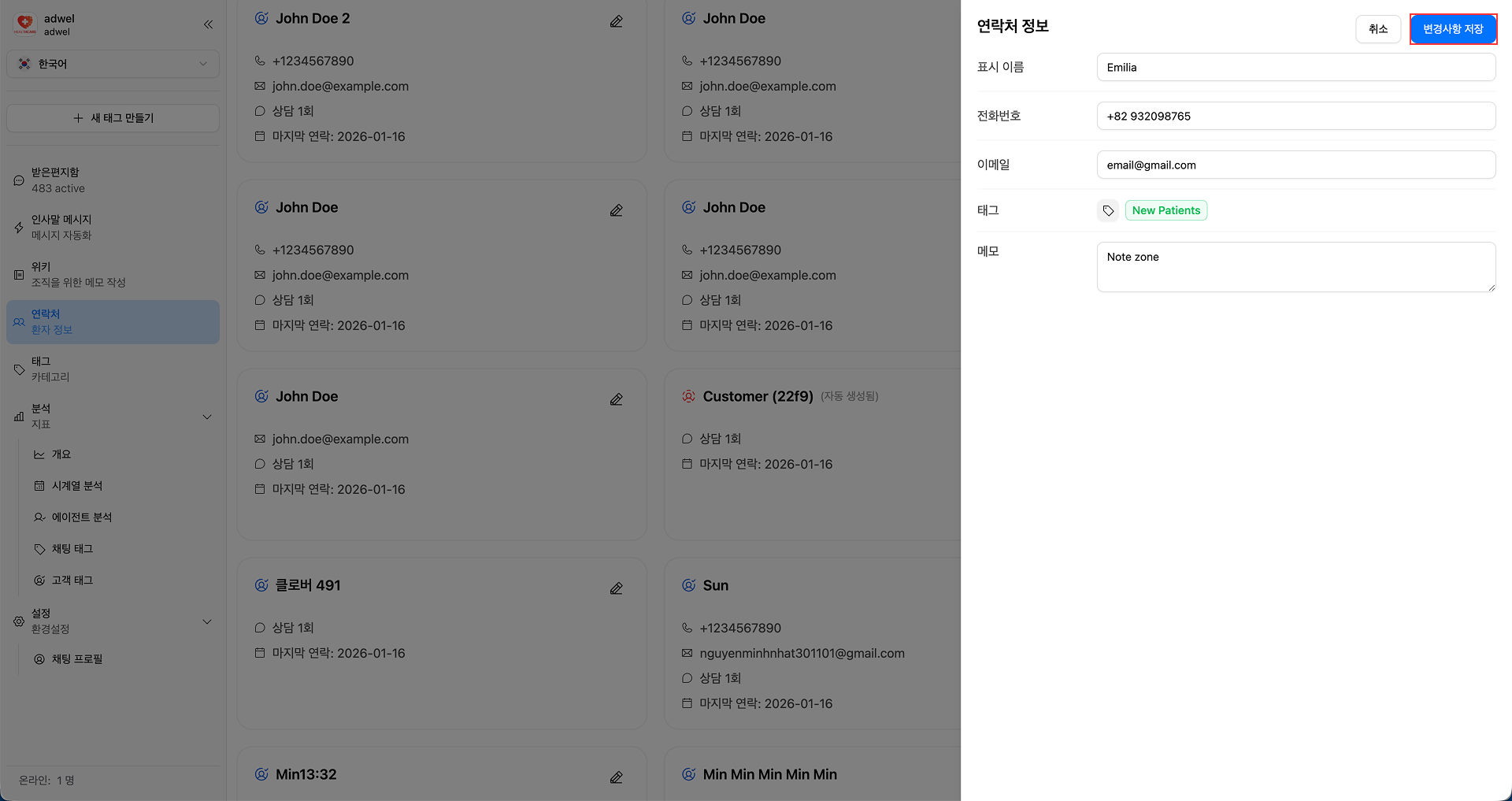
Step 3: After making the necessary changes, click the Save Button at the top right corner of the slide-in to save the updated contact information.

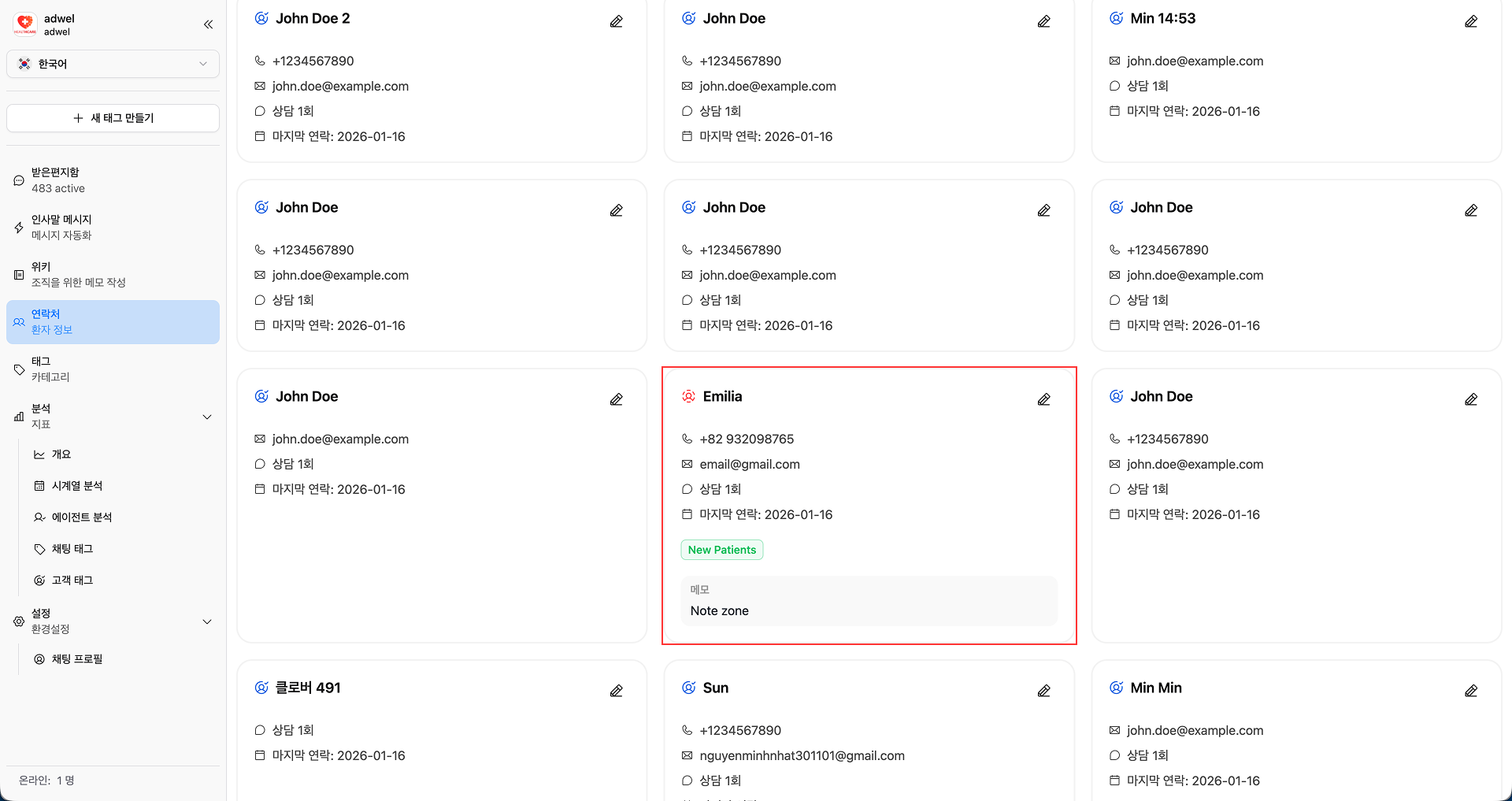
After saved, the updated information will be reflected in the Contact Item Interface