Get Started

Tags Introduction

Tags are a way to categorize and organize chats and contacts in MChat. They allow agents to easily find and filter chats and contacts based on specific criteria.

There are two types of tags in MChat:

  • Chat Tags: These tags are associated with individual chats. They help agents to categorize and manage conversations based on topics, issues, or any other relevant criteria.

  • Customer Tags: These tags are associated with contacts. They help agents to segment and organize their patient base for better targeting and personalized communication.

Also, tags can be organized in a hierarchical structure using:

  • Parent Tags: These are top-level tags that can have multiple child tags under them.

  • Children Tags: These are sub-tags that fall under a Parent Tag.

This allows for better organization and easier navigation through the tags but no have any difference in functionality when compared both of them. And the hierarchy is restricted to only two levels: Parent Tags and Children Tags.

Tag Management Interface Overview

The Tag Management interface is designed to be user-friendly and intuitive, allowing agents to efficiently manage tags for chats and contacts.

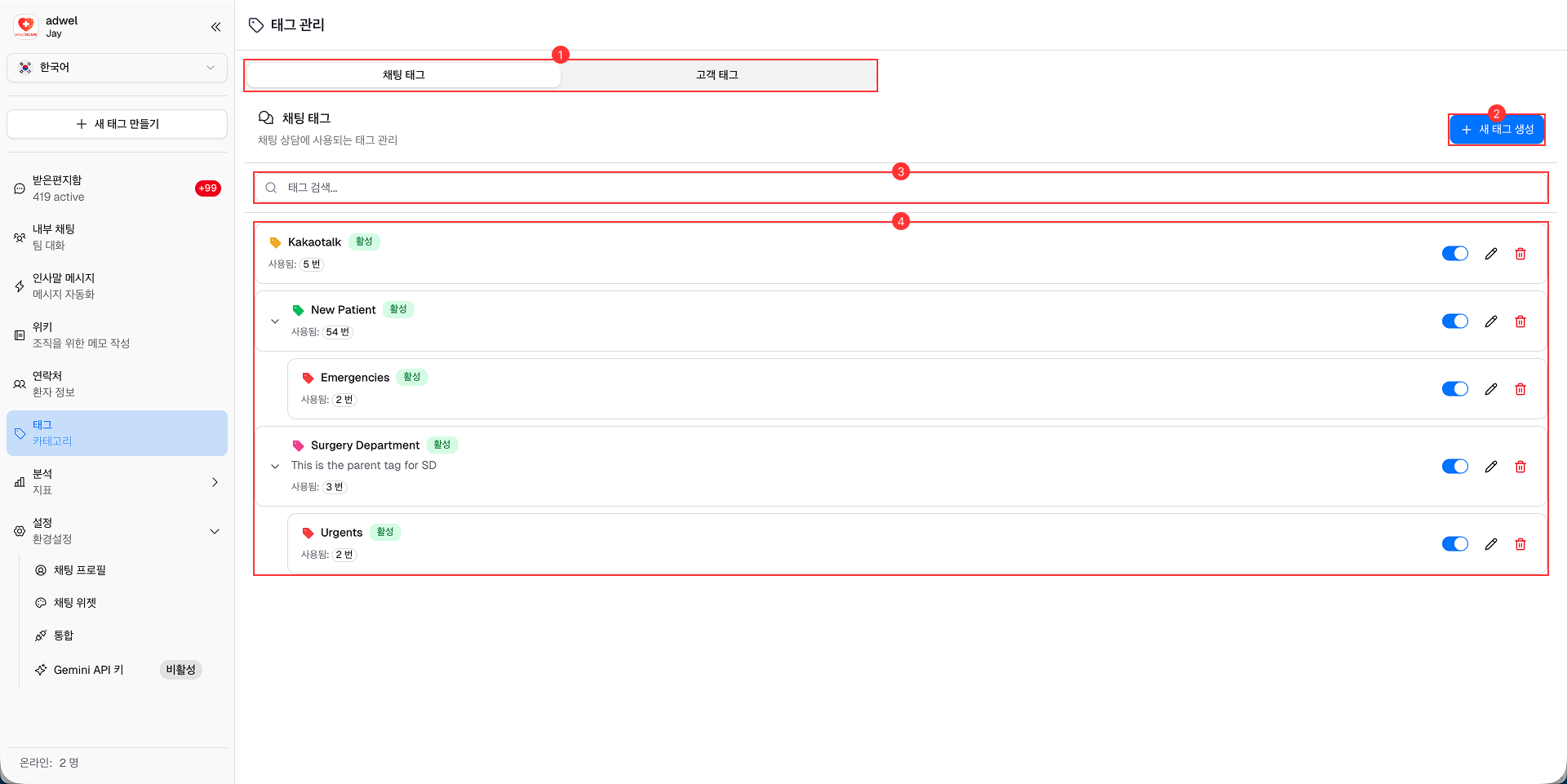
Tag Management Interface

It consists of the following main components:

  1. Tag Type Tab: Located at the top, this tab allows agents to switch between Chat Tags and Customer Tags.
  2. Create New Tag Button: A prominent button that enables agents to create new tags. Inside each tab, there is a "Create New Tag" button to add new tags specific to that type.
  3. Search Bar: A search functionality that allows agents to quickly find specific tags by name. Inside each tab, there is a search bar to filter tags based on the selected type.
  4. Tag List: A list displaying all the tags of the selected type.

Tag Item Interface Overview

Tag Item Interface

Each tag item in the list consists of the following components:

  1. Accordion Button: An expandable button that reveals / hides Children tags when clicked. (Only appears for tags which have children tags)
  2. Color: A color indicator that represents the tag visually.
  3. Name: The name of the tag.
  4. Status: Indicates whether the tag is Active or Inactive.
  5. Description: A brief description of the tag's purpose or usage.
  6. Used Count: Displays the number of chats or contacts associated with the tag.
  7. Action Buttons: Buttons for
    • Toggle Status: Activates or deactivates the tag. When deactivated, the tag will not be available for selection to assign in Live Chat, Contacts and Greeting message.
    • Edit: Opens the tag editing interface.
    • Delete: Deletes the tag after confirmation.