Get Started

Greeting Message Introduction

Greeting Message is a predefined message that is automatically sent to patients when they initiate a chat session through the MChat widget on the hospital's website or application. This feature helps to provide an immediate response to patients, setting the tone for the conversation and ensuring that they feel acknowledged and supported from the outset.

Greeting Message Management Interface Overview

The Greeting Message interface is designed to be user-friendly and intuitive, allowing agents to efficiently manage greeting messages.

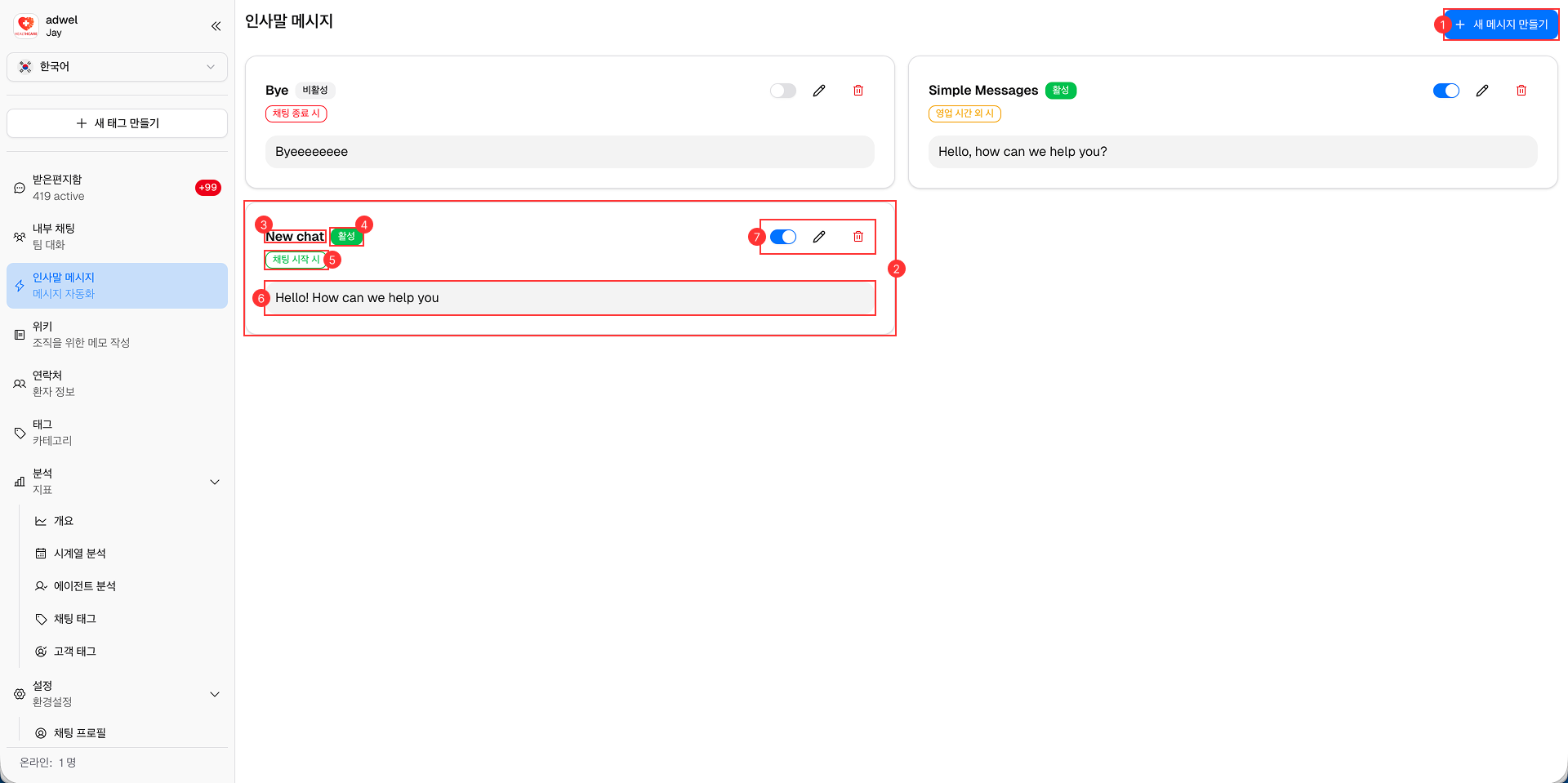
Greeting Message Management interface

It consists of the following main components:

  1. Create New Message Button: Located at the top right corner, this button allows agents to create a new greeting message. Clicking this button opens Greeting Message Creator where agents can compose and customize the message content.

  2. Greeting Message Item Each item in the shows a preview of the message content, along with options to edit or delete the message.

  3. Name: Displays the name of the greeting message for easy identification.

  4. Status: Indicates whether the greeting message is active or inactive.

  5. Condition: Shows the conditions under which the greeting message will be sent to patients.

  6. First Message's Preview: Provides a brief preview of the first message that will be sent to patients.

  7. Actions: Includes buttons for toggle, editing or deleting the greeting message.

Greeting Message Creator Interface Overview

The Greeting Message Creator interface allows agents to compose and customize greeting messages that will be sent to patients

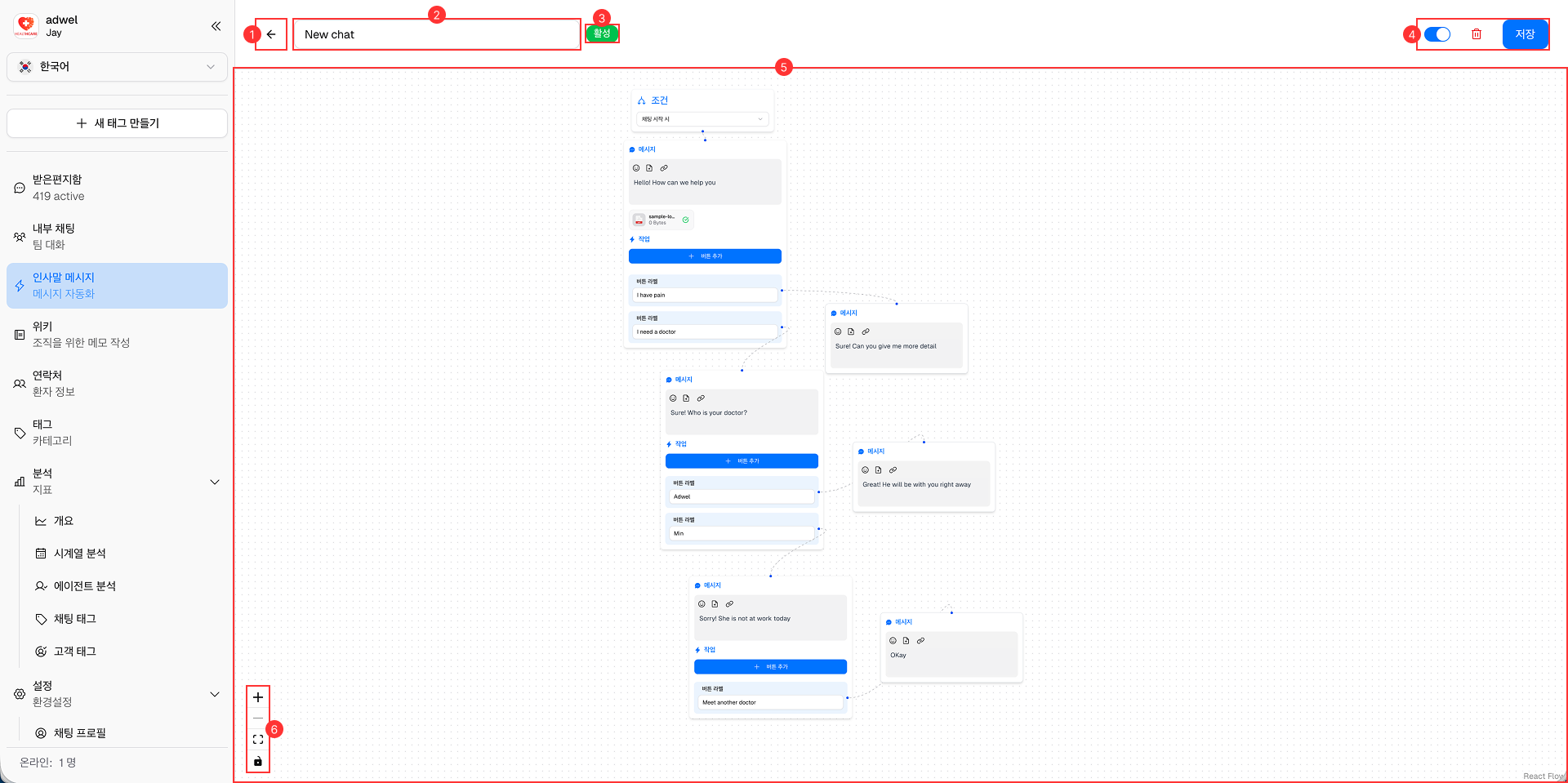
Greeting Message Creator interface

It consists of the following main components:

  1. Back Button: Located at the top left corner, this button allows agents to return to the Greeting Message Management interface without saving changes.

  2. Message Name Input Field: A text input field where agents can enter the name of the greeting message for easy identification.

  3. Status: Indicates whether the greeting message is active or inactive.

  4. Actions: Includes buttons for toggle, save (create) or deleting the greeting message.

  5. Working Area: The central area where agents can compose and customize the greeting message content. This area includes text formatting options, media attachment capabilities, and other tools to enhance the message.

  6. View Tools: A set of tools that allow agents to control the view of the working area, in order from top to bottom: Zoom In; Zoom Out; Actual Size; Lock Interaction.