Create New Tag

Parent Tag

To create a new parent tag in MChat, follow these steps (Apply for both Chat Tags and Customer Tags):

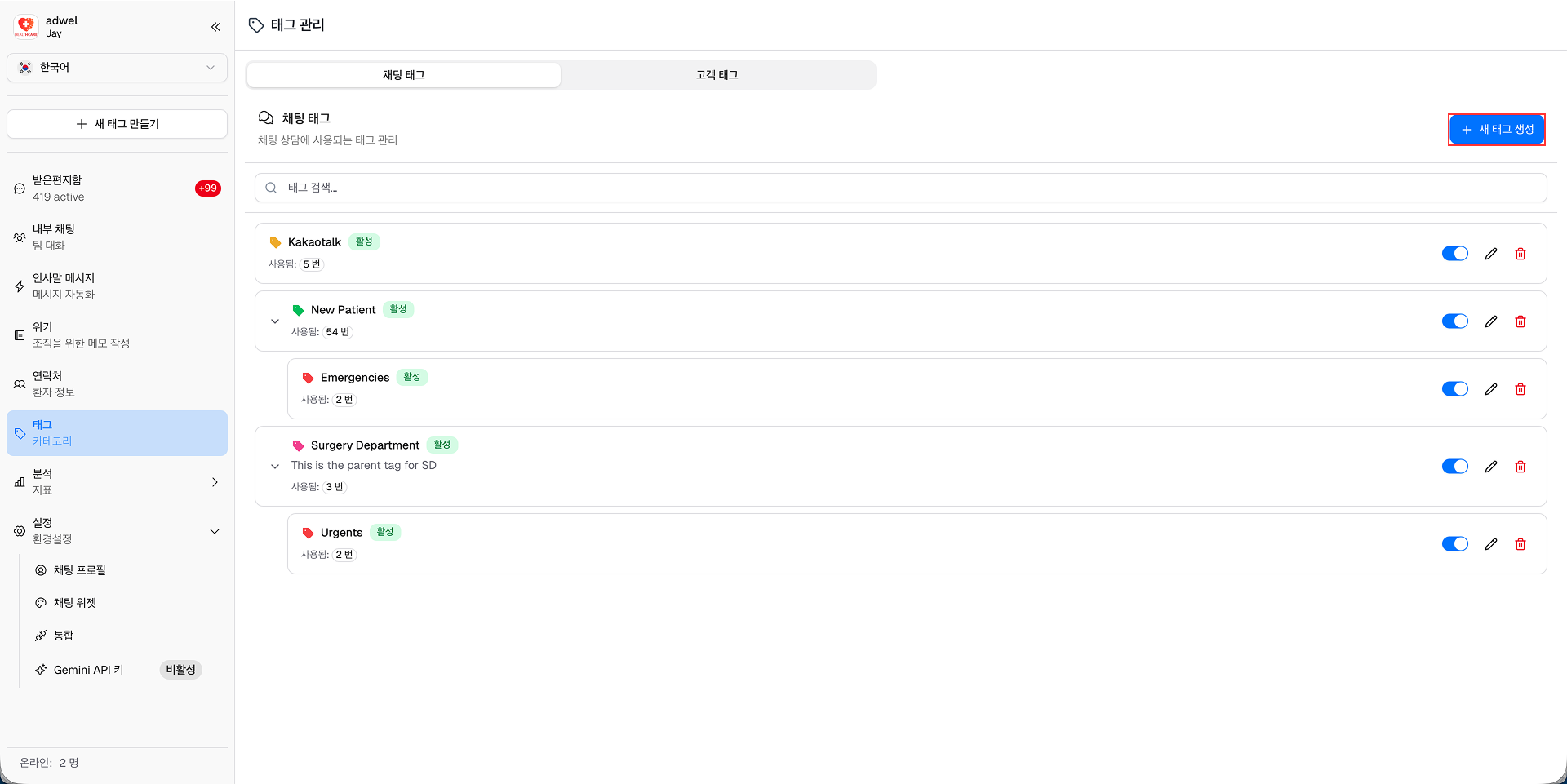
Step 1: Navigate to the Tag Management Interface. Click on the "Create New Tag" button located within the desired tag type tab.

Create New Tag Button

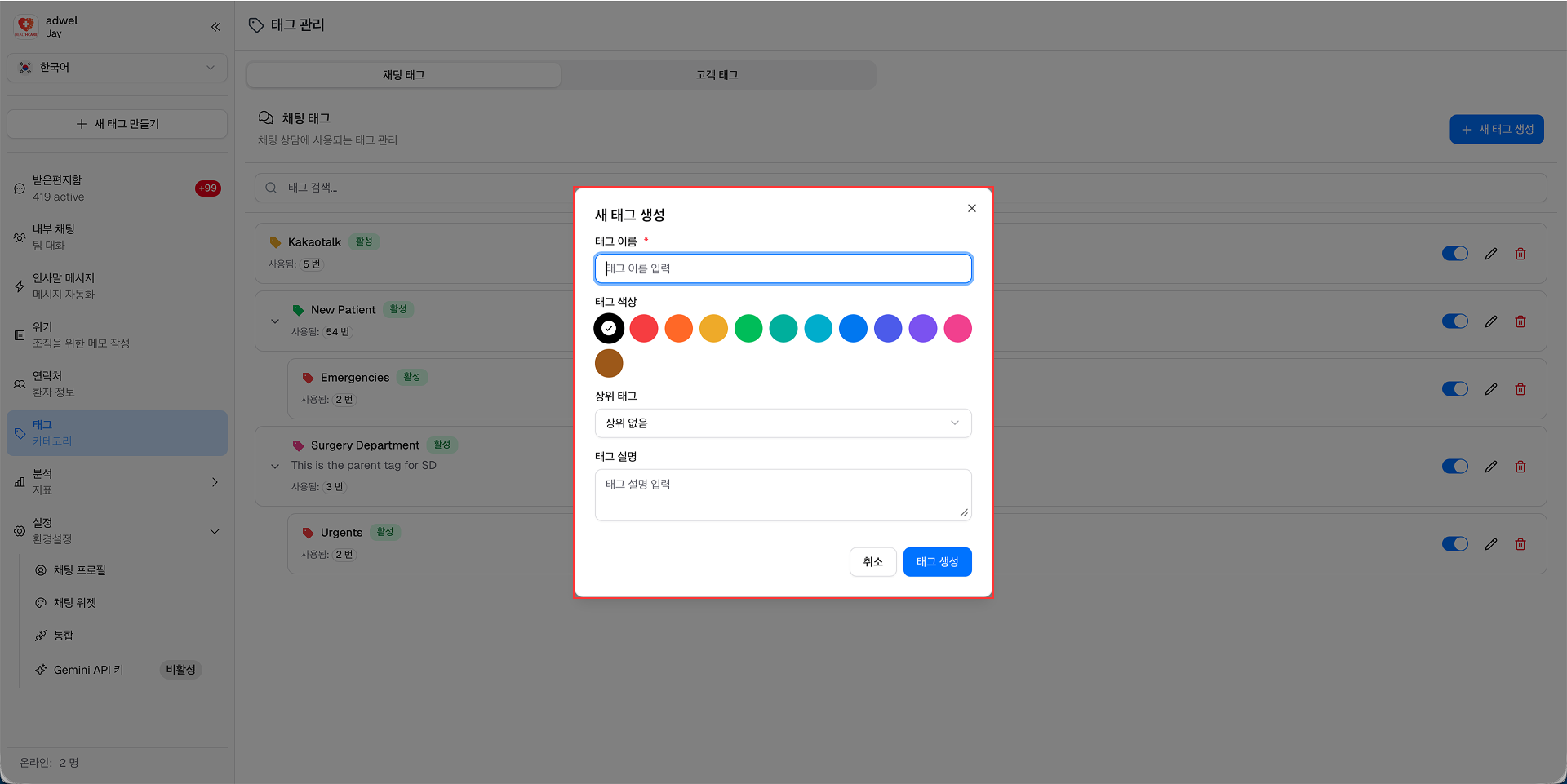
Step 2: In the "Create New Tag" popup that appears, fill in the required information.

Create New Tag Popup

  • Tag Name: Enter a unique name for the tag.
  • Tag Color: Select a color for the tag by clicking on the color picker.
  • Tag Description: (Optional) Provide a brief description of the tag's purpose.

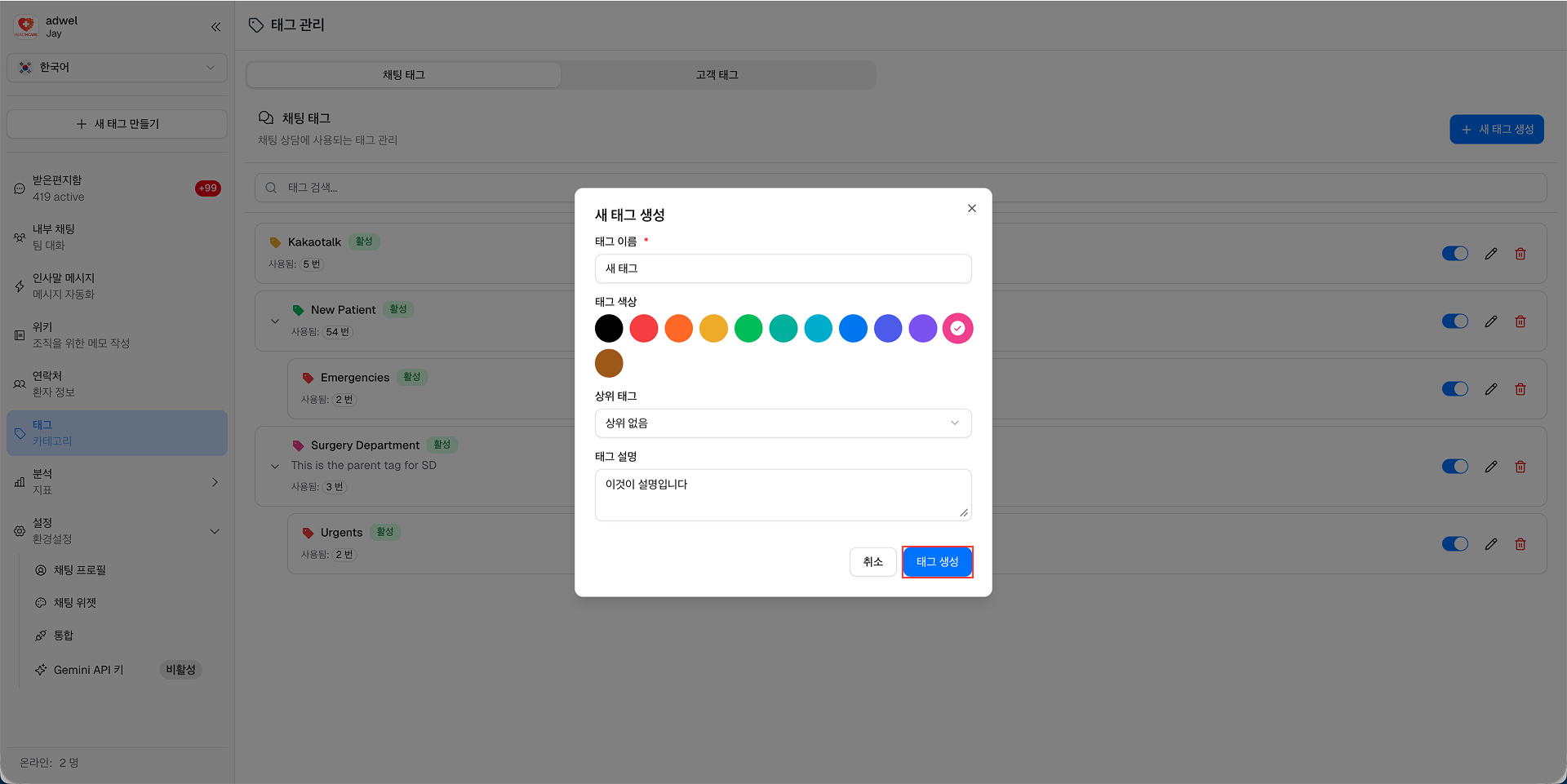
Step 3: Click the "Create Tag" button to save the new parent tag.

Create Tag Button

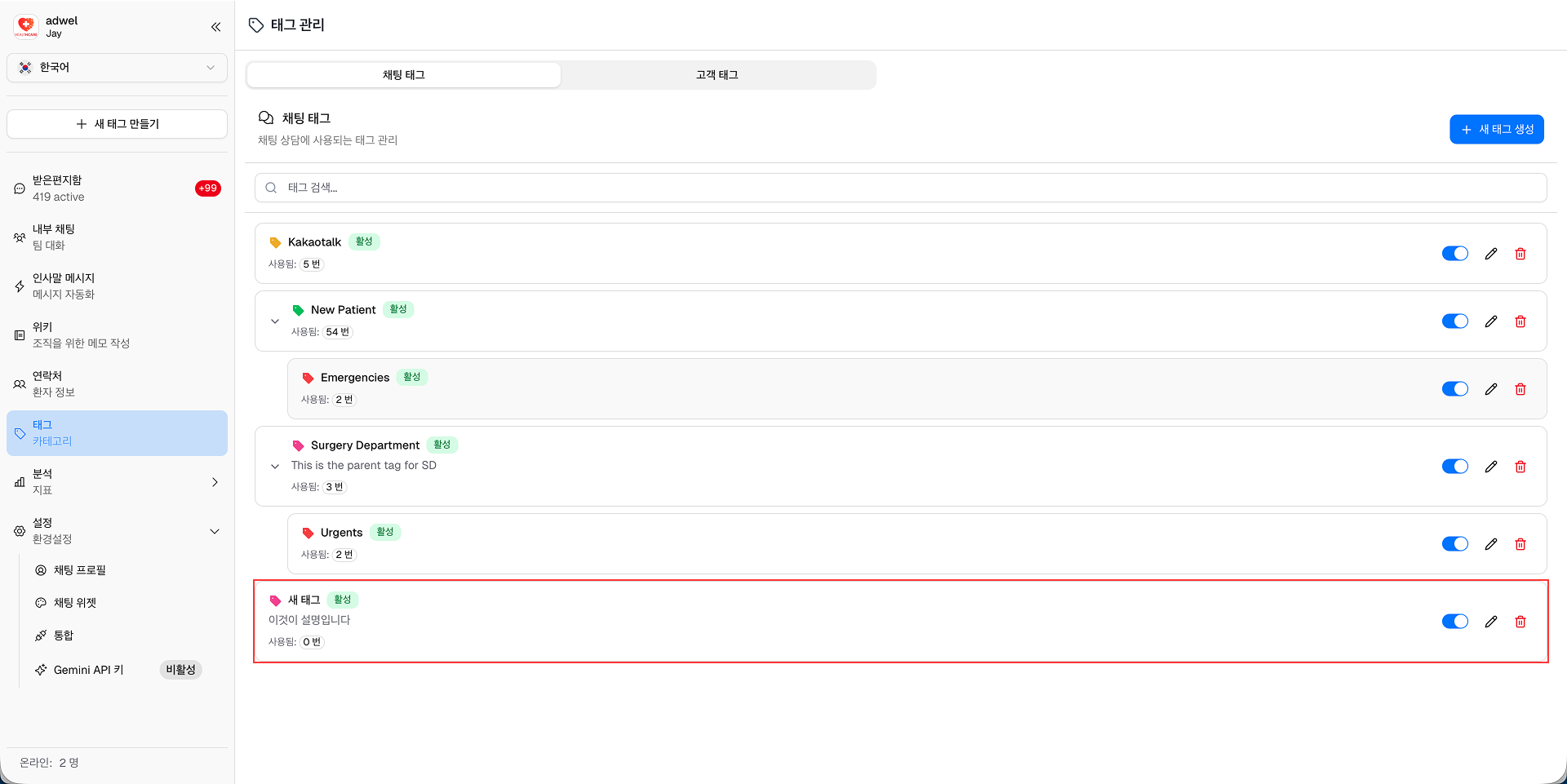
The new parent tag will now appear in the tag list under the selected tag type.

Create Tag Button

Child Tag

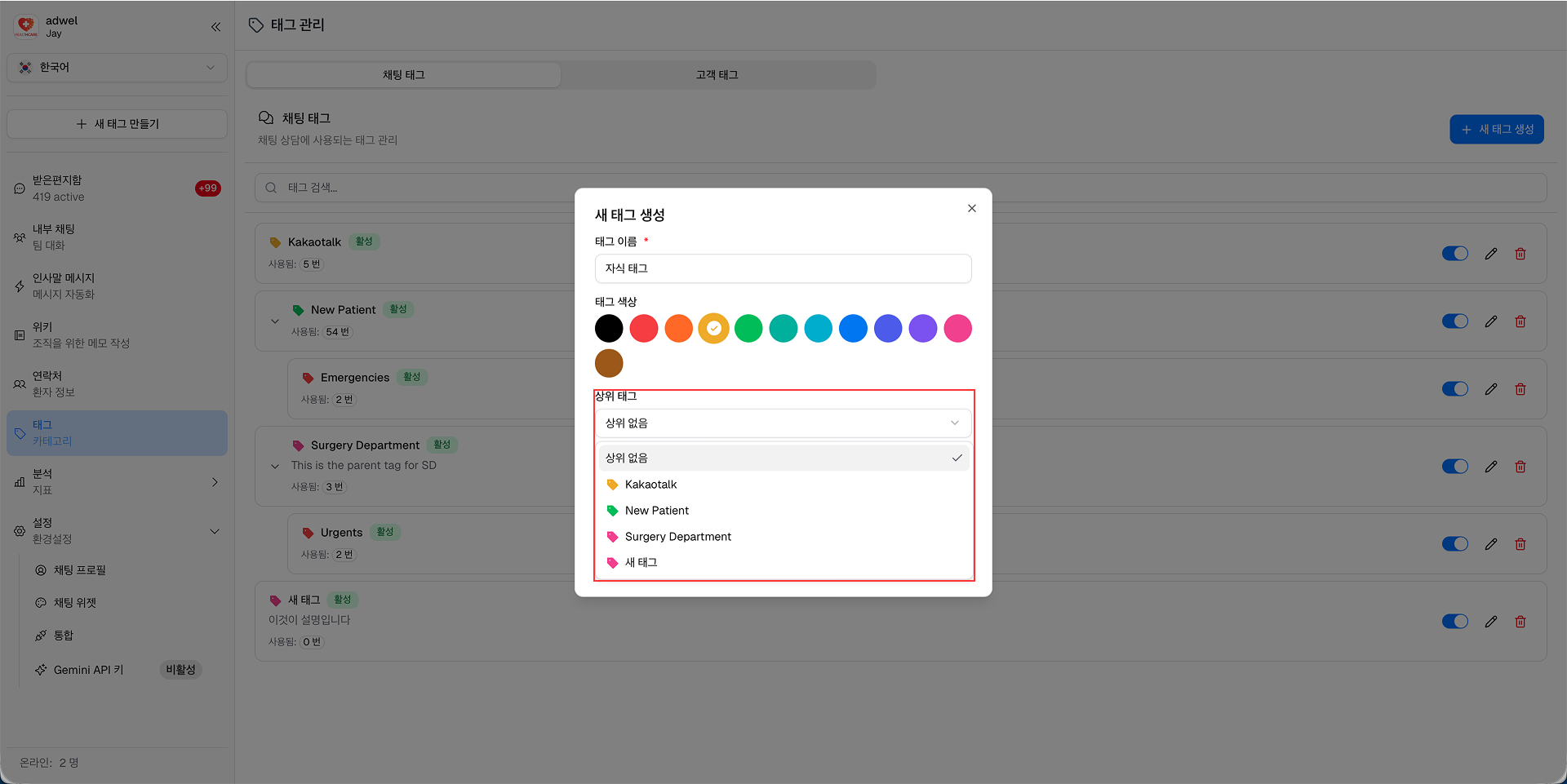
To create a new child tag (apply for both Chat Tags and Customer Tags) under an existing parent tag, follow Create Parent Tag steps with the additional:

Step 2.1: In the "Create New Tag" popup, select the parent tag from the "Parent Tag" dropdown menu.

Create Child Tag Popup

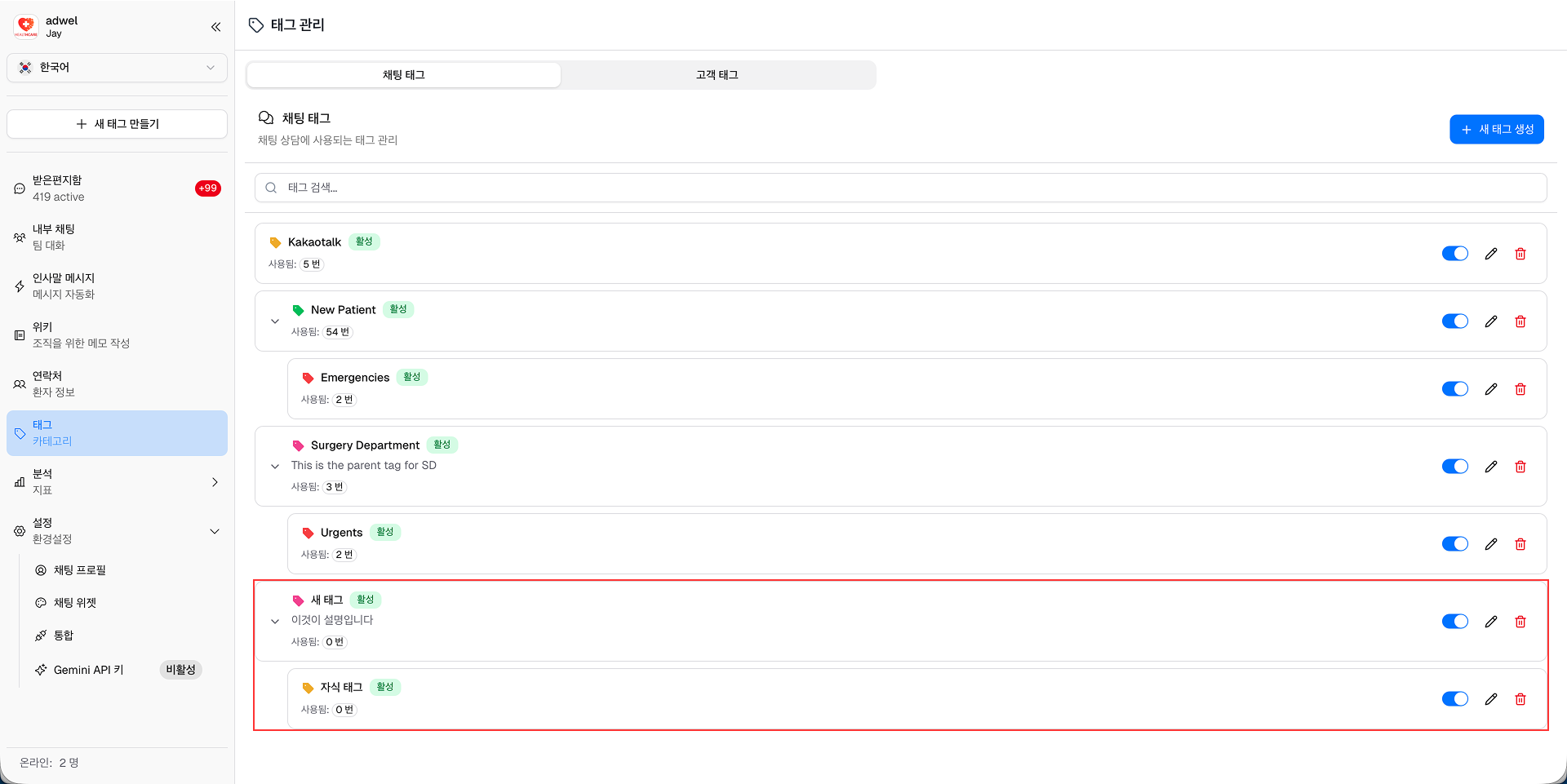
The new child tag will now appear nested under the selected parent tag in the tag list.

Create Child Tag Final