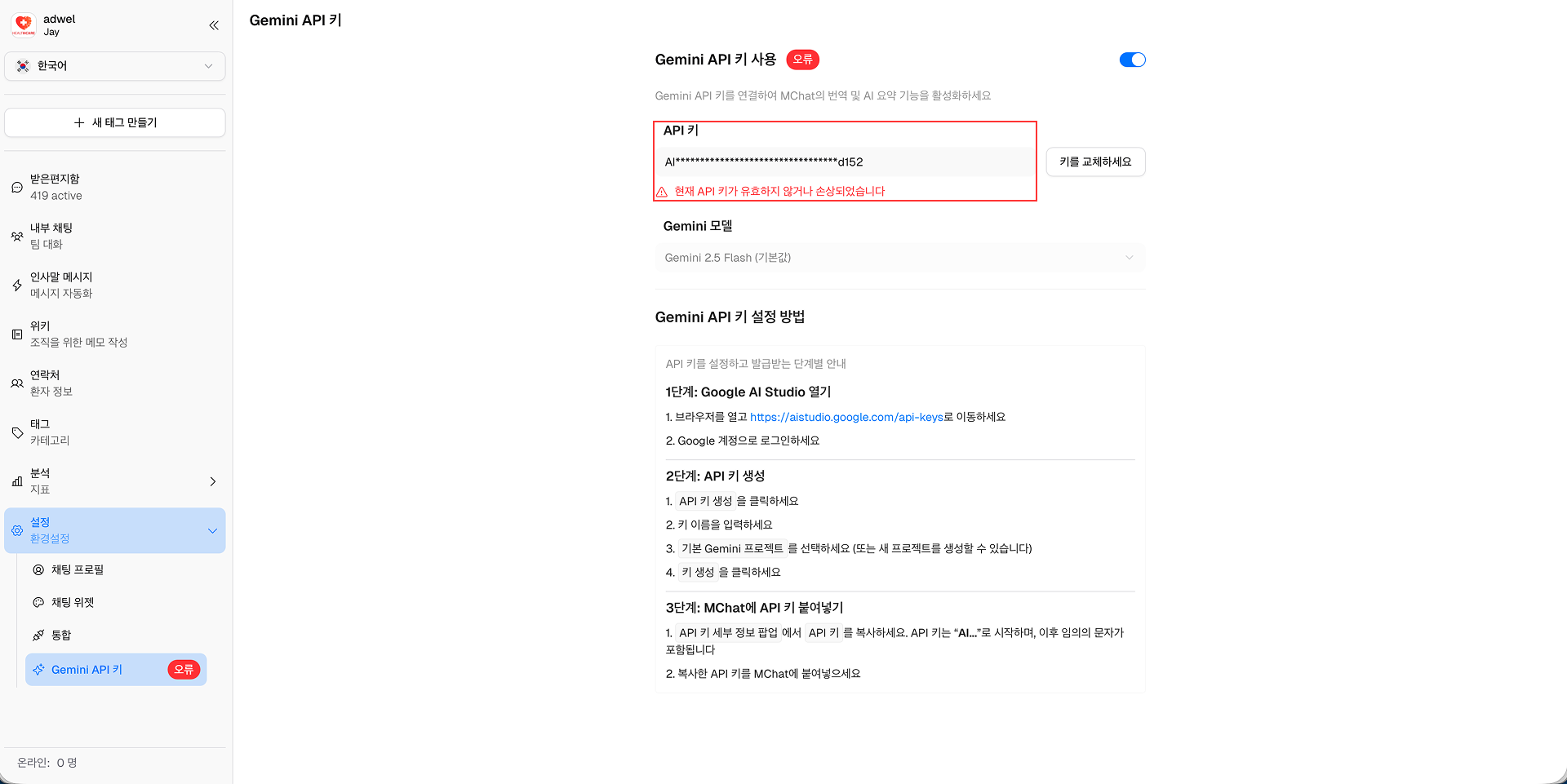
Gemini API 키
MChat(번역; AI 요약)의 AI 기능을 사용하려면 Google Cloud Platform에서 Gemini API 키를 획득하고 MChat 설정에서 Gemini API 키를 활성화해야 합니다.
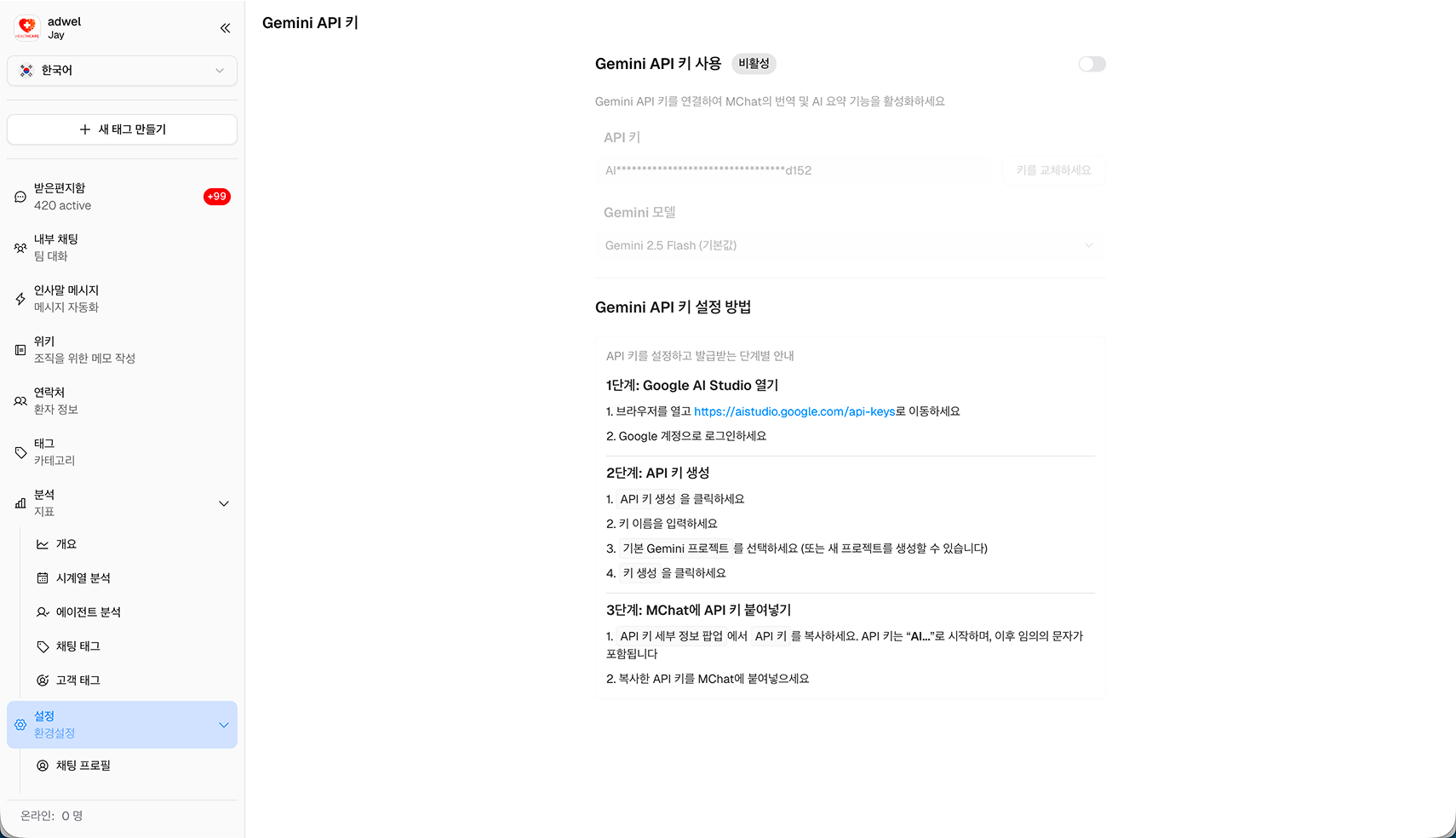
Gemini API 키를 얻는 방법
Gemini API 키를 얻으려면 다음 단계를 따르세요.
1단계: https://aistudio.google.com/api-keys로 이동하여 Google 계정으로 로그인하세요.
2단계: 오른쪽 상단에 있는 API 키 생성 버튼을 클릭합니다.
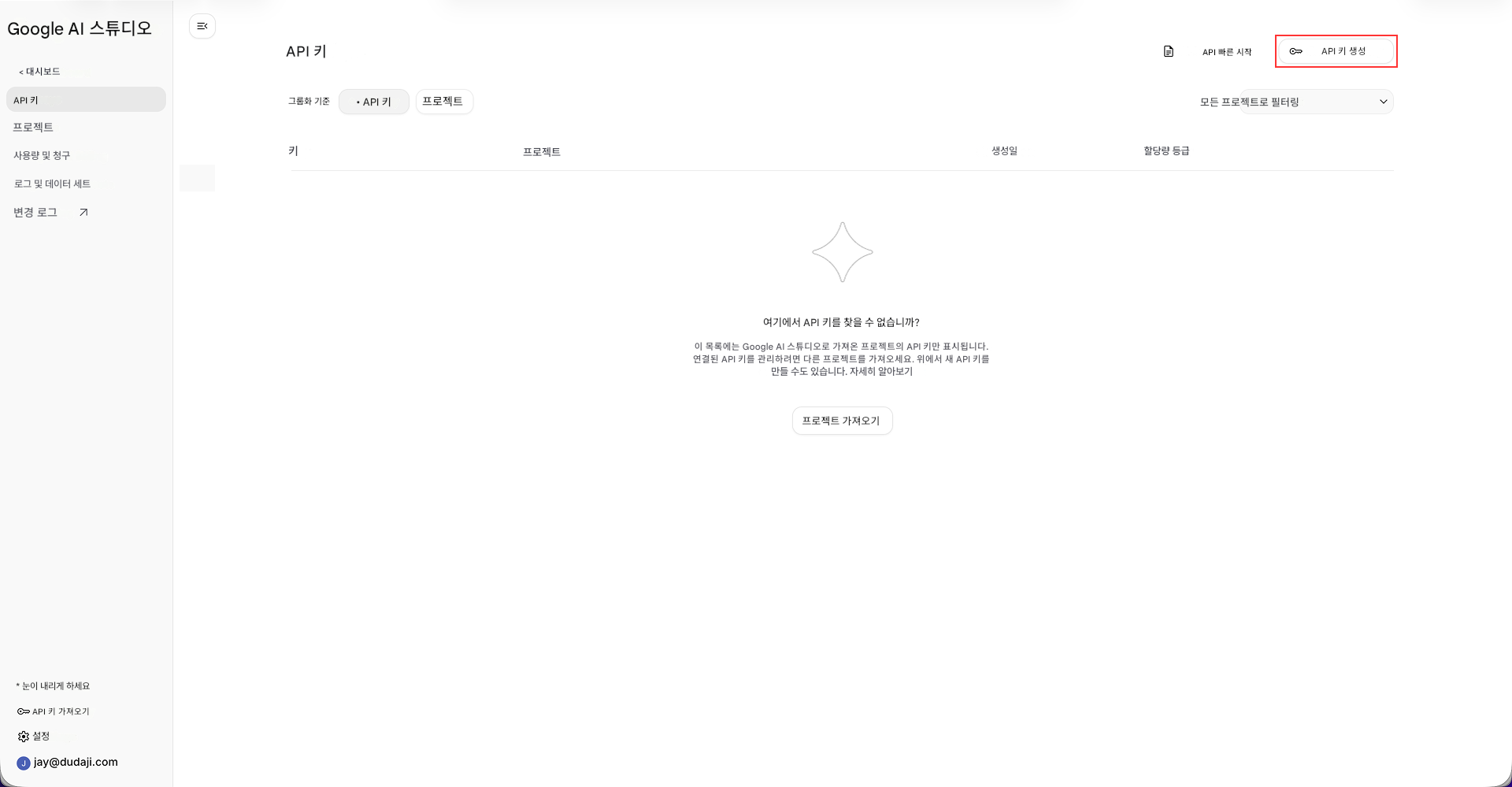
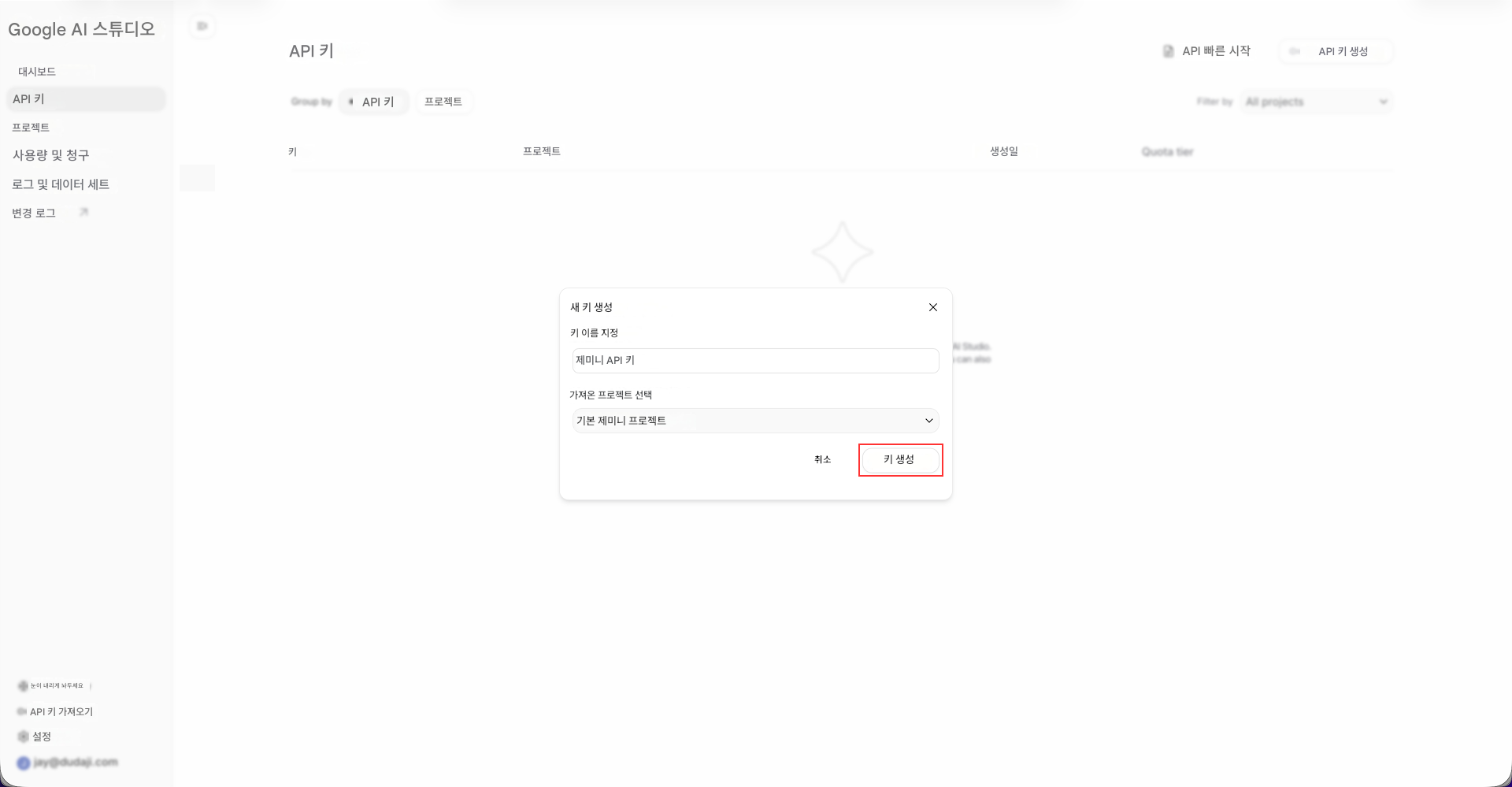
3단계: '새 키 만들기' 팝업이 표시됩니다.
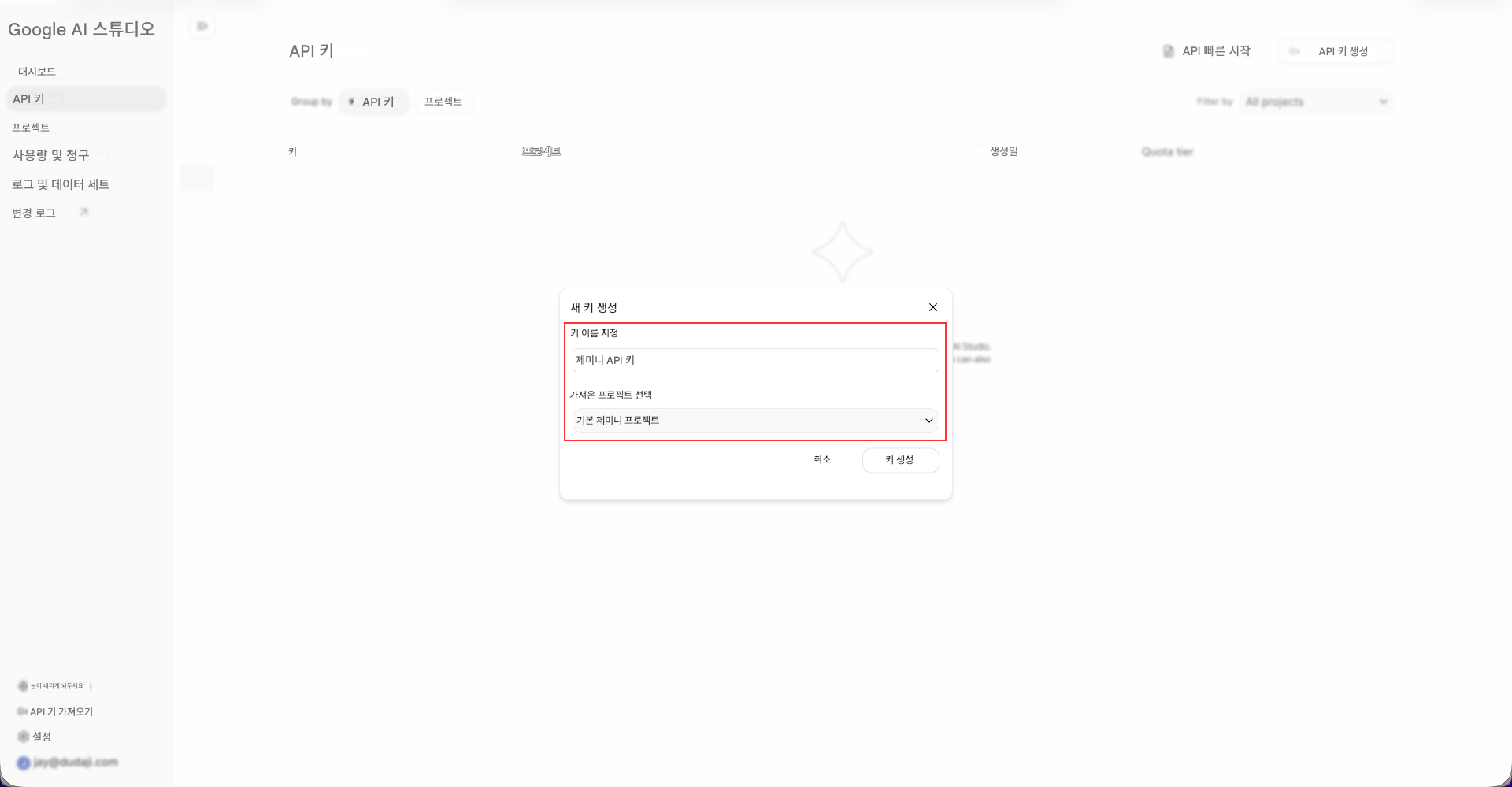
필수 정보를 입력하세요:
- 이름: API 키의 이름(예: MChat Key)을 입력합니다.
- 가져온 프로젝트 선택 (선택 사항): **"기본 Gemini 프로젝트"**를 선택하거나 새 프로젝트를 생성할 수 있습니다.
4단계: Create key 버튼을 클릭하여 API 키를 생성합니다.
5단계: API 키가 생성되어 표시됩니다. API 키 복사 버튼을 클릭하여 키를 클립보드에 복사하세요.
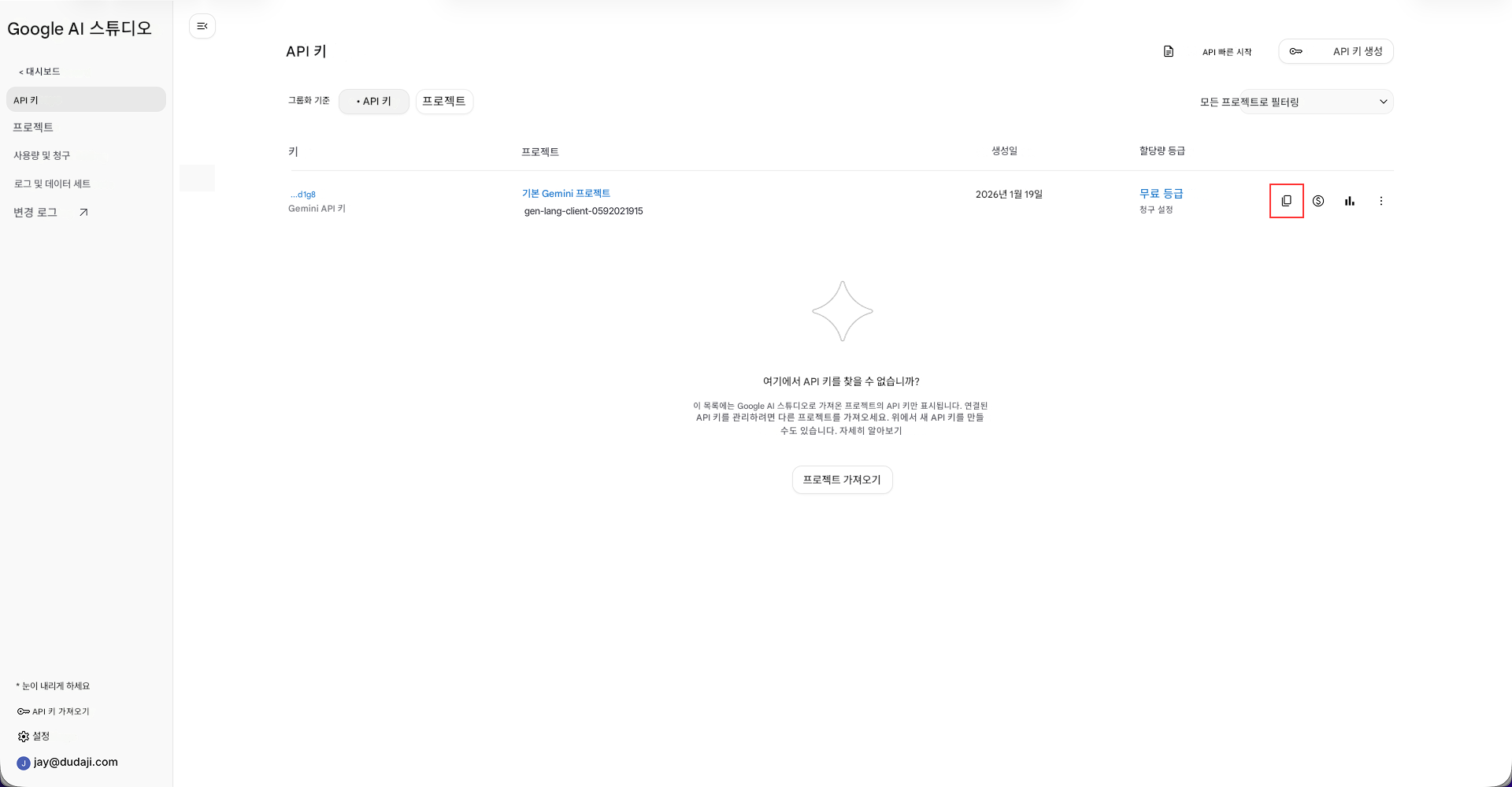
이제 Gemini API 키를 성공적으로 얻었습니다.
MChat에서 Gemini API 키 활성화
MChat에서 Gemini API 키를 활성화하려면 다음 단계를 따르세요.
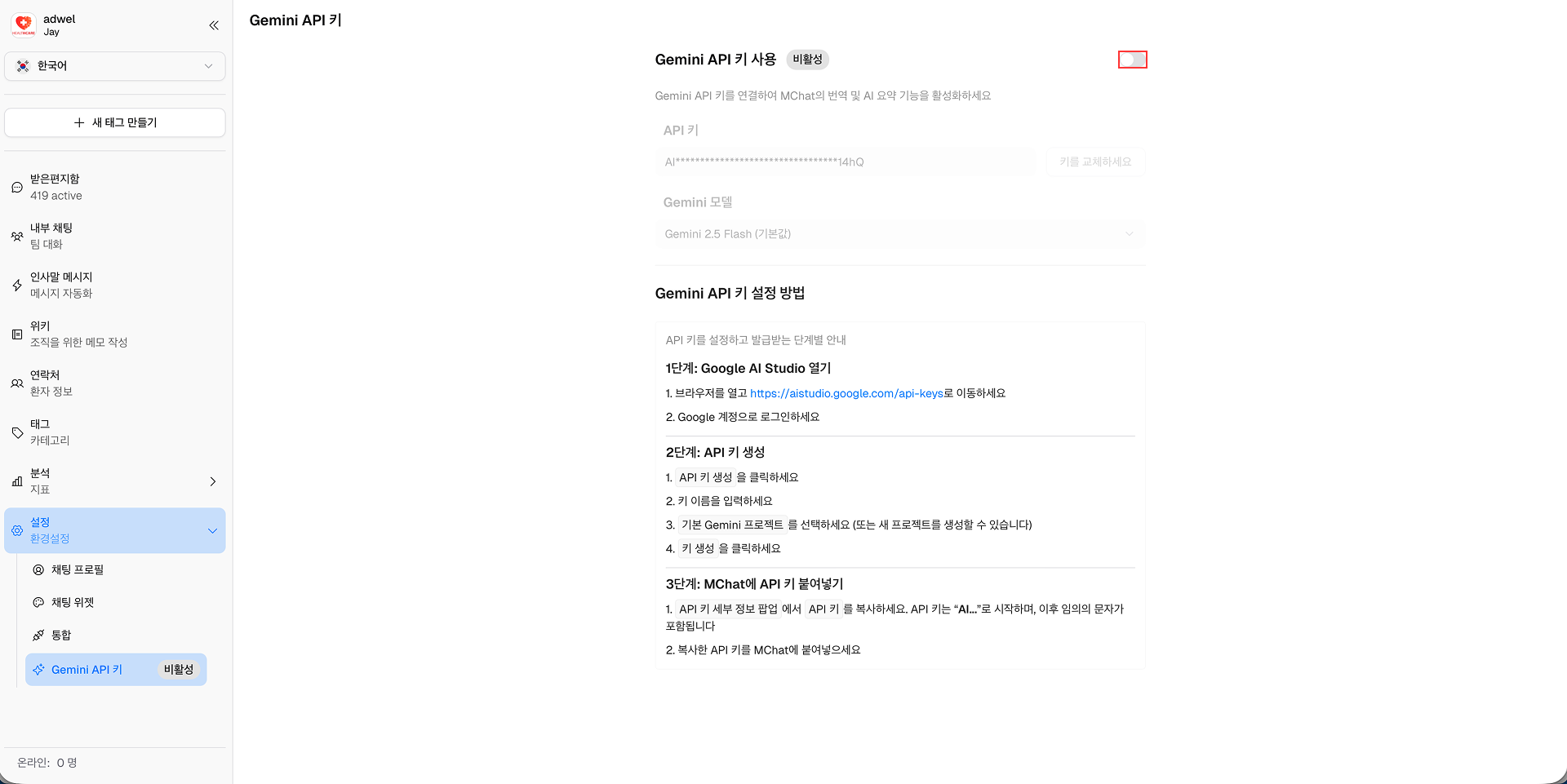
1단계: MChat 대시보드에서 설정 → MChat 설정 → Gemini API 키로 이동합니다.
2단계: Gemini API 키 사용 토글을 켭니다.
3단계: 복사한 Gemini API 키를 API 키 입력 필드에 붙여넣습니다.
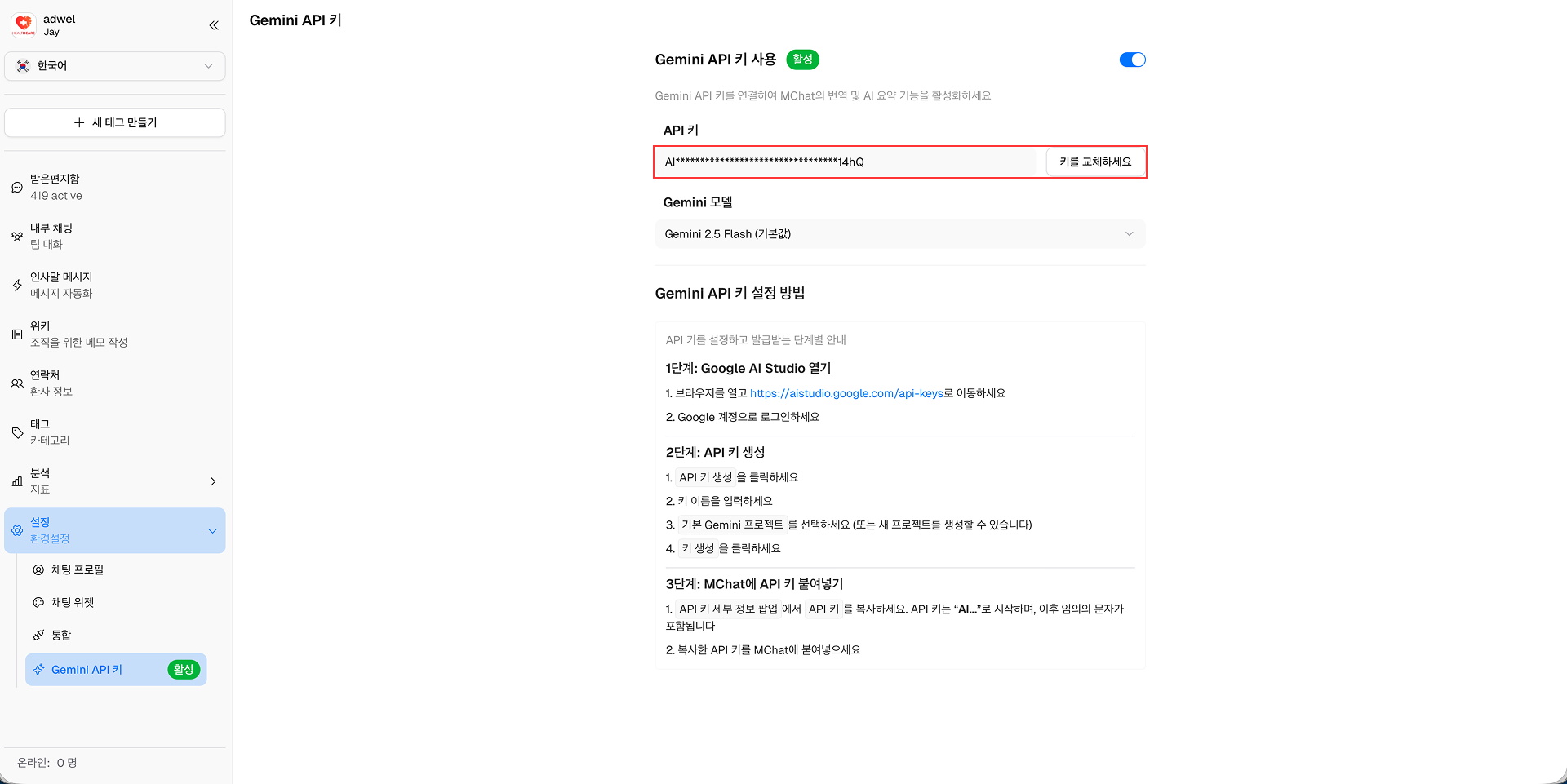
4단계: 편집 저장 버튼을 클릭하여 설정을 저장합니다.
MChat에서 Gemini API 키를 성공적으로 활성화했습니다. 이제 채팅 위젯에서 번역, AI 요약 등 AI 기능을 사용할 수 있습니다.
선택 사항: Gemini API 키 사용 토글을 켜고 API 키 필드를 입력하면 Gemini 모델 드롭다운 메뉴에서 AI 기능에 사용하려는 Gemini 모델을 선택할 수 있습니다. 기본 모델은 Gemini 3 Pro Preview입니다.
Gemini API 키 비활성화
Gemini API 키 사용 토글을 비활성화하면 Gemini API 키가 필요한 모든 AI 기능이 MChat에서 비활성화됩니다.
이미 _ 번역 을 사용한 채팅의 경우 Gemini API 키를 다시 켜도 새 메시지 번역은 중지되지만 이전에 번역된 메시지는 계속 사용할 수 있습니다.
Gemini API 키 오류 처리
Gemini API 키에 문제가 있는 경우(예: 잘못된 키, 할당량 초과 등) Gemini API 키가 필요한 AI 기능(번역; AI 요약)에 오류 메시지가 표시됩니다. 그리고 Gemini API Key 설정 페이지의 API Key 입력 필드에 자세한 오류 메시지가 표시됩니다.