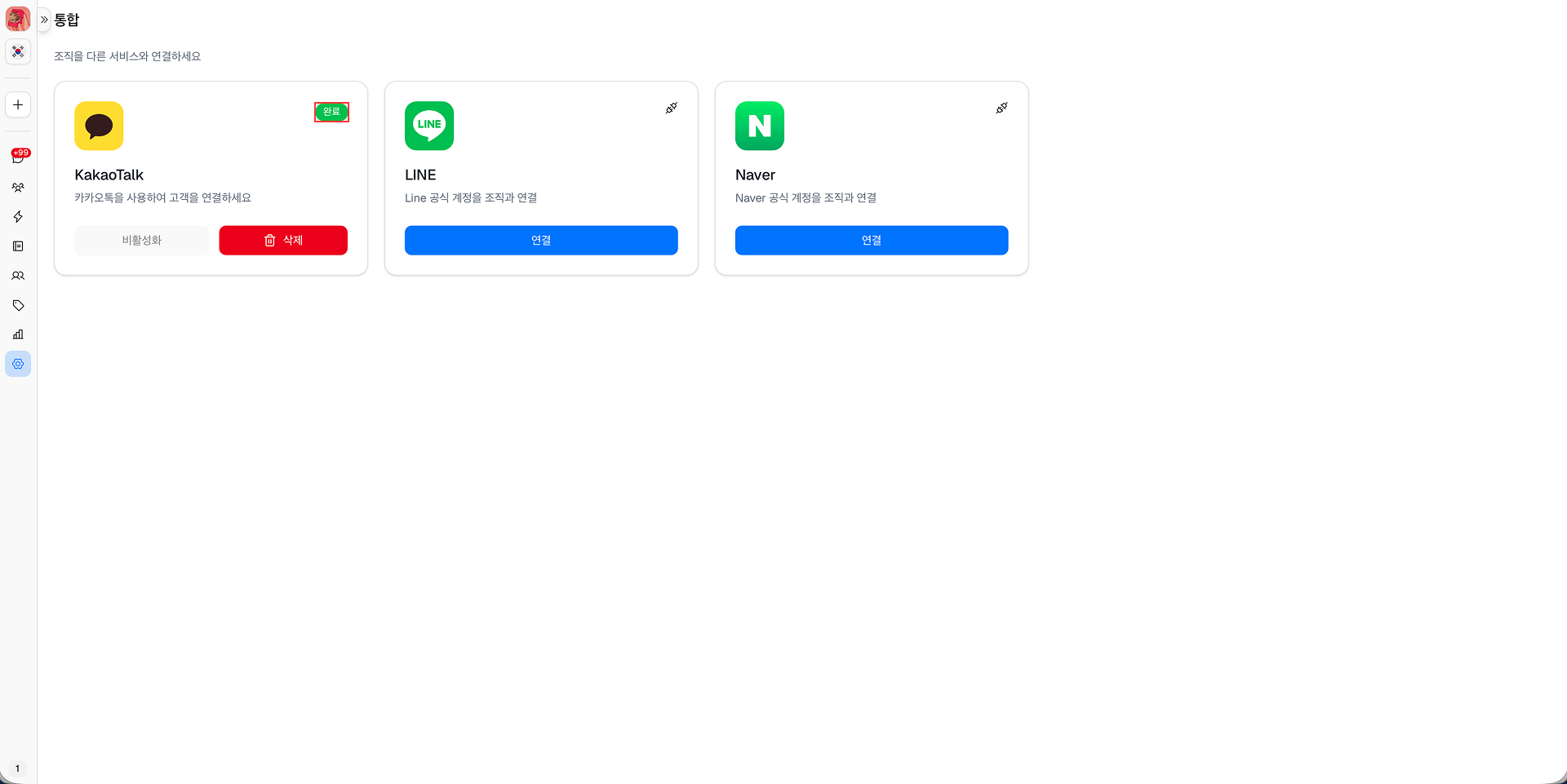
카카오톡 통합
MChat과 카카오톡을 통합하려면 다음 단계를 따르세요.
1단계: 설정 → 통합에서 지원되는 메시징 서비스 목록에서 카카오톡의 연결 버튼을 클릭합니다.
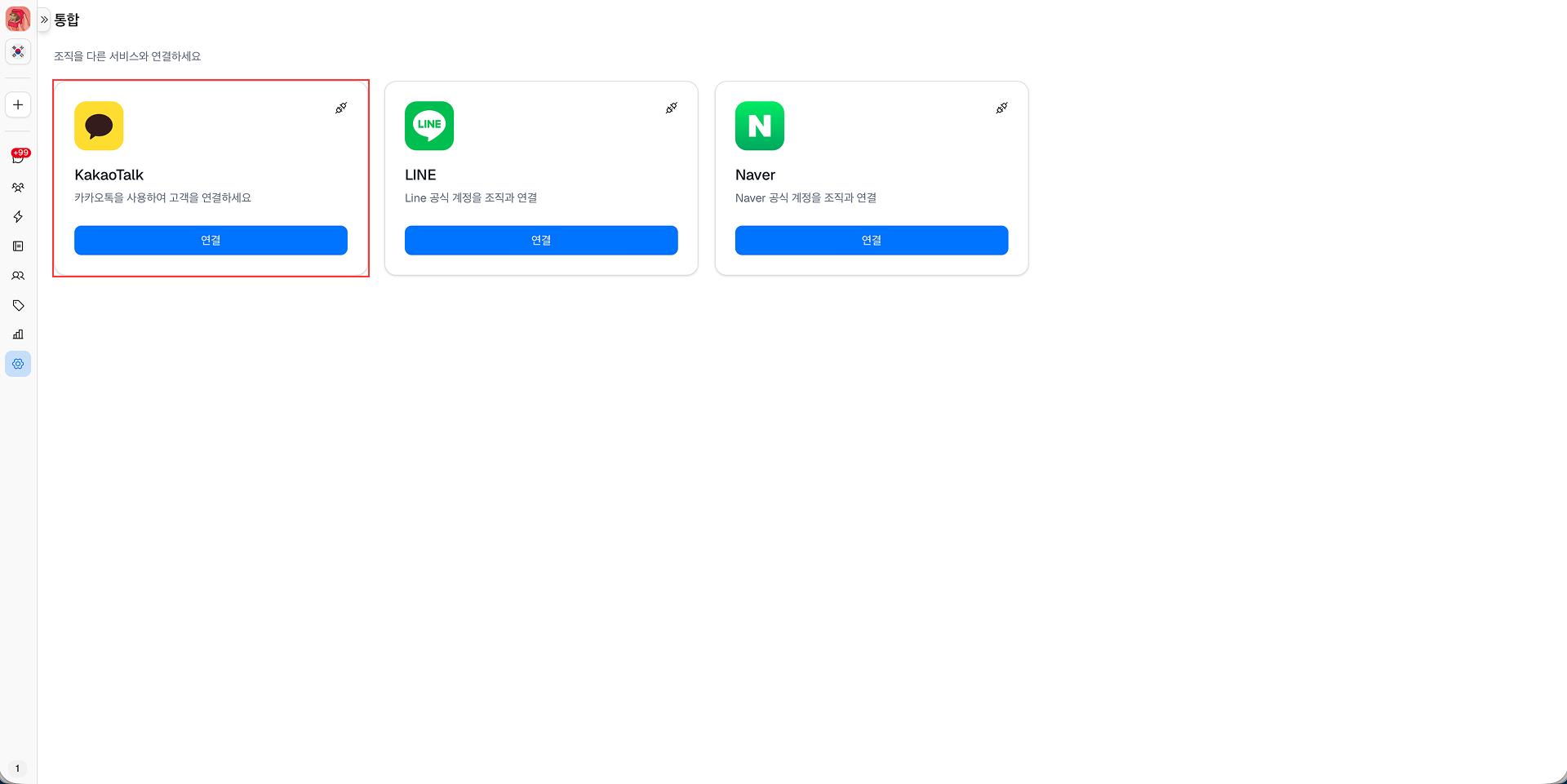
2단계: 통합 페이지가 열립니다.
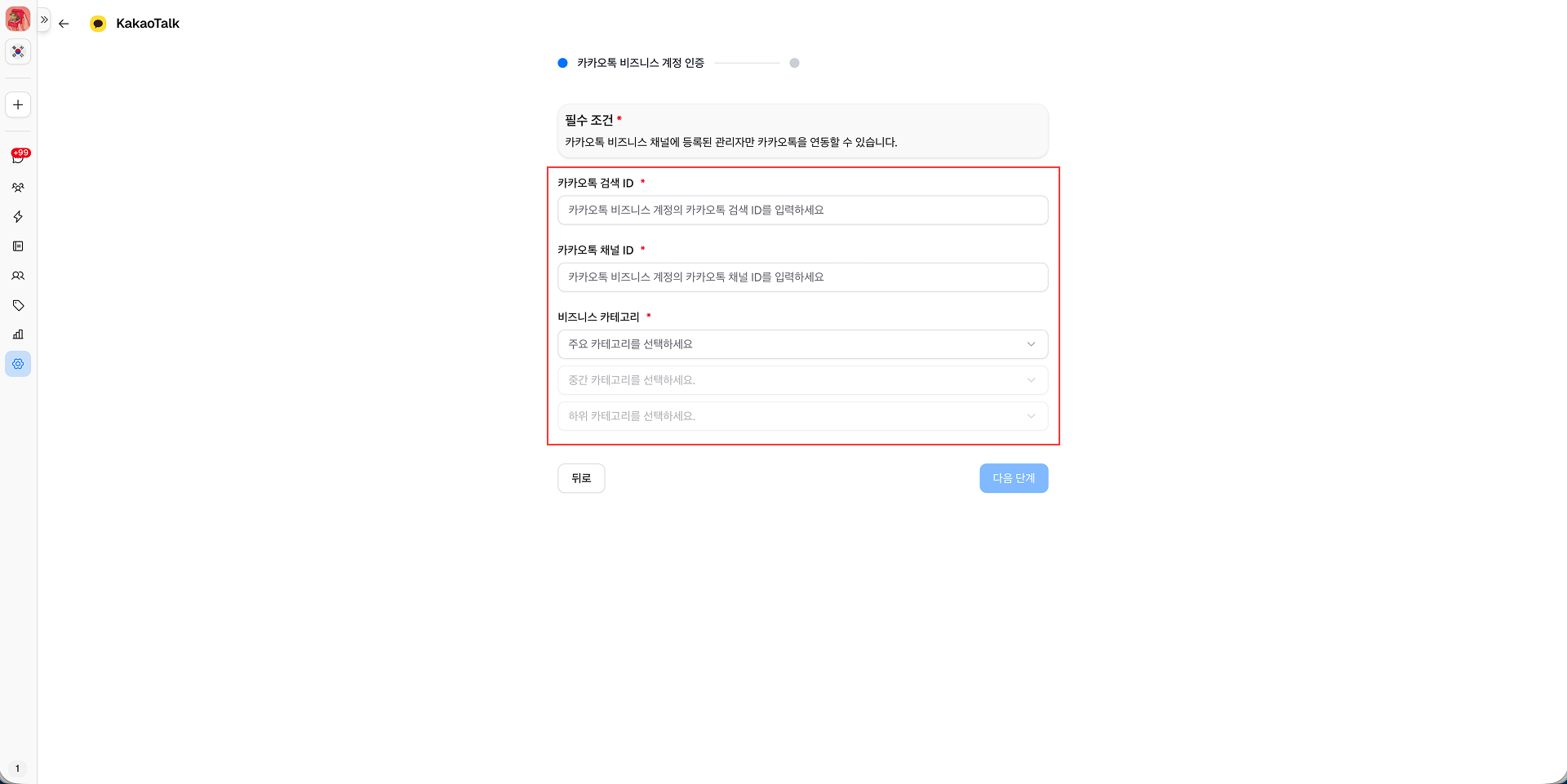
필수 정보를 입력합니다 (요구 사항: 카카오 비즈니스 채널에 등록된 관리자만 카카오톡을 통합할 수 있습니다.):
- 카카오 검색 ID
- 카카오 채널 ID
- 비즈니스 카테고리
카카오 검색 ID와 카카오 채널 ID는 카카오 비즈니스 채널 설정에서 확인할 수 있습니다: https://center-pf.kakao.com → 채널 → 채널 정보.
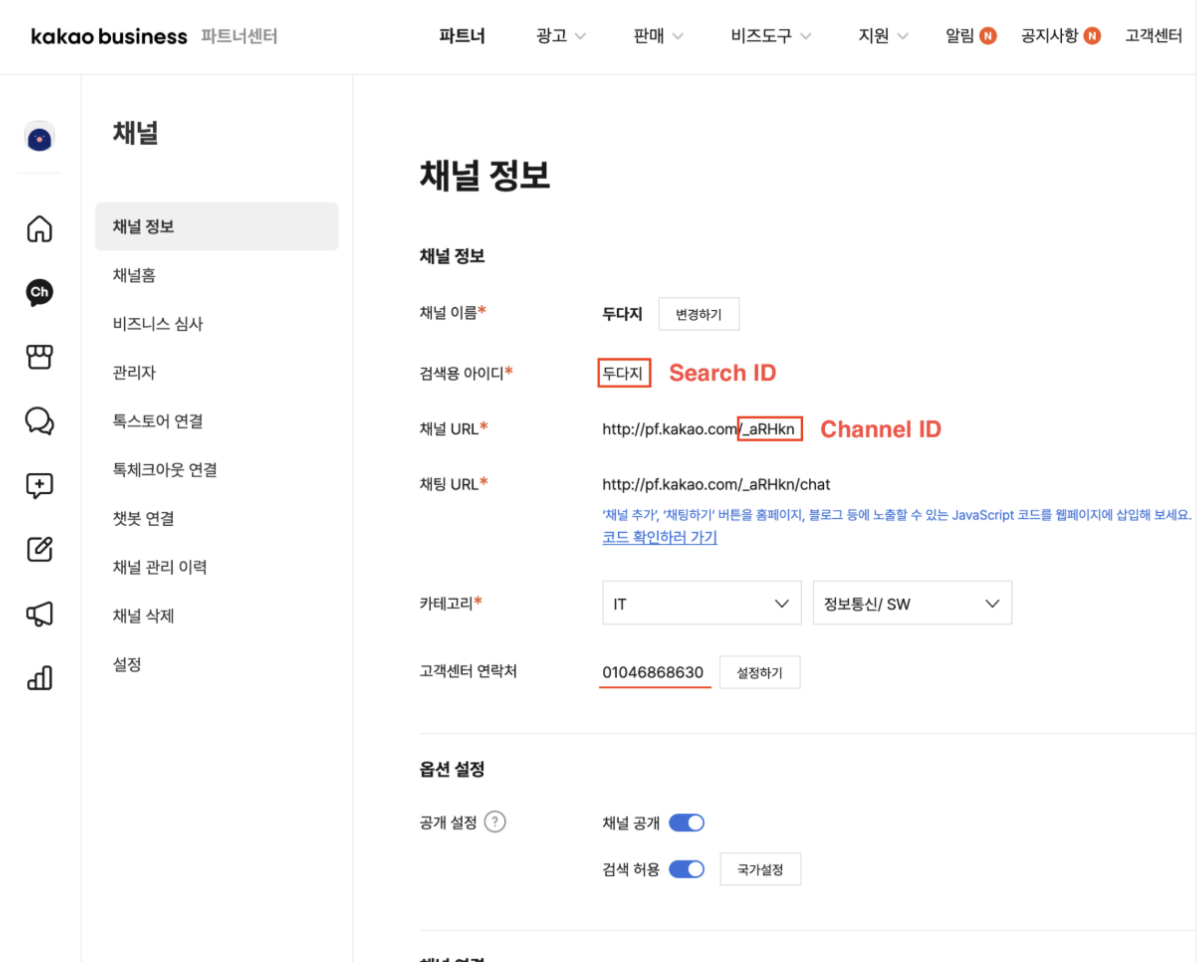
3단계: 필수 정보를 입력한 후 다음 단계 버튼을 클릭하여 다음 단계로 이동합니다.
4단계: 제공된 MChat 계정 이메일을 복사합니다.
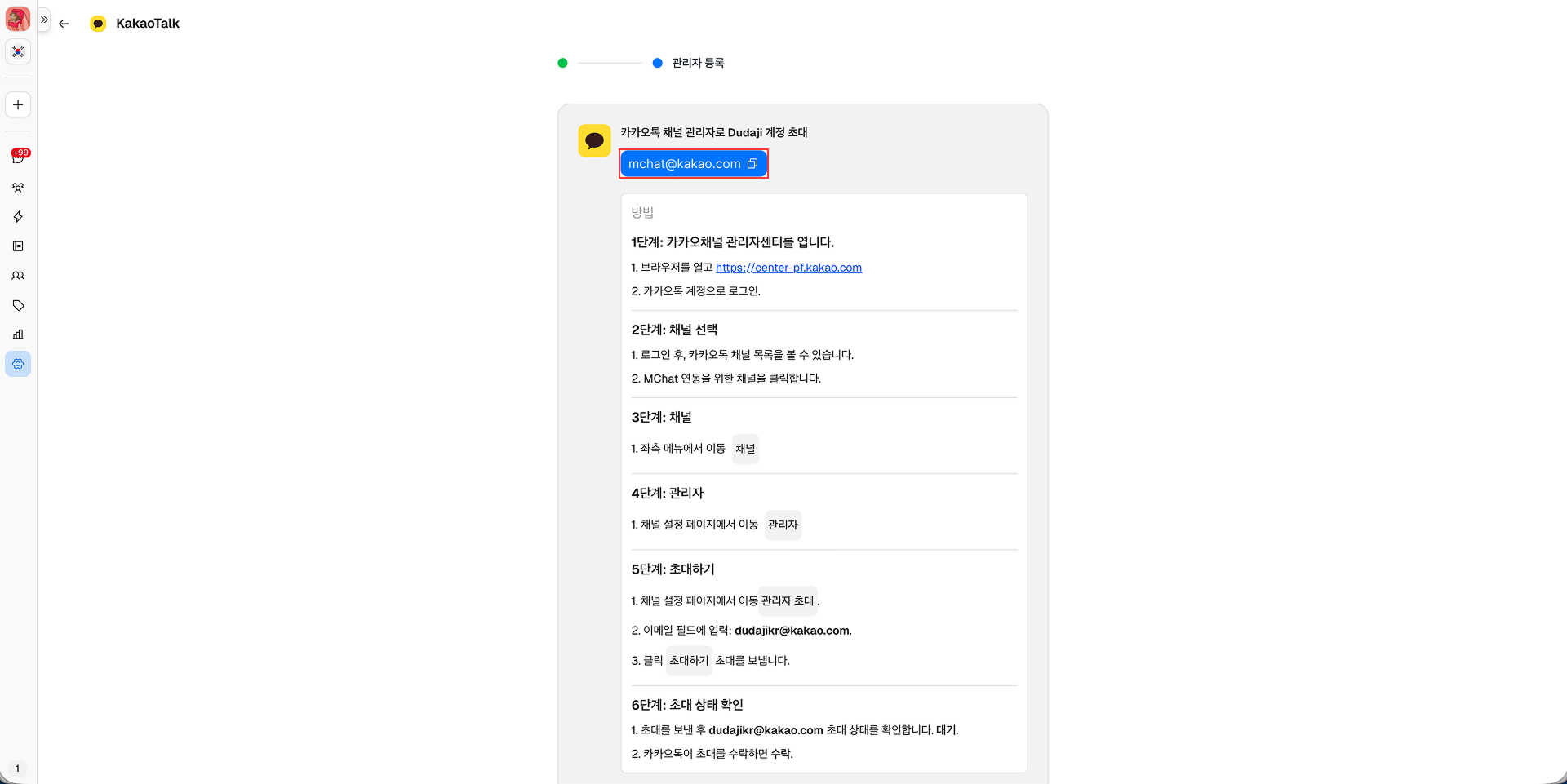
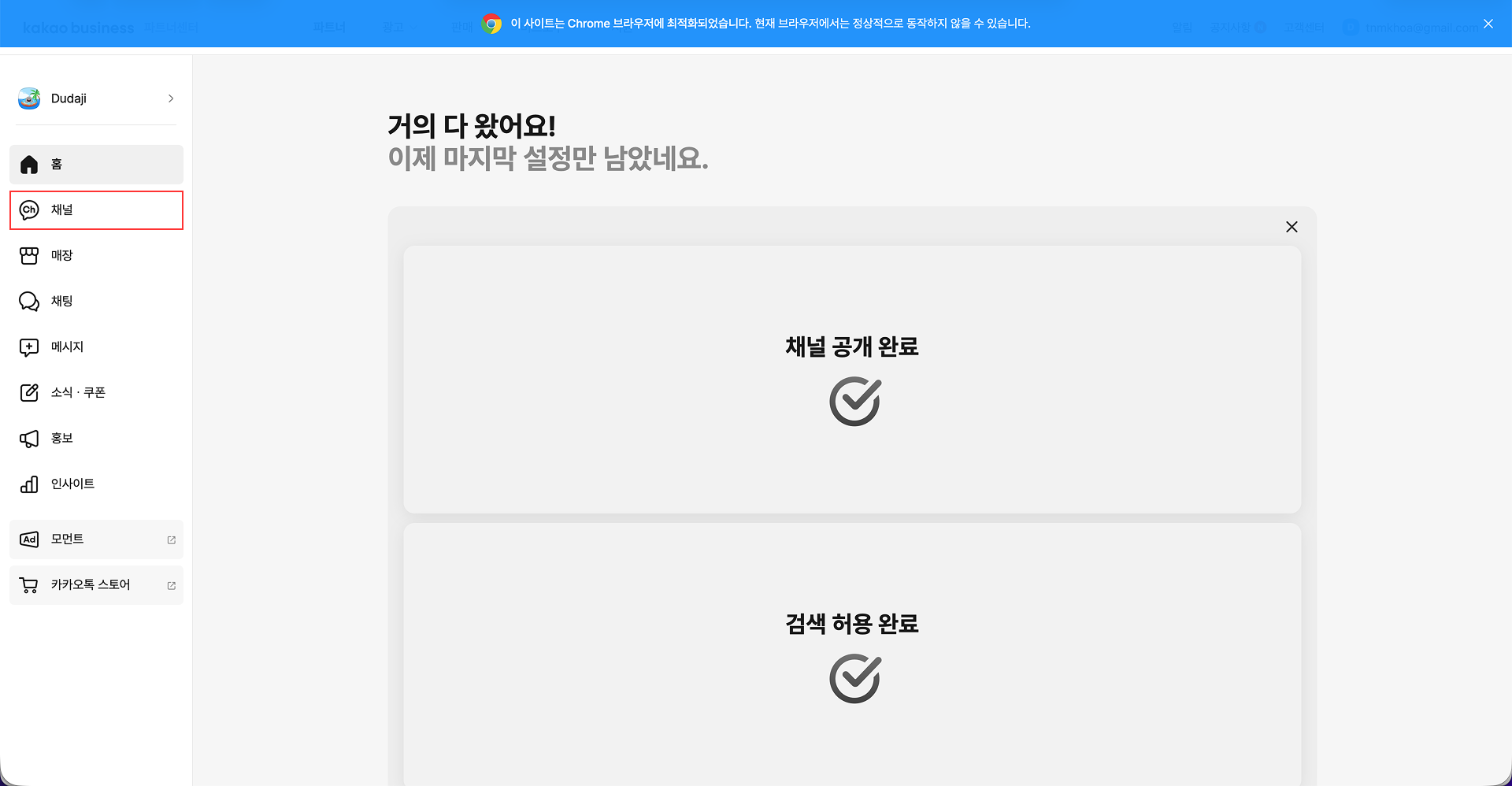
5단계: https://center-pf.kakao.com 로 이동하여 카카오톡 관리자 계정으로 로그인한 후 MChat과 통합하려는 비즈니스 채널을 클릭합니다.
6단계: 비즈니스 채널 페이지에서 왼쪽 사이드바의 채널을 클릭합니다.
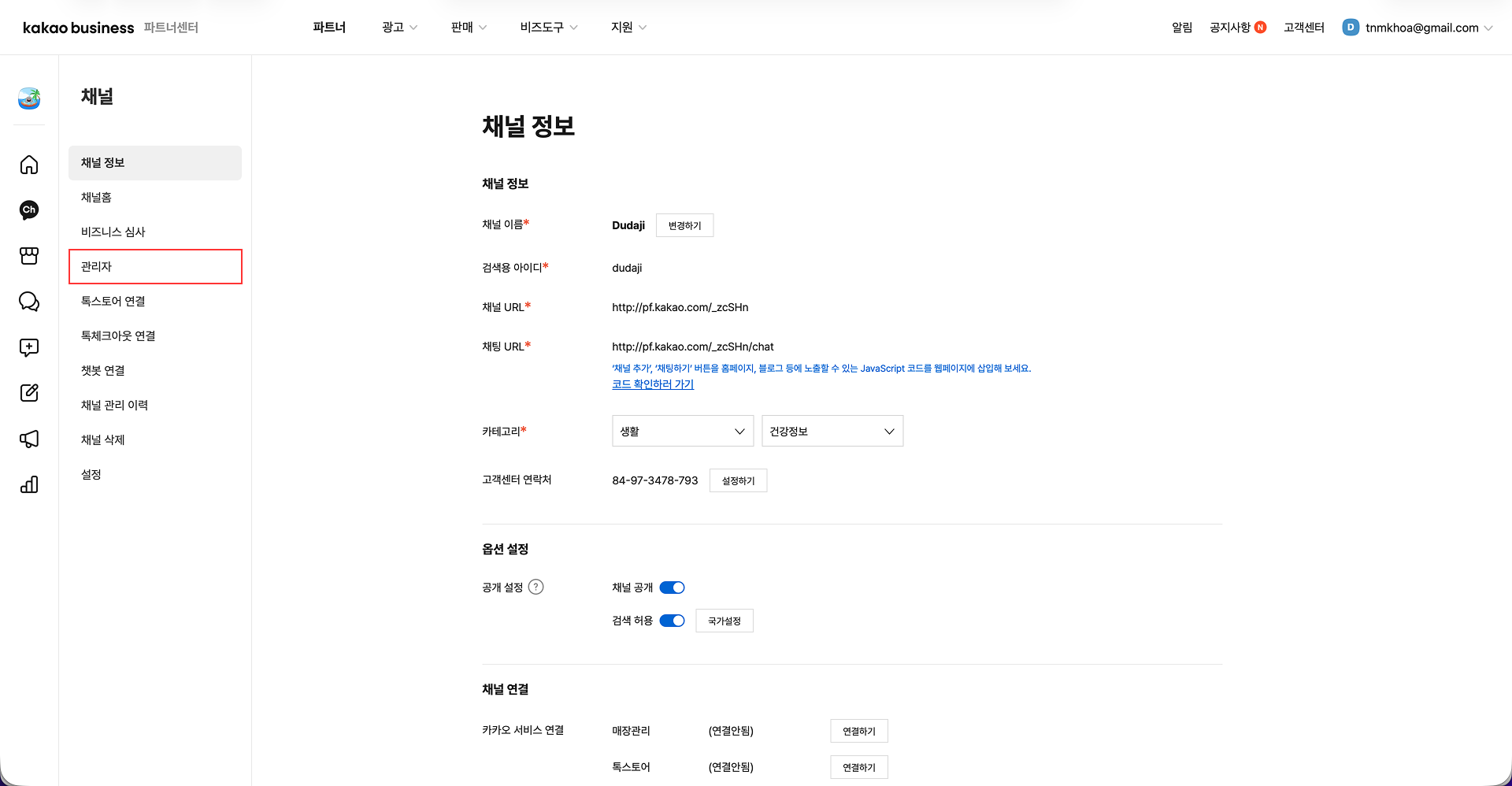
7단계: 채널 설정 페이지에서 관리자를 클릭합니다.
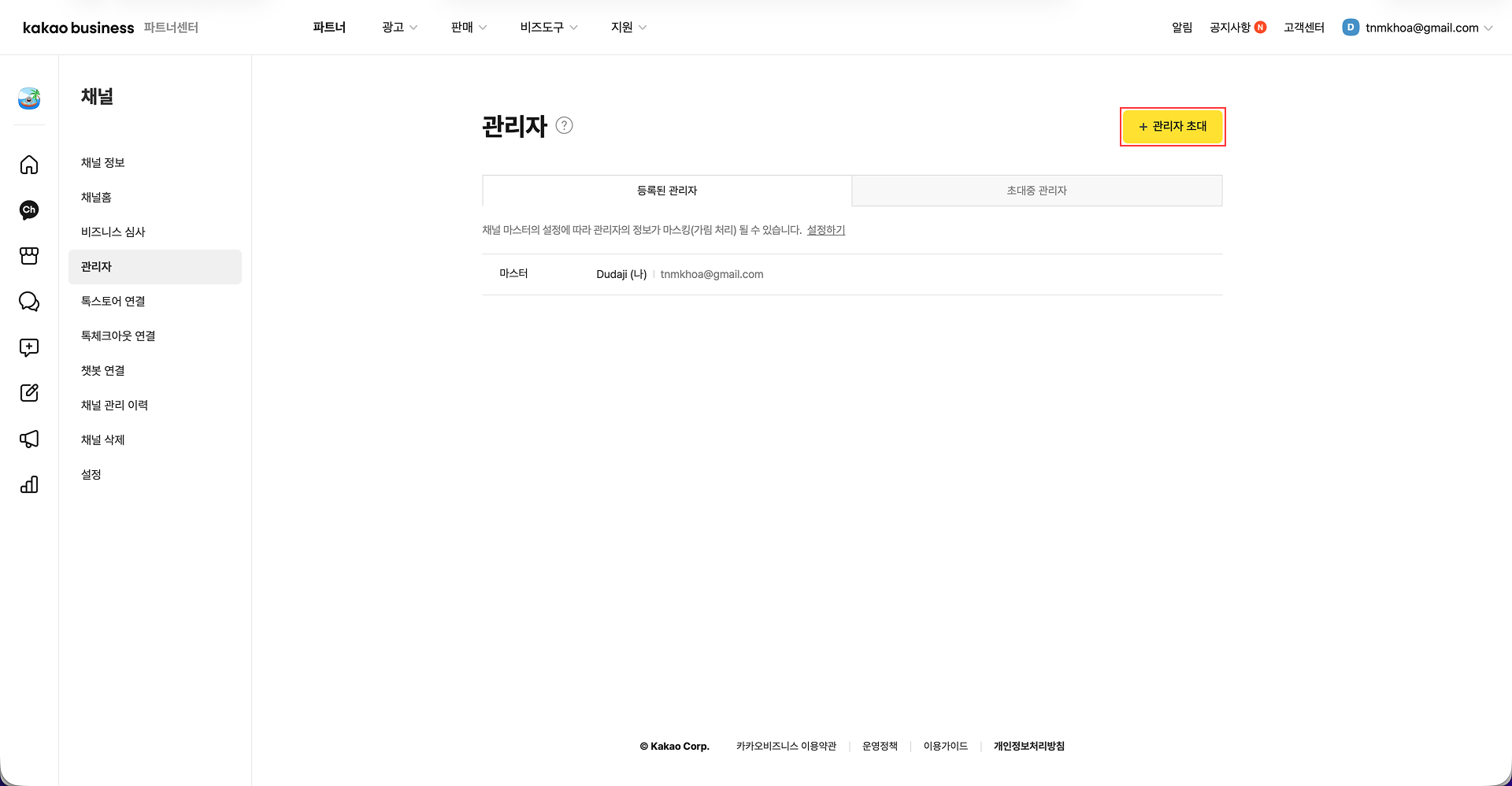
8단계: 관리자 설정 페이지에서 오른쪽 상단의 관리자 초대 버튼을 클릭합니다.
9단계: 관리자 초대 팝업에서 4단계에서 복사한 MChat 계정 이메일을 붙여넣은 다음 초대하기 버튼을 클릭합니다.
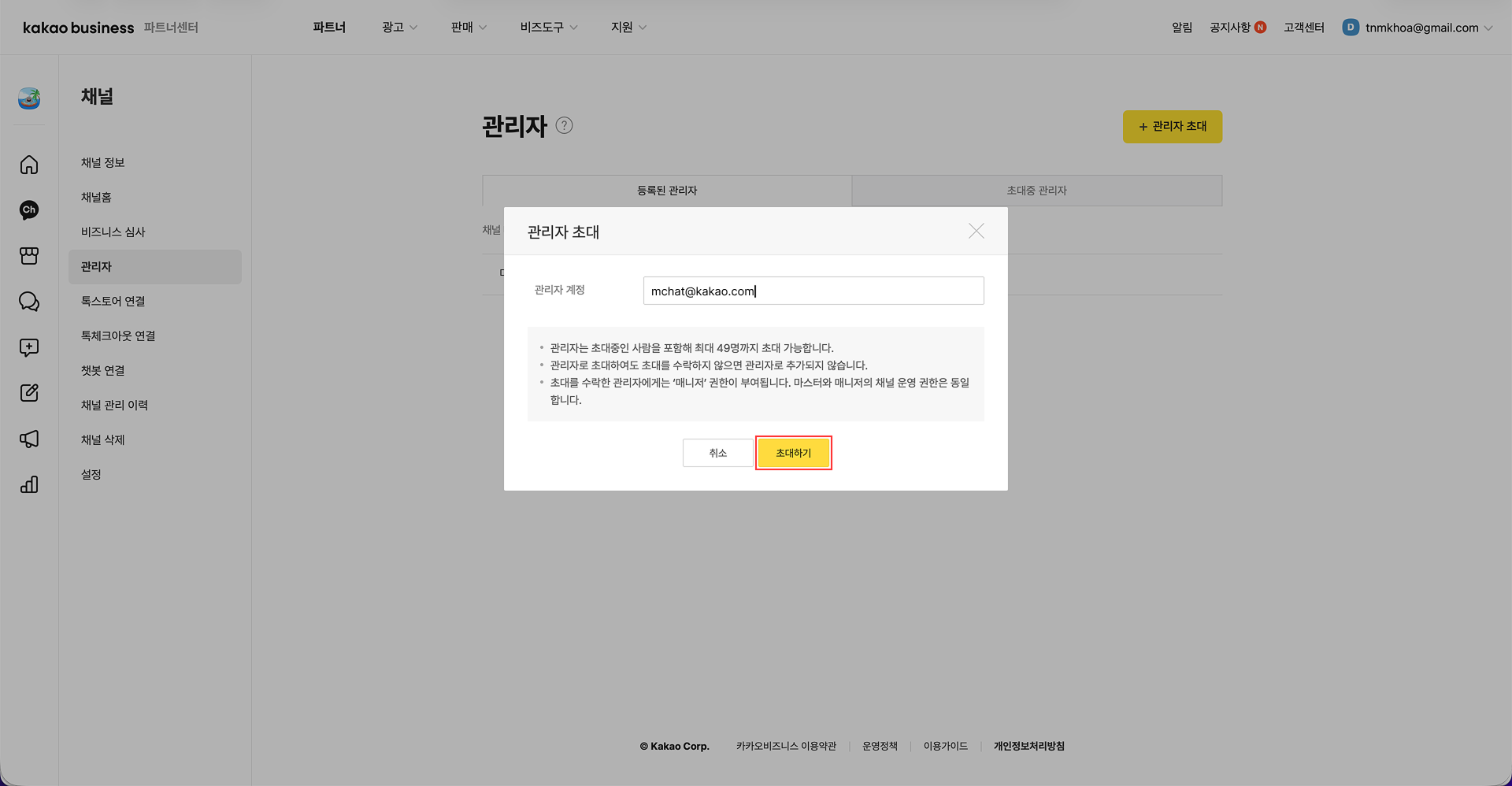
10단계: MChat 계정을 관리자로 성공적으로 초대한 후 MChat 카카오톡 통합 페이지로 돌아가서 페이지 하단의 관리자 등록 완료 버튼을 클릭합니다.
11단계: 관리자 등록이 완료되면 MChat 통합 설정에서 카카오톡 통합 상태가 승인 대기로 변경됩니다. MChat 관리자가 통합 요청을 승인할 때까지 기다려야 합니다. (승인에는 약 2-3일이 소요될 수 있습니다.)
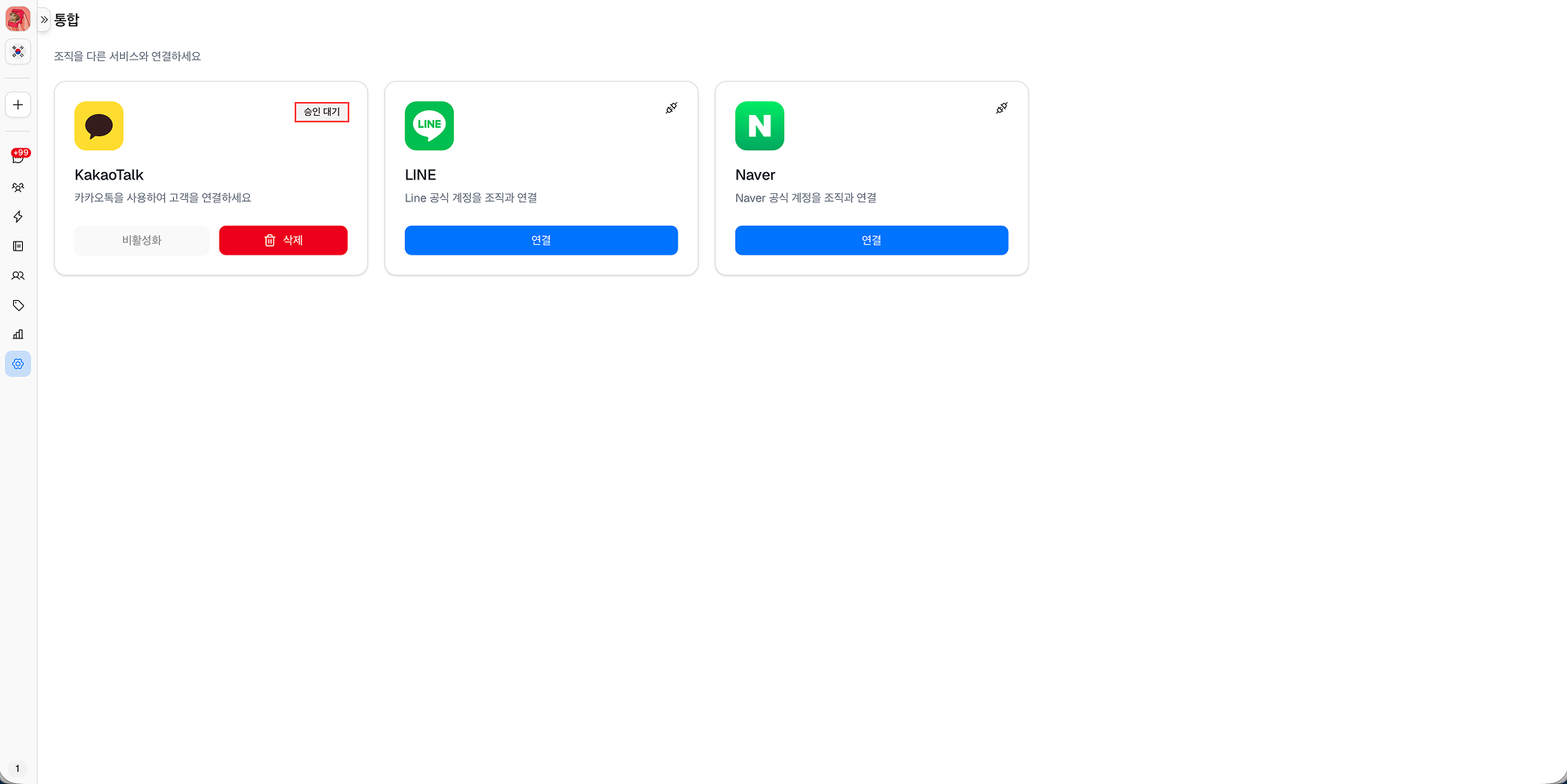
12단계: MChat 관리자가 통합 요청을 승인하면 MChat 통합 설정에서 카카오톡 통합 상태가 연결됨으로 변경됩니다. MChat과 카카오톡 통합이 성공적으로 완료되었습니다.