Chat Profile

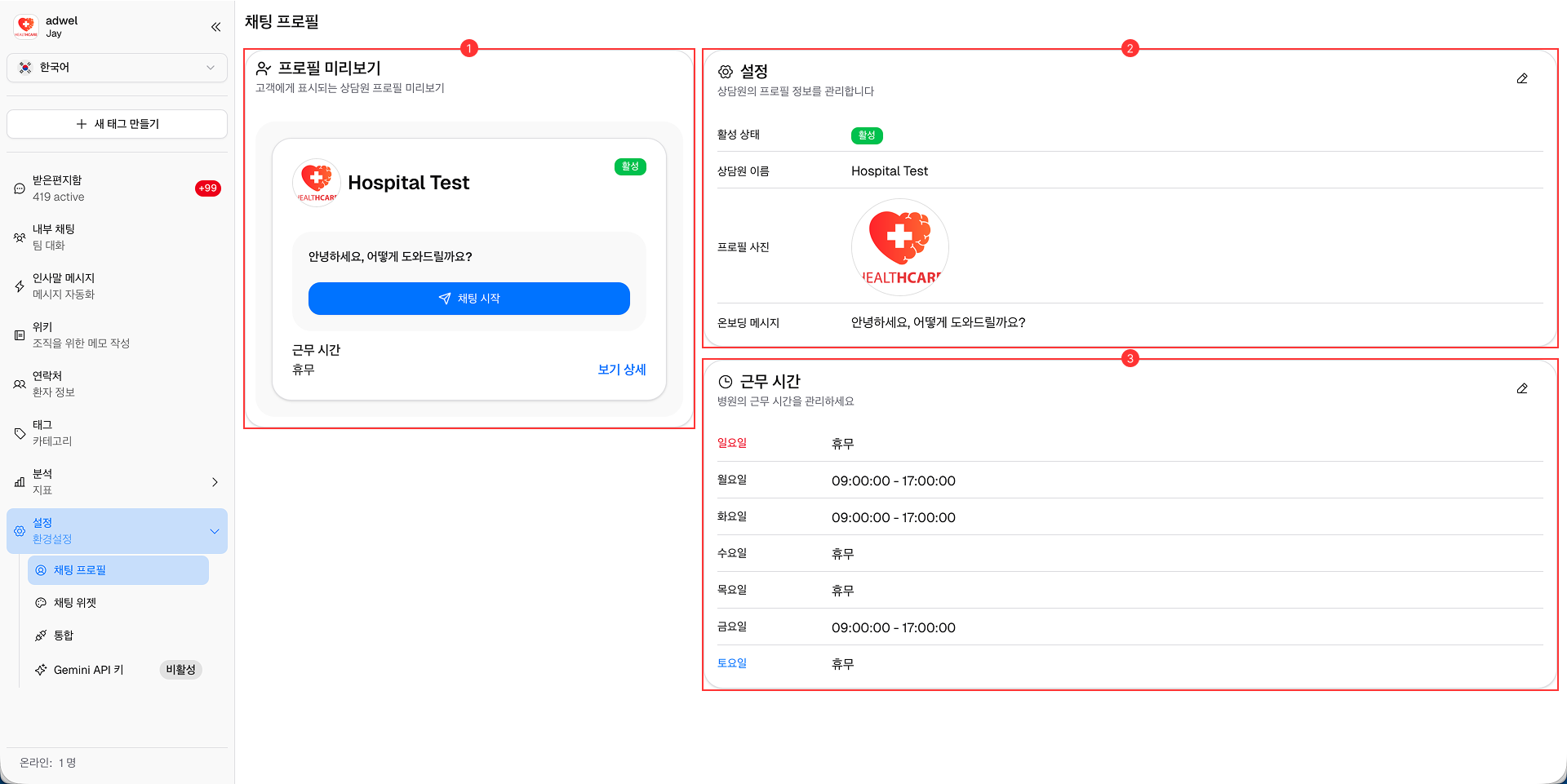
The Chat Profile Settings page allows you to customize and manage the MChat profile widget on your website.

It consists of the following main components:

Chat Profile Settings

  1. Profile Preview: This section displays a live preview of how the chat profile widget will appear on your website. It updates in real-time as you make changes to the settings.

  2. Profile Settings: This section contains various options to customize the chat profile widget.

  3. Working Hours: This section allows you to define the working hours for the chat widget.

Profile Preview

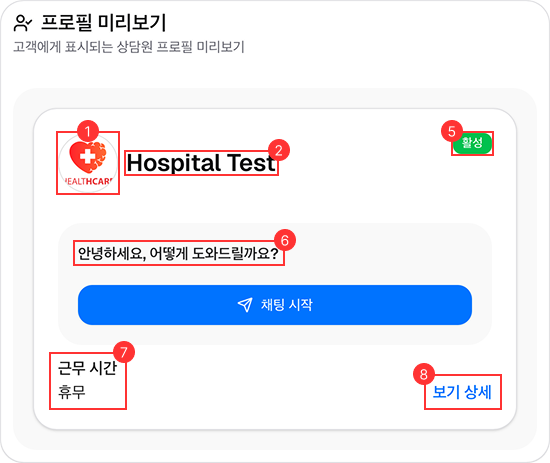
The Profile Preview section provides a real-time view of how the chat profile widget will look on your website. It reflects any changes made in the Profile Settings and Working Hours sections.

It consists of the following elements:

Profile Preview

  1. Profile Picture: Displays the profile picture of the agent or support team as set in the Profile Settings. (It and the hospital's profile picture are independent)

  2. Agent Name: Shows the name of the agent or support team as specified in the Profile Settings.

  3. Title: Displays the title of the chat widget, such as "Support" or "Customer Service", as set in the Profile Settings.

  4. Department: Shows the department associated with the chat widget, if applicable, as specified in the Profile Settings.

  5. Status Indicator: Indicates whether the chat widget is active or inactive based on the Active Status setting in the Profile Settings. (Only appear in Settings only - Hide on the live widget)

  6. Onboard Message: Displays the welcome message that users will see when they open the chat widget, as customized in the Profile Settings.

  7. Today's Working Hours: Shows the working hours for the current day based on the settings defined in the Working Hours section. If the chat widget is closed for the day, it will display "Closed".

  8. View Detail: Button to show the full working hours schedule when clicked.

Profile Settings

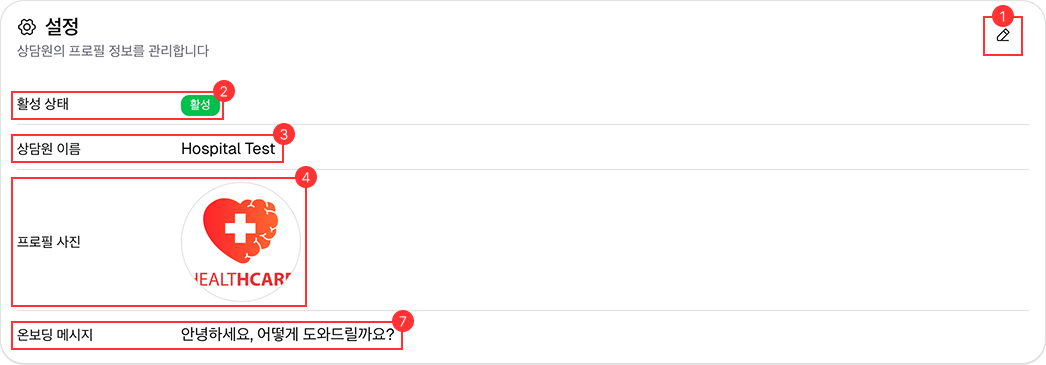
To customize the chat profile widget, you can adjust information in *Settings section.

It consists of the following:

Profile Settings

  1. Edit button: Click this button to enable editing of the profile settings fields.

  2. Active Status: Toggle the chat widget show or hide for your website.

  3. Agent Name: Specify the name of the agent or support team that will be displayed in the chat widget.

  4. Profile Picture: Upload or select a profile picture for the chat widget. (It and the hospital's profile picture are independent)

  5. Title: Set a title for the chat widget, such as "Support" or "Customer Service".

  6. Department: Choose the department that the chat widget will be associated with, if applicable.

  7. Onboard Message: Customize the welcome message that users will see when they open the chat widget.

Working Hours Settings

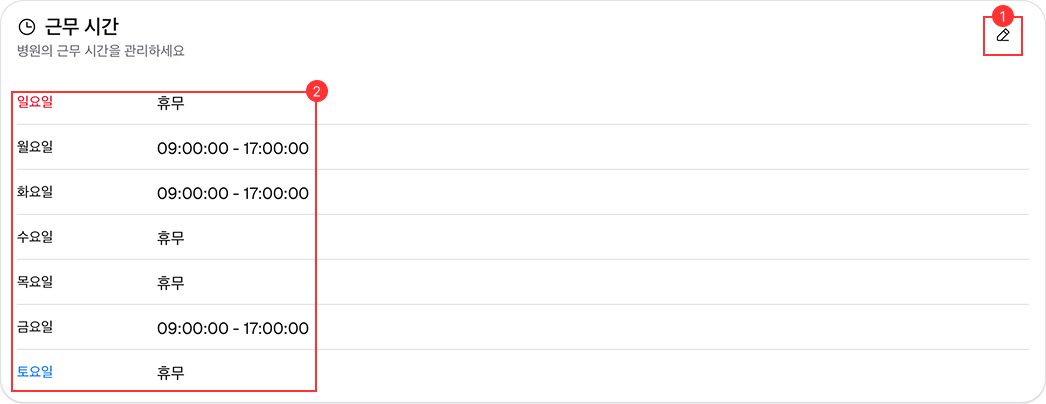
To define the working hours for the chat widget, use the Working Hours section. It is useful for either patient to know when support is available or to use as a condition in Greeting Message.

It consists of the following:

Working Hours Settings

  1. Edit button: Click this button to enable editing of the working hours fields.
  2. Working hours list: List of days in a week with corresponding working hours. You can set specific working hours for each day or mark days as "Closed".

Configure Working Hours

To configure the working hours for the chat widget, follow these steps:

Step 1: Click the Edit button to enable editing of the working hours fields.

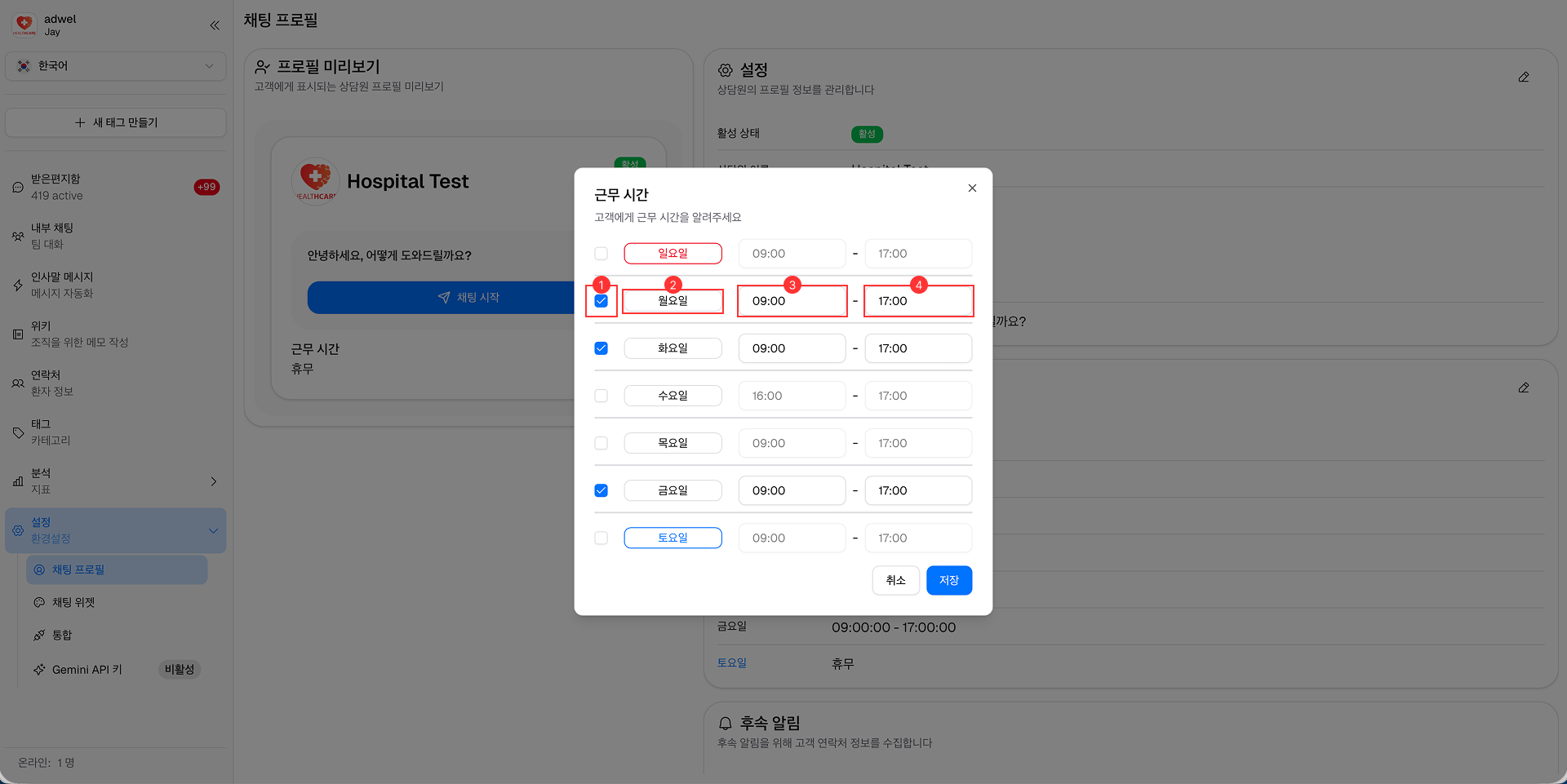
Step 2: A Working Hours Configuration popup will appear which show the list of days in week. You can change these settings: (apply for each day)

Working Hours Configuration

  1. Checkbox: Check the checkbox to enable working hours for that day. Uncheck it to mark the day as "Closed".

  2. Name of the day: Displays the name of the day (e.g., Monday, Tuesday, etc.).

  3. Start Time: Set the start time for the working hours on that day.

  4. End Time: Set the end time for the working hours on that day.

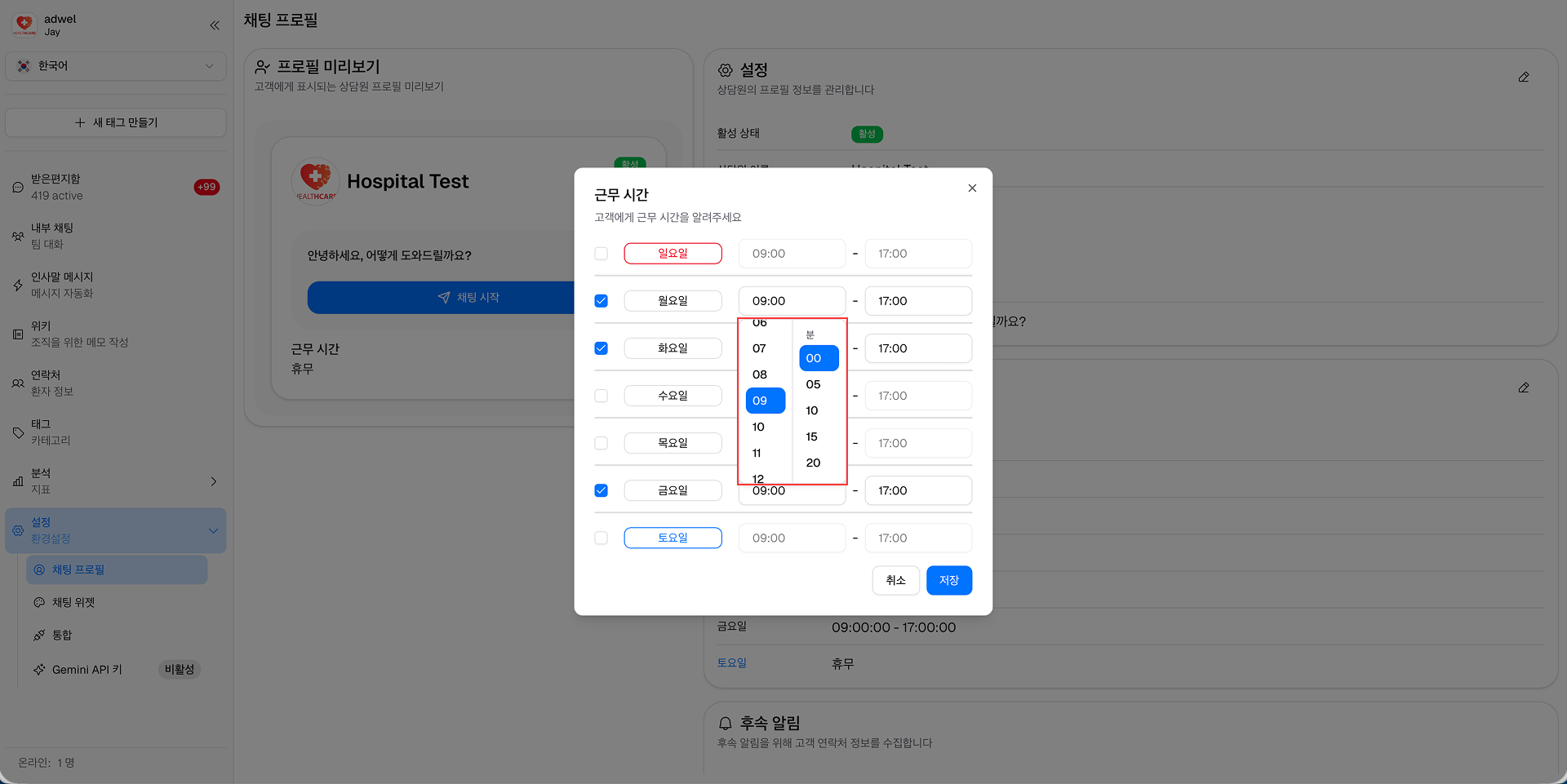
Step Optional: Change Working Hours: To change the working hours for a specific day, click on the Start Time or End Time fields and select the desired time from the dropdown menu.

Time Selection

  1. Hour Selection: Stay on the left column. Divided into 24 units (0-23).

  2. Minute Selection: Stay on the right column. Divided into 12 units (0, 5, 10, 15, 20, 25, 30, 35, 40, 45, 50, 55).

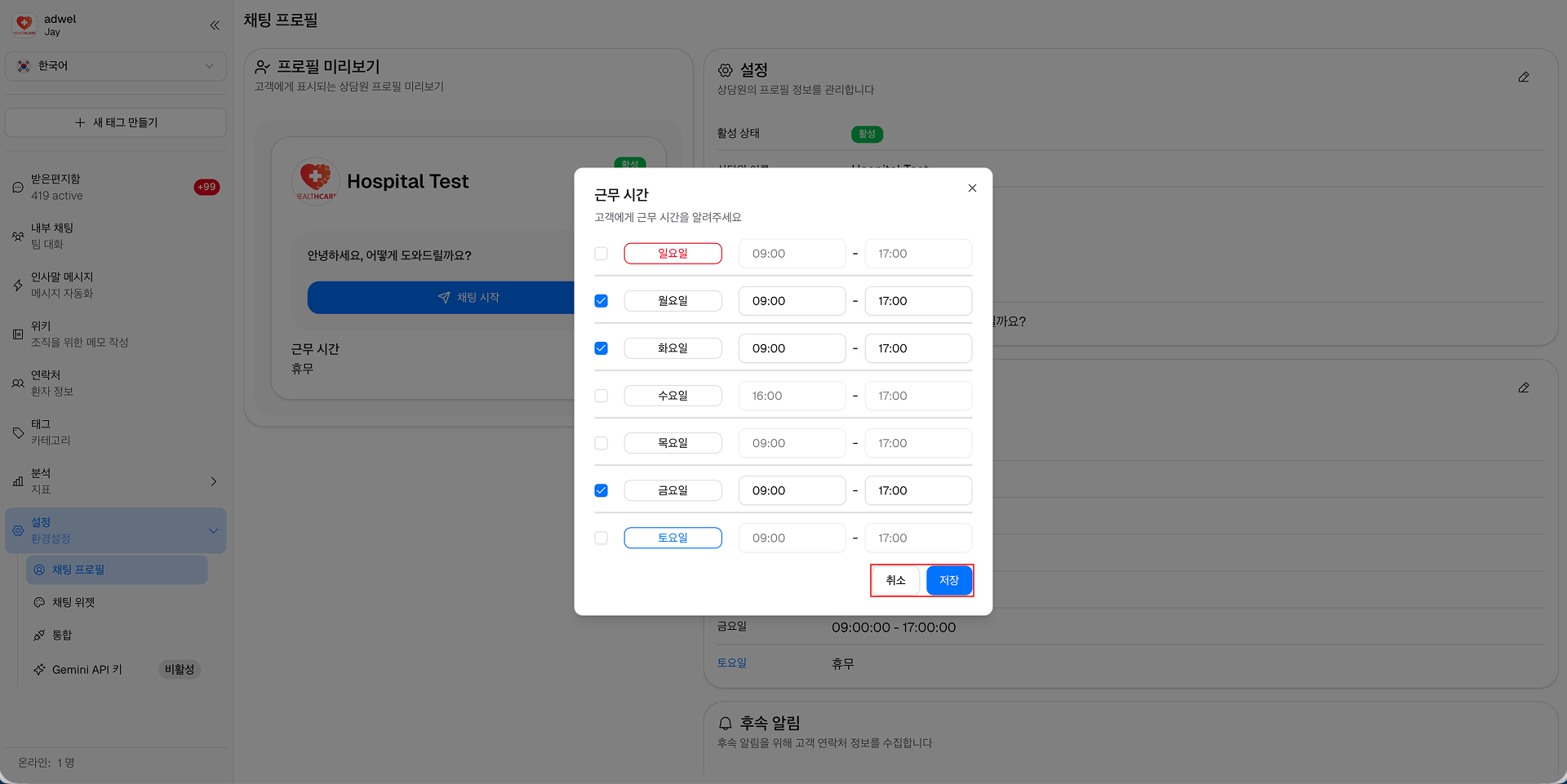
** Step 3**: After configuring the working hours for each day, click the Save button to apply the changes. If you want to discard the changes, click the Cancel button.

Working Hours Configuration