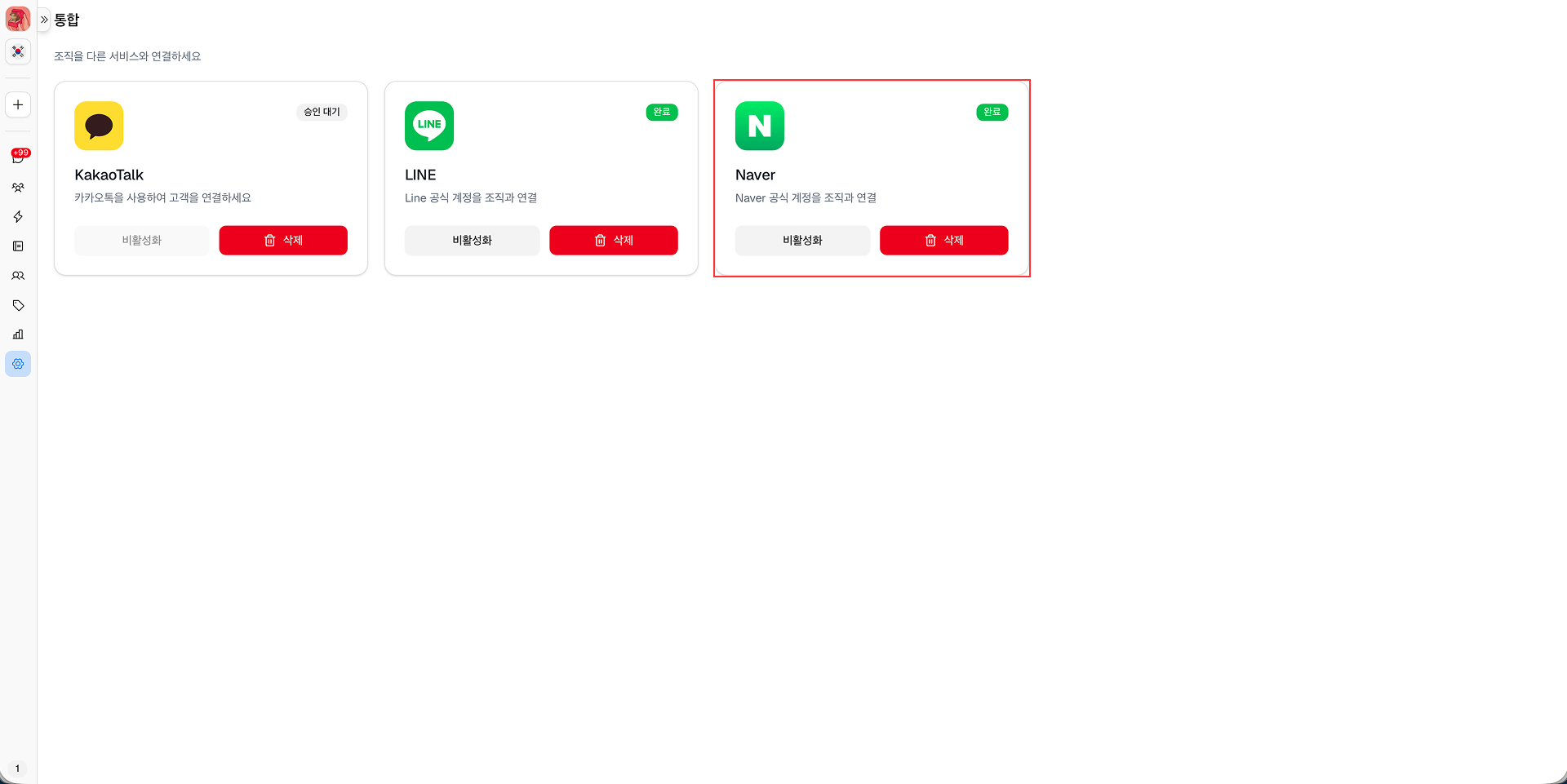
네이버 통합
MChat과 네이버를 통합하려면 다음 단계를 따르세요.
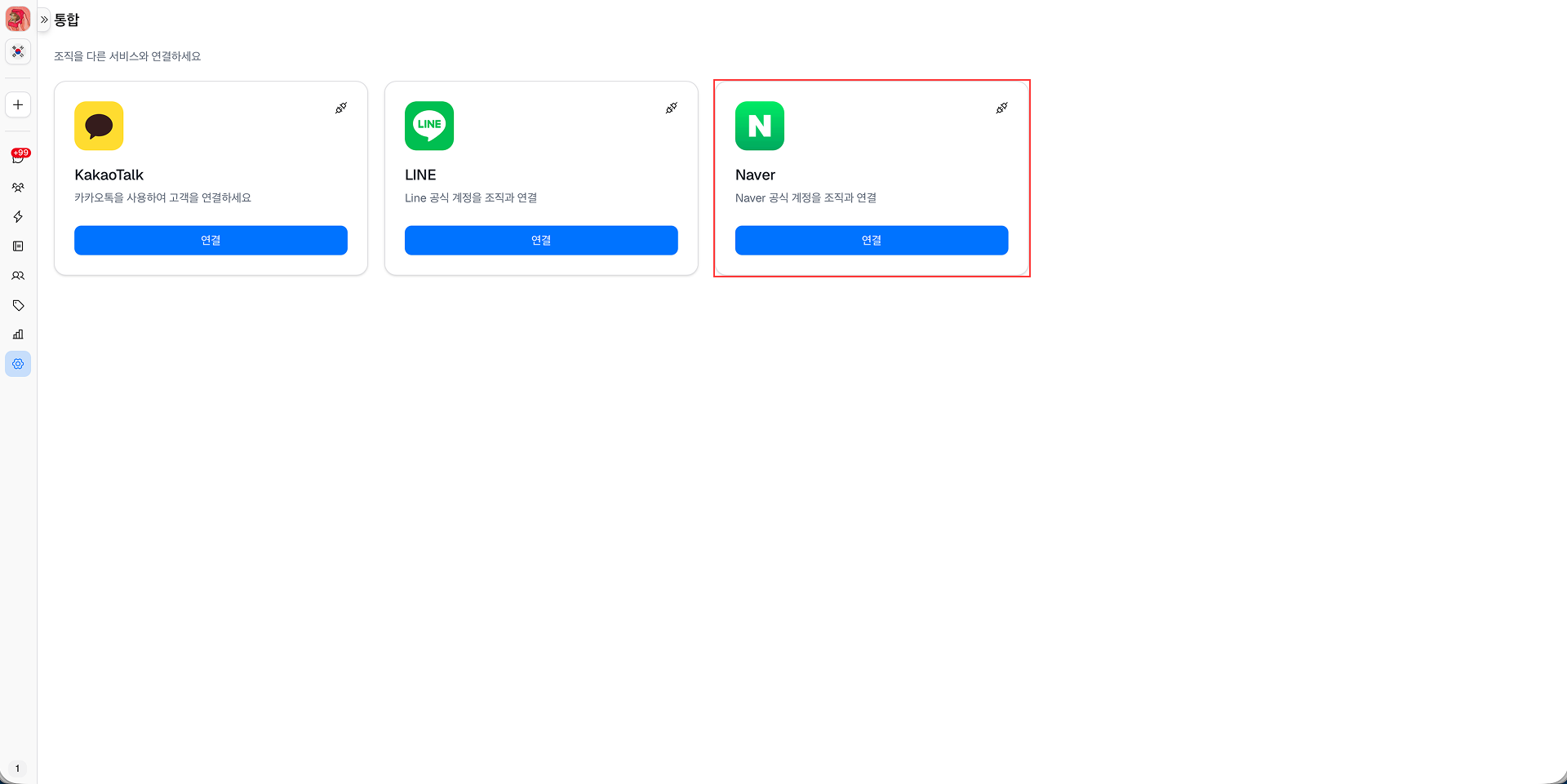
1단계: 설정 → 통합에서 지원되는 메시징 서비스 목록에서 네이버의 연결 버튼을 클릭합니다.
2단계: 통합 페이지가 열립니다.
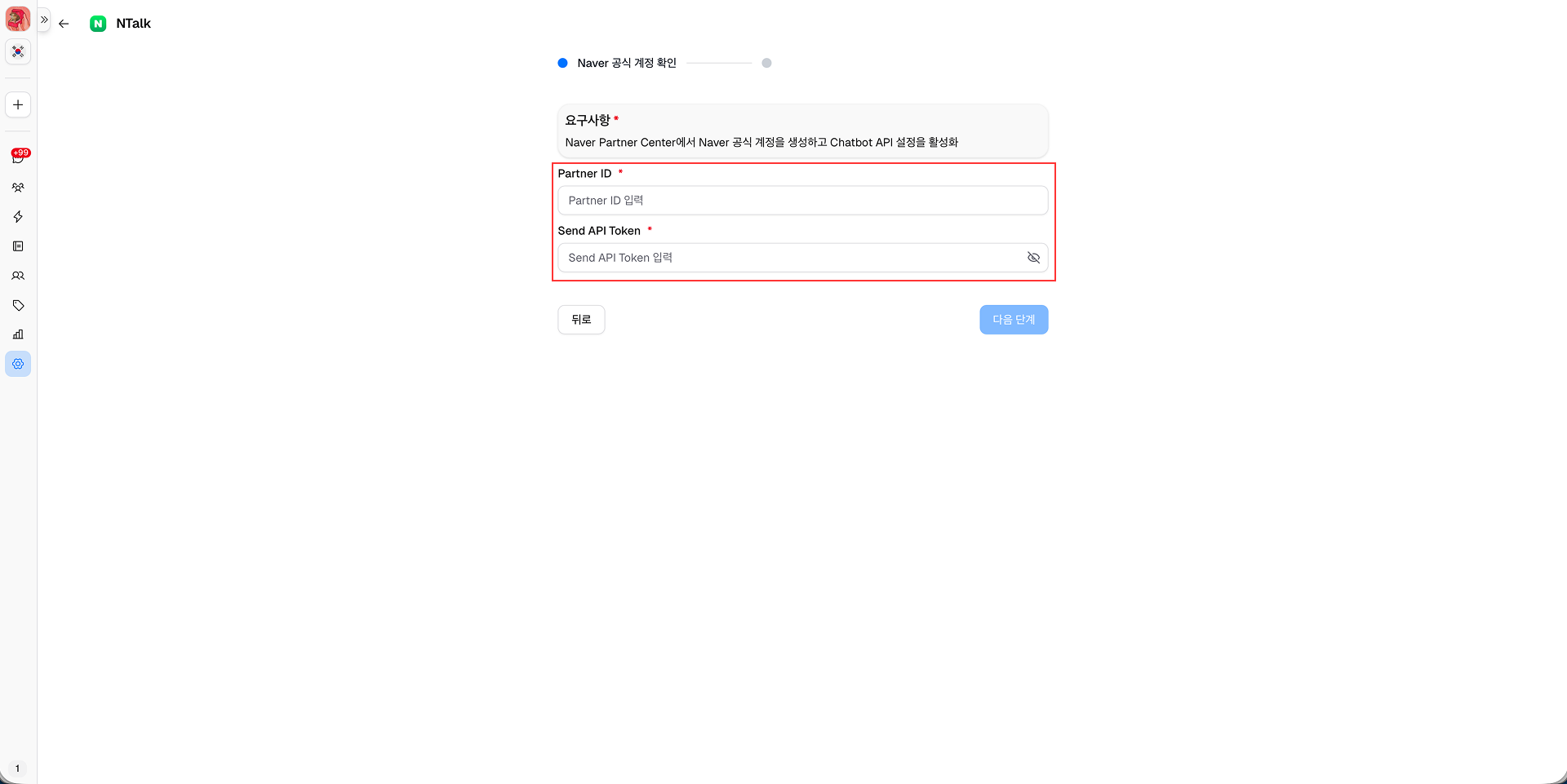
필수 정보를 입력합니다 (요구 사항: 네이버 파트너 센터에 네이버 계정을 생성하고, 네이버 파트너 센터의 챗봇 API 설정에서 이벤트 전송을 활성화하고, 전송 API의 토큰 값을 확인해야 합니다.):
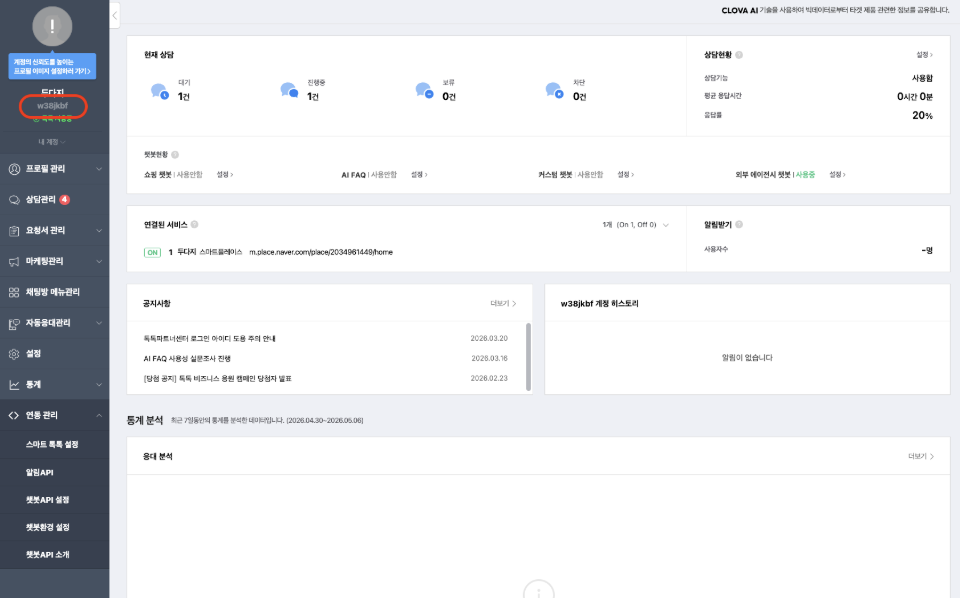
- 파트너 ID: 파트너 ID는 네이버 파트너 센터 대시보드 왼쪽 상단에서 확인할 수 있습니다: https://partner.talk.naver.com/.
-
전송 API 토큰: 네이버 파트너 센터의 챗봇 API 설정 페이지에서 얻을 수 있습니다.:
[네이버 계정] → 챗봇API 설정 → 보내기 API

없다면 새로 생성할 수 있습니다.
3단계: 필수 정보를 입력한 후 다음 단계 버튼을 클릭하여 다음 단계로 이동합니다.
4단계: 제공된 웹훅 URL을 복사합니다.
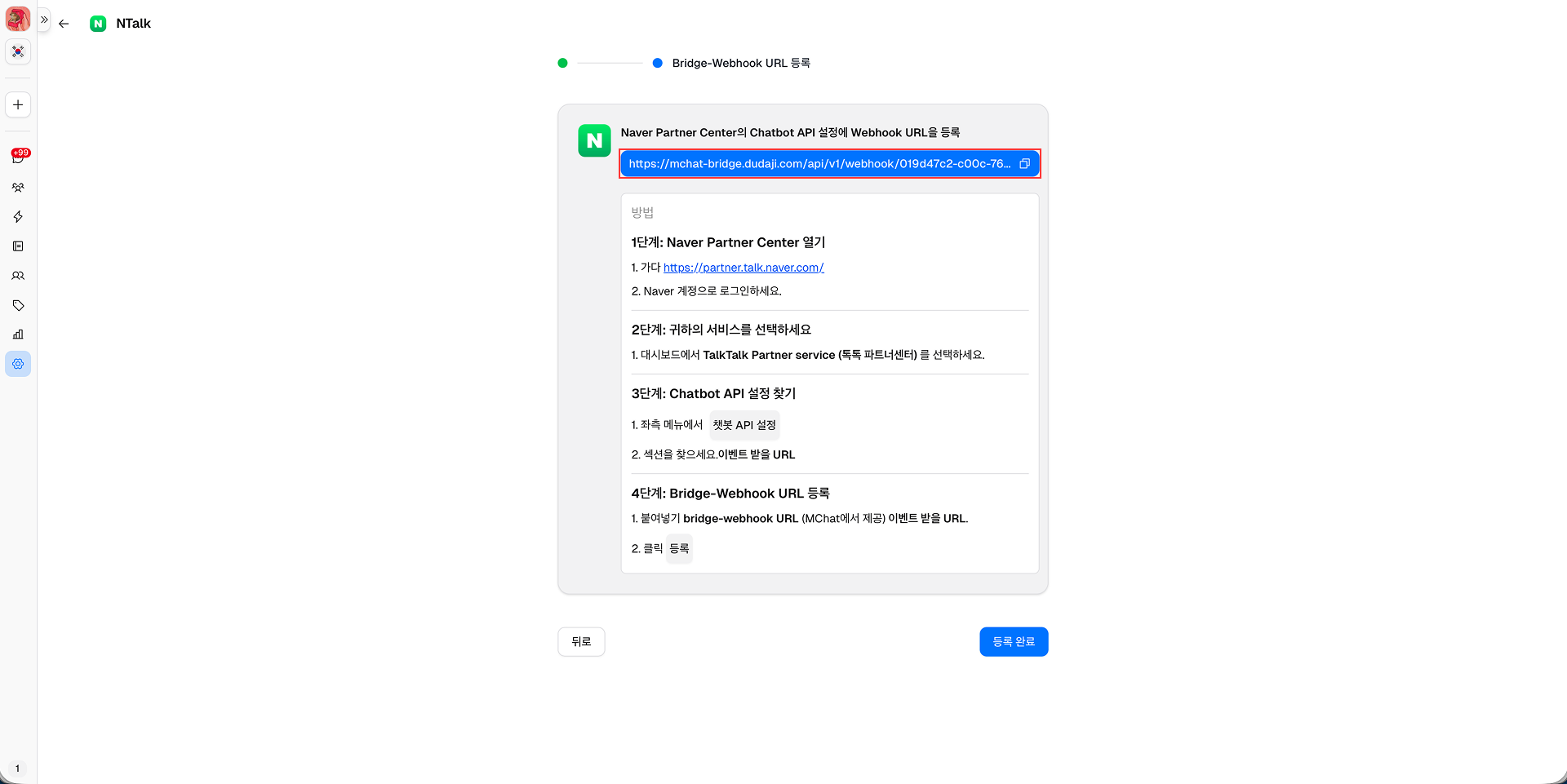
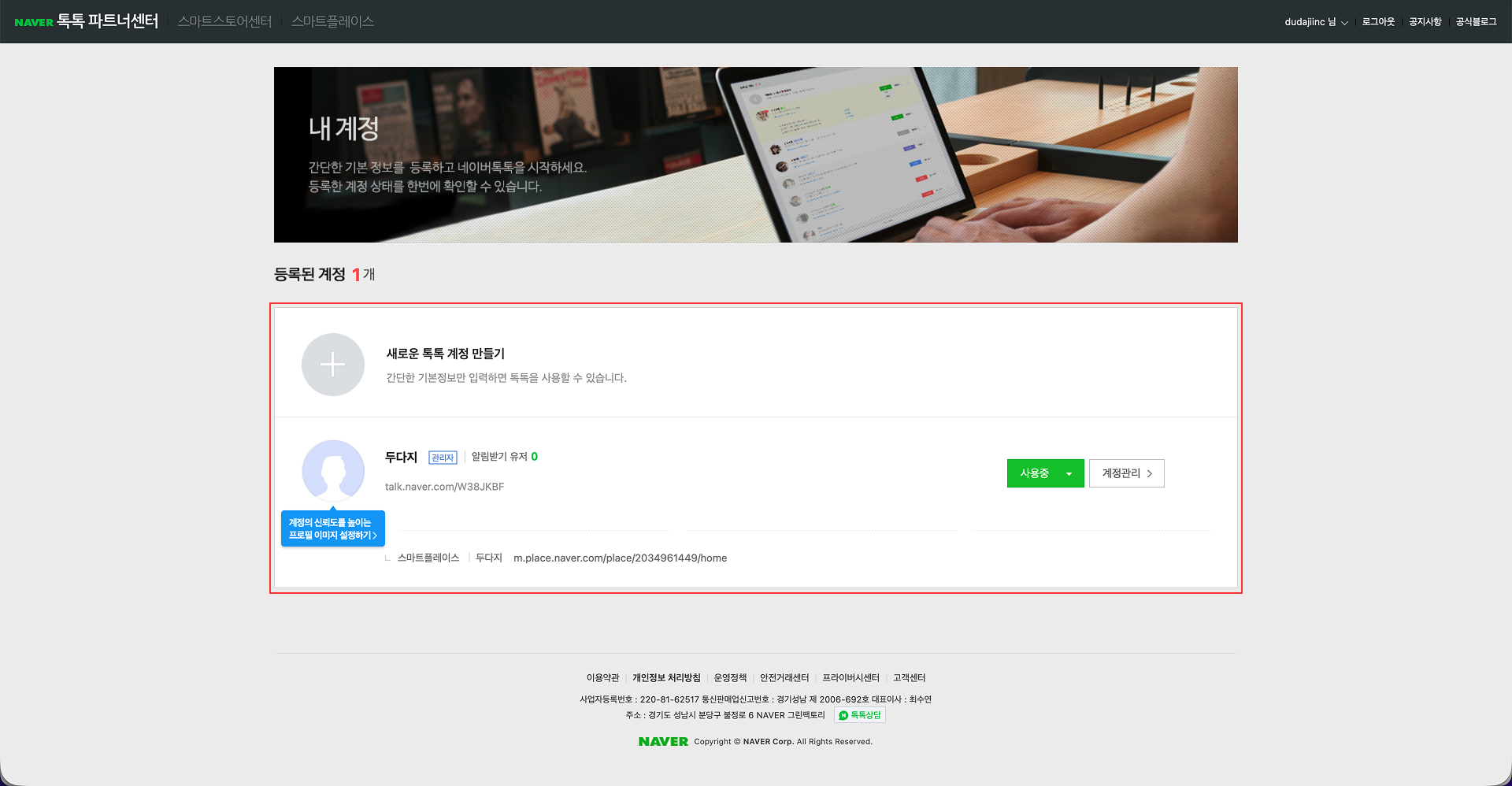
5단계: https://partner.talk.naver.com/ 로 이동하여 네이버 파트너 센터 자격 증명으로 로그인합니다.
6단계: MChat 통합을 위해 생성한 네이버 계정을 선택합니다.
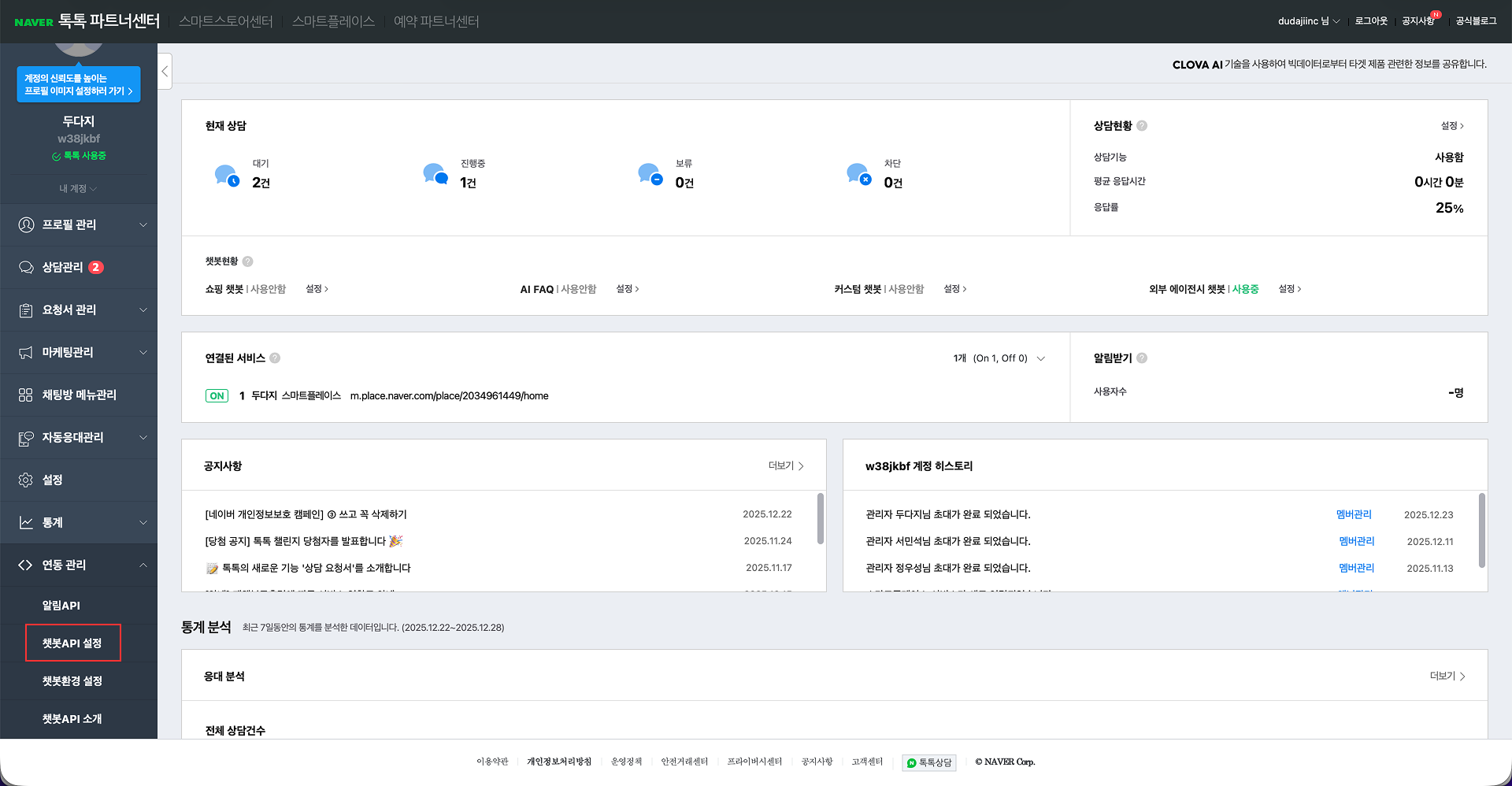
7단계: 왼쪽 패널에서 챗봇 API 설정을 클릭합니다.
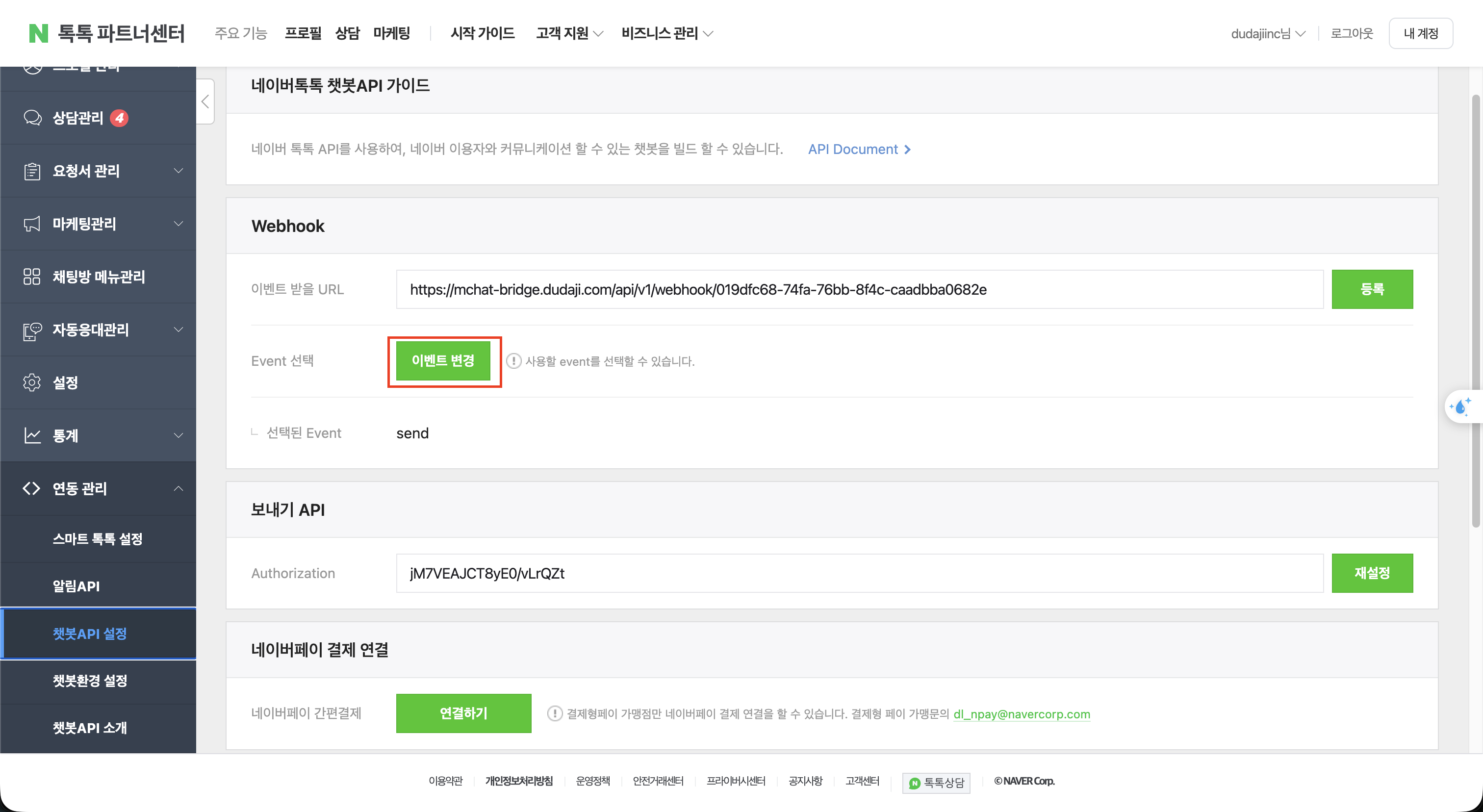
8단계: 챗봇 API 설정 페이지에서 웹훅 섹션의 이벤트 받을 URL 필드를 찾아 4단계에서 복사한 웹훅 URL을 붙여넣은 다음 등록 버튼을 클릭합니다.
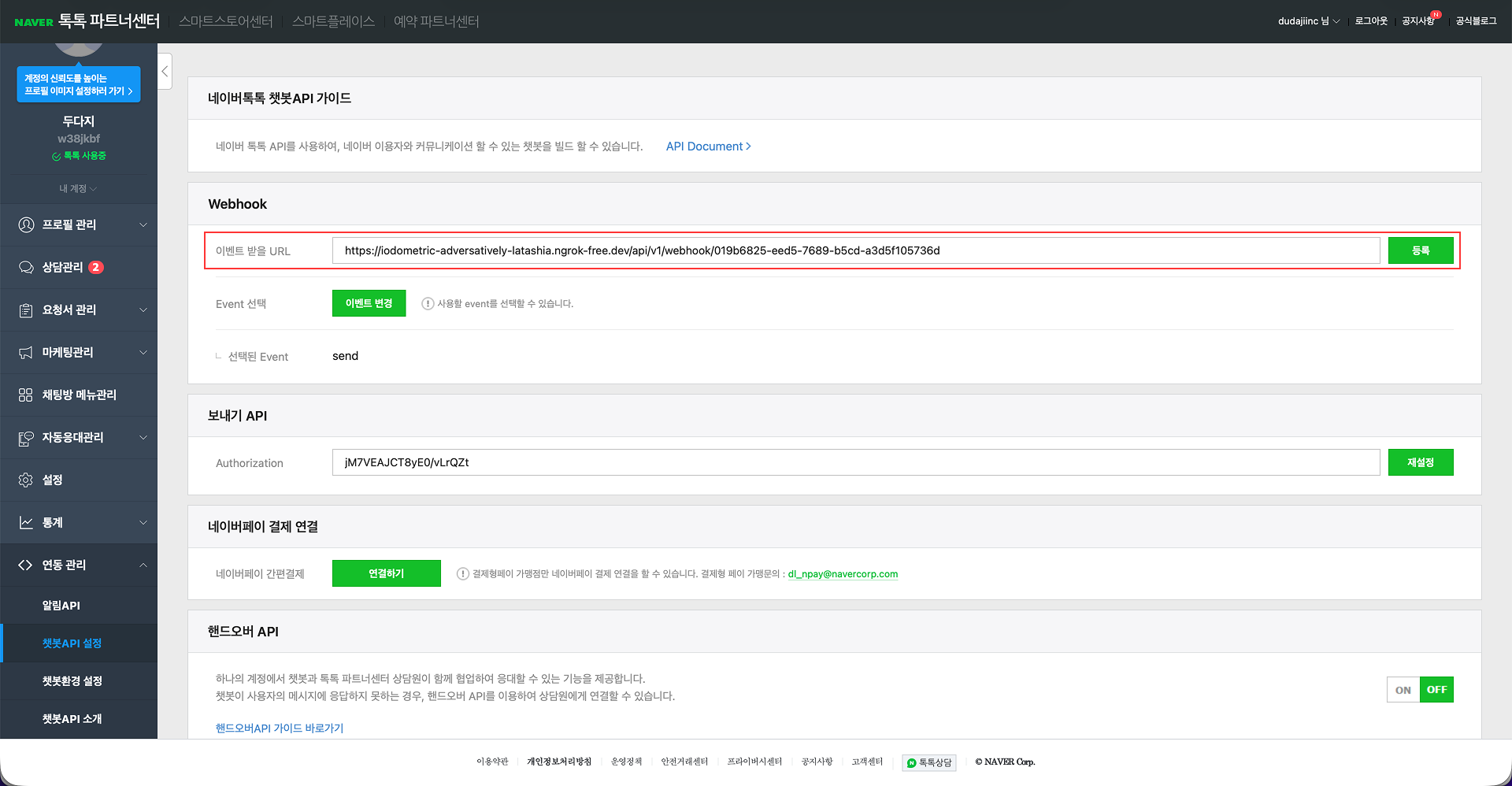
9단계: 웹훅 섹션에서 Event 선택 필드의 이벤트 변경 버튼을 클릭하여 이벤트 선택 팝업을 엽니다.
10단계: 팝업에서 send 이벤트와 echo 이벤트를 모두 선택한 후 저장 버튼을 클릭하여 변경 사항을 저장합니다.
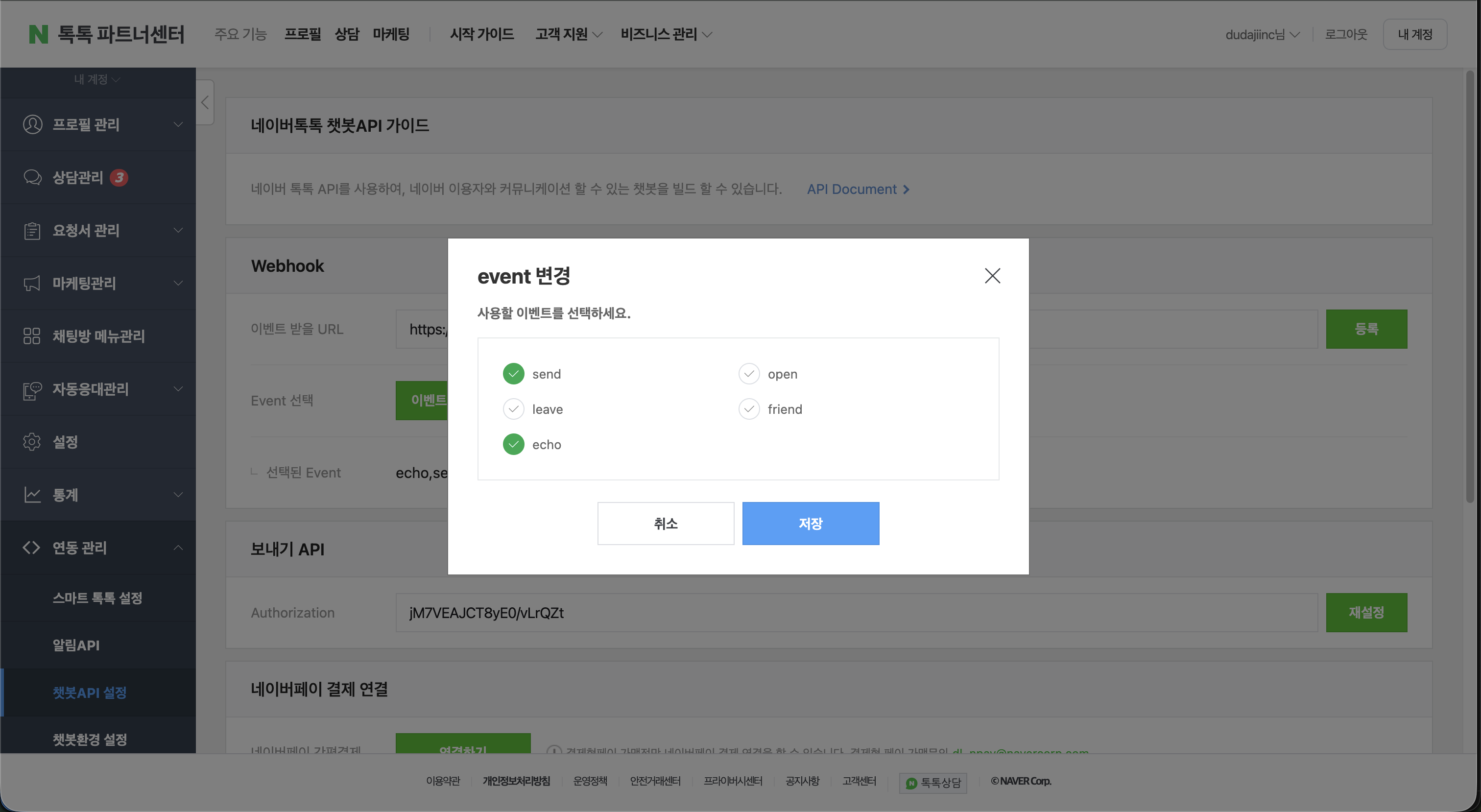
참고: echo 이벤트는 MChat이 Naver Talk Manager를 통해 전송된 메시지를 수신하고 표시하는 데 필요하며, 두 플랫폼 간 완전한 대화 가시성을 보장합니다.
11단계: 웹훅 URL 등록이 성공적으로 완료되면 MChat 네이버 통합 페이지로 돌아가서 페이지 하단의 등록 완료 버튼을 클릭합니다.
12단계: 등록이 완료되면 MChat 통합 설정에서 네이버 통합 상태가 활성으로 변경됩니다. MChat과 네이버 통합이 성공적으로 완료되었습니다.