Add Members to Private Group

There are two ways to add members to an Private Group chat in the Internal Chat:

Method 1: Add Member when Creating Private Group

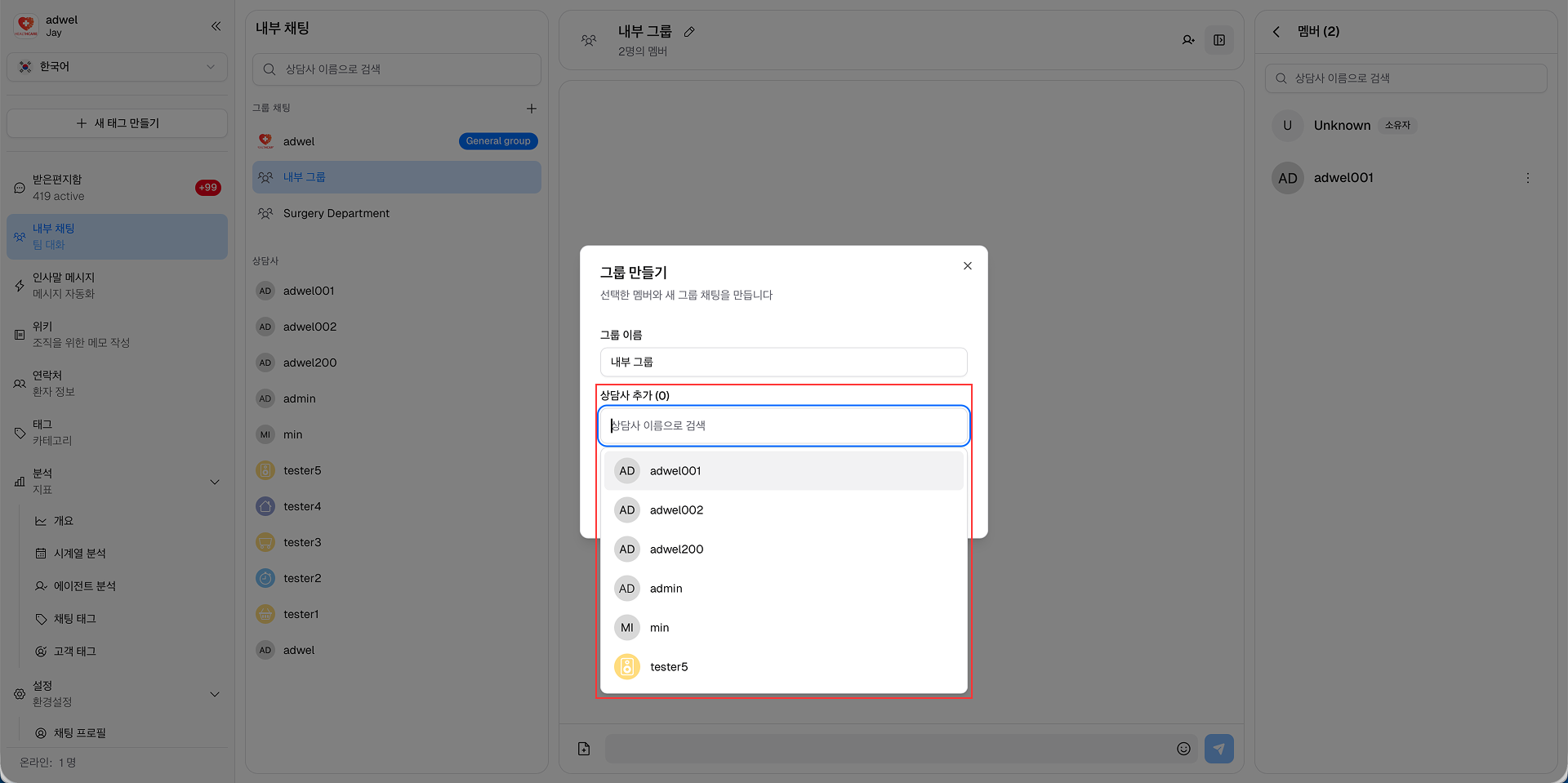
When creating a new Private Group chat, you can add members during the creation process.

Add Member Step 1

You can type the names of the agents you want to add to the private group chat in the Add Members field. You can add multiple members by pressing Enter after each name.

After adding all desired members, click the Create button to create the private group chat with the selected members.

Method 2: Add Member in Private Group Chat Header or Chat Information Panel

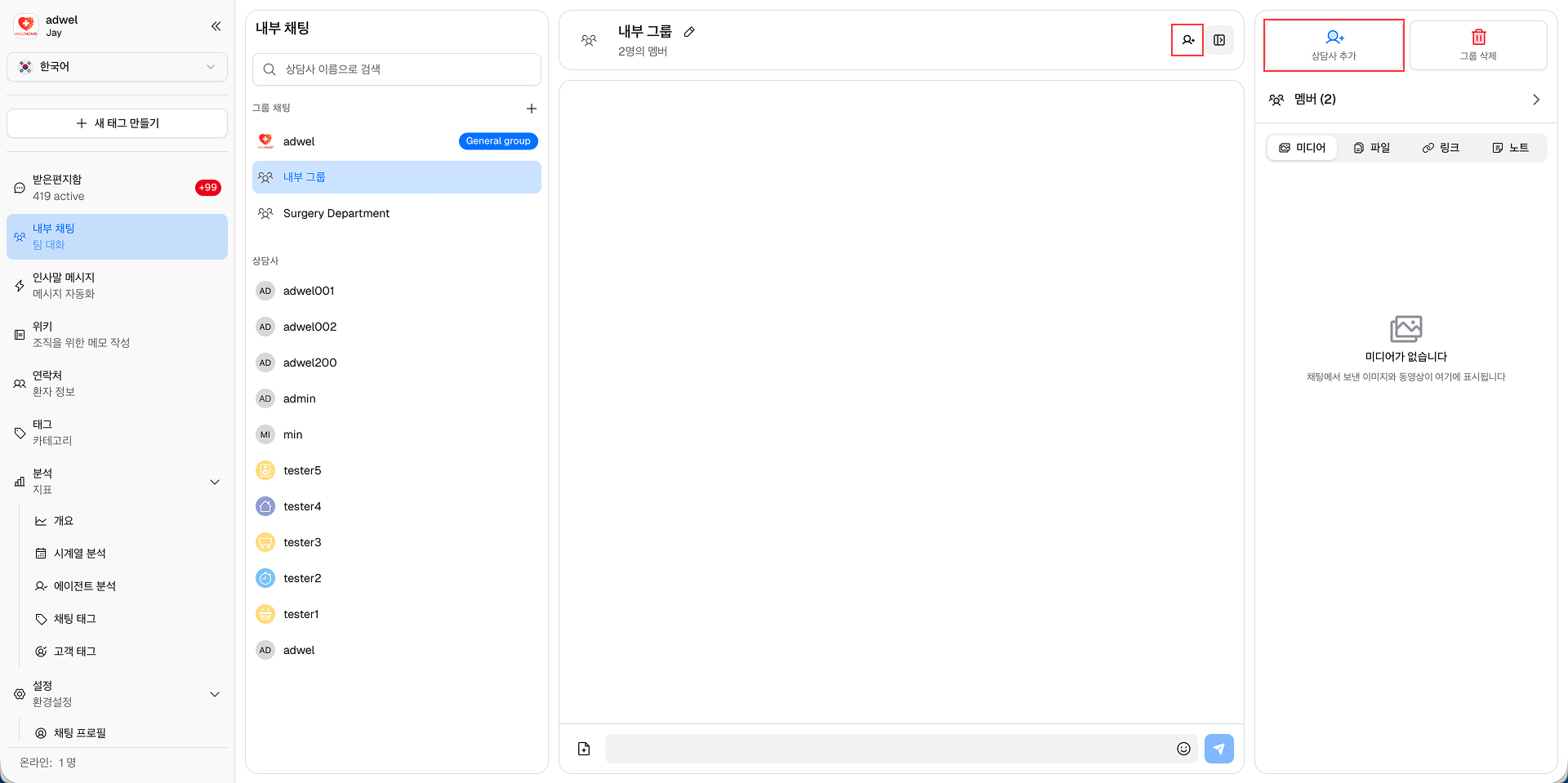
You can also add members to an existing Private Group chat by using the Add Member Button in the Private Group Chat Header or the Add Agent Button in the Chat Information Panel.

Step1: In the Private Group chat, click on the Add Member Button in the Private Group Chat Header. Or click on the Chat Information Button to open the Chat Information Panel, then click on the Add Agent Button.

Add Member Step 1

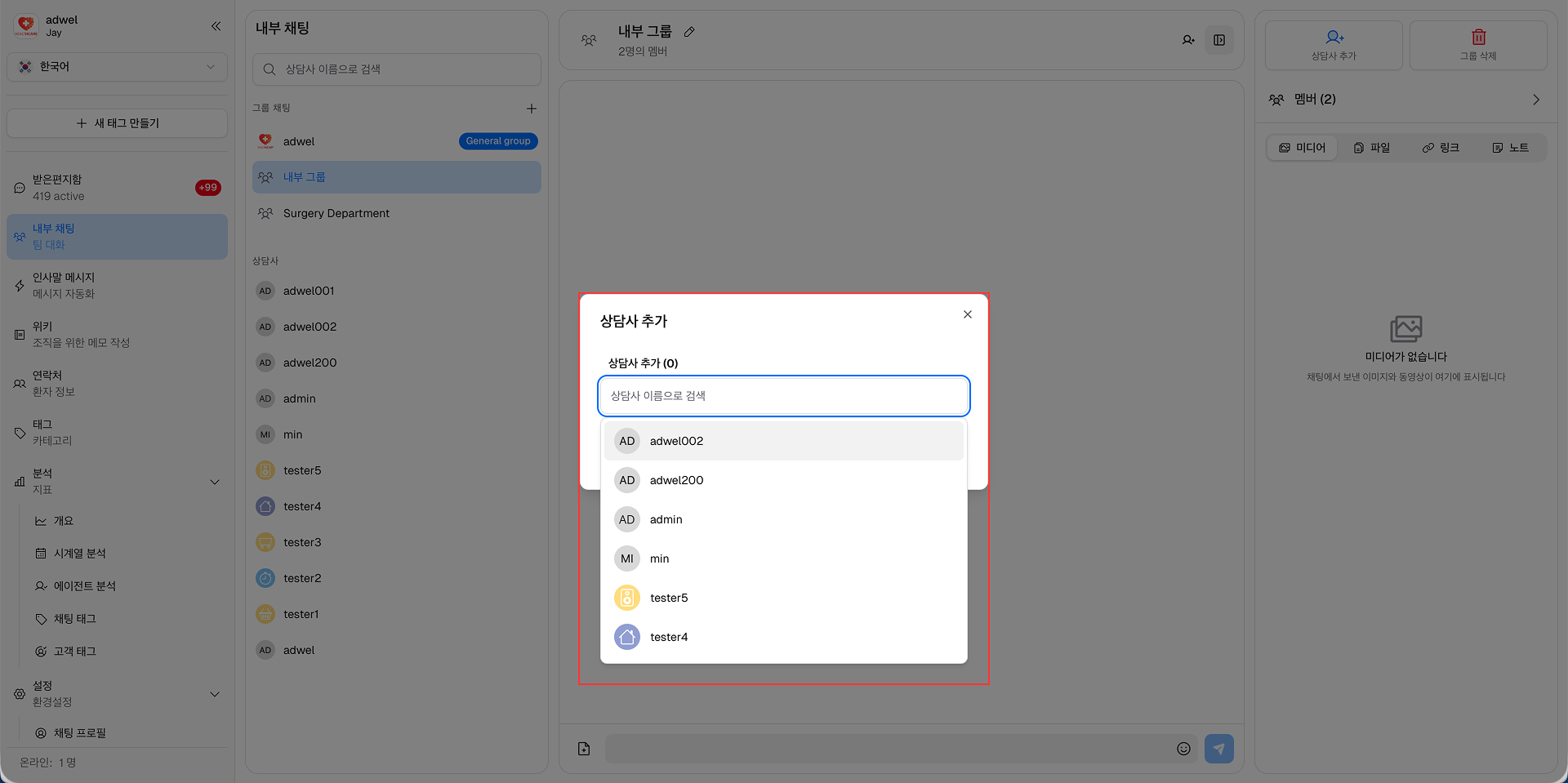
Step 2: A pop-up window will appear. In the Add Members field, type the names of the agents you want to add to the private group chat. You can add multiple members by pressing Enter after each name.

Add Member Step 2

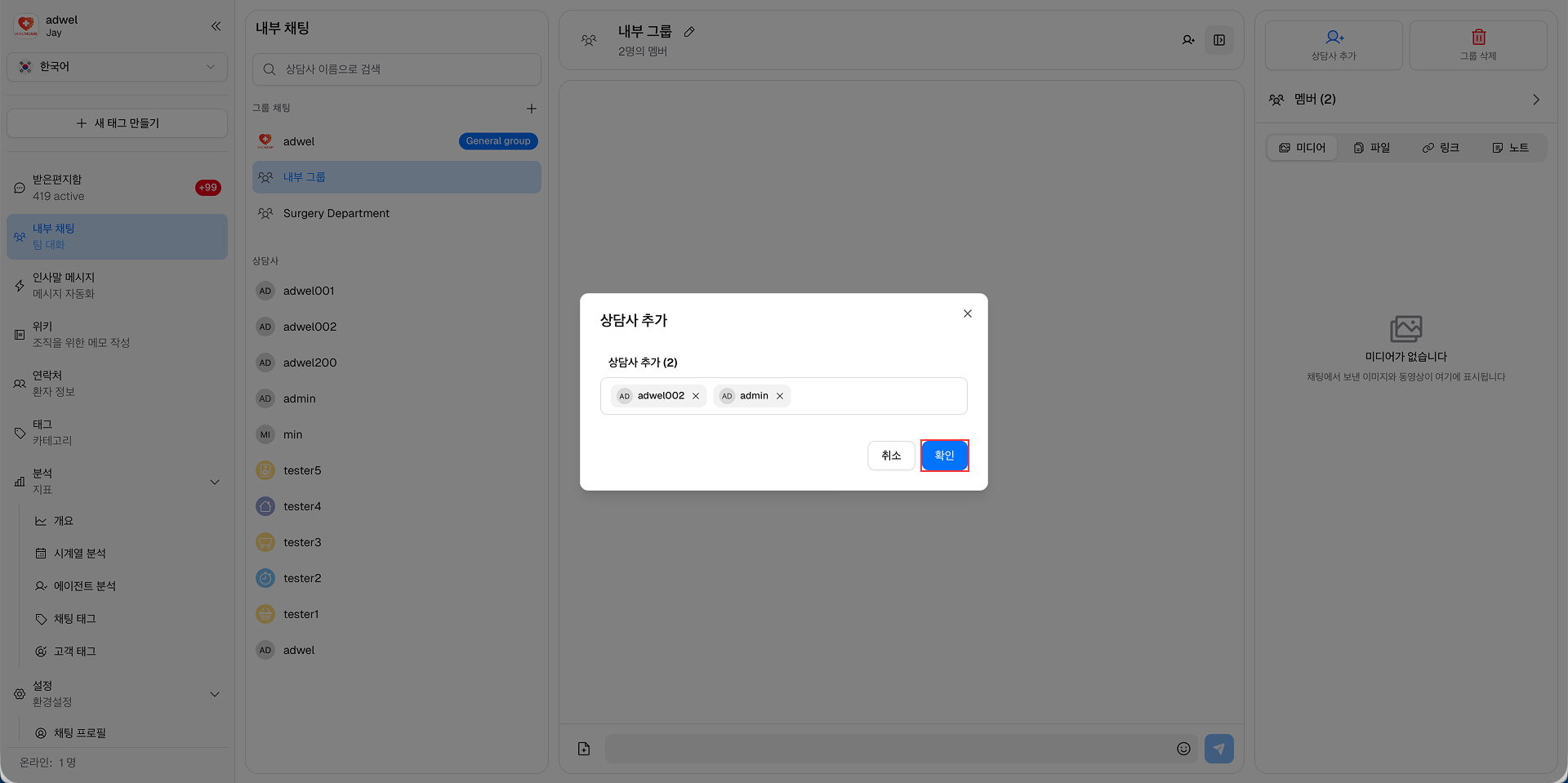
Step 3: After adding all desired members, click the Confirm button to add the selected members to the private group chat.

Add Member Step 3